

Workspace Settings
Set your company logo and name, and choose whether deleted documents can be restored at any time or for 30 days.
Who can do this: Admins.
Open the Organization Page
Click Settings at the bottom of the left navigation.
In Organisation Settings, click Organization.
Change the Logo or Name
Under Company logo, click Upload image.
Choose a PNG, JPEG, or GIF under 10MB.
Under Company Name, type the new name.
To take the logo off, click Remove.
Choose the Organisation Mode
Under Organisation Mode, click Allow Deletion or Archive Only.
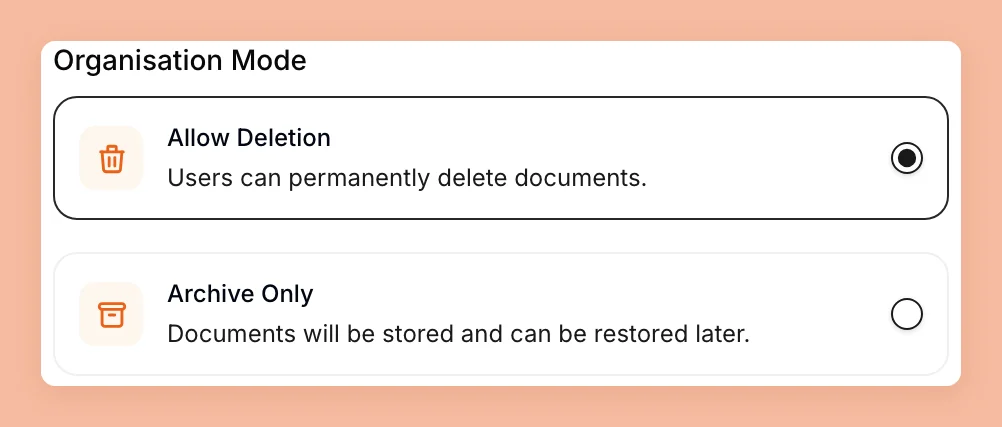
With Allow Deletion, a deleted document can be restored for 30 days. With Archive Only, it can be restored at any time. To learn what restoring does, see Archive, Delete, and Restore.
What Archive Holds
Deleted documents and tags go to Archive in the left navigation. Each row shows what happened, who did it, and when.
| Column | What it shows |
|---|---|
| Time Remaining | The countdown of the 30-day window. |
| Action Type | How the item arrived, Delete or Archive. This helps in a workspace that has changed modes and holds both kinds of item. |
| Last Status | The status the item had when it was deleted, such as Draft. |
A restored item returns to its original folder with its tags and status as they were. A deleted tag can be restored from Archive too. An empty folder is deleted outright and skips Archive.
Check That It Worked
The mode you chose shows a filled circle on the right of its box, and the new logo shows next to Company logo.
Common Questions
Can We Change the Mode Later?
Yes. An Admin can switch the mode at any time.
Where Do I Connect Slack?
Slack is under Admin, not Settings. See Connect Slack.
Next Steps
- Plans, Storage, and Billing: Billings, in the same side menu.
- Set Up a Custom Domain: Domains, in the same side menu.
- Delete a Workspace: the Danger Zone at the foot of this page.
New to AllyMatter? Start a 30-day trial. No credit card required.