

Review Dates and Expiry Dates
A document can carry a review date, which flags it for a check, or an expiry date, which hides it from its audience.
How the Two Dates Differ
| Review by date | Expiry date | |
|---|---|---|
| What it does | Flags the document for a check | Hides the document |
| When the date arrives | The document stays visible, and a review alert appears on it | The document is hidden from its whole audience |
| Who keeps seeing it | Everyone who already could | Its Editor and Admins |
| Next date | The Editor picks a new date after each review | A single date |
| What settles it | Changing the date or re-approving the document | Re-approving the document |
| Are people asked again? | Only after an edit | Only after an edit |
Both are optional, and the document's Editor can set either at any stage. A document carries one or the other at a time, and switching between Expiry date and Review by date clears the date already picked. A review date is a single date from a date picker. It does not repeat. After each review, the Editor picks the next date, and that sends the document back through approval.
Review Dates
Use a review date when a policy should stay in force while someone checks it. The alert stays on the document until the date is changed or the document is re-approved, so a review that is not done stays flagged.
If the policy has not changed, you re-approve it. That approval is the record that it was reviewed and is still valid, and the version stays the same. See Review a Policy That Has Not Changed.
If the policy needs changes, you edit it, and the new version is approved and sent again. See Edit an Approved Document.
Expiry Dates
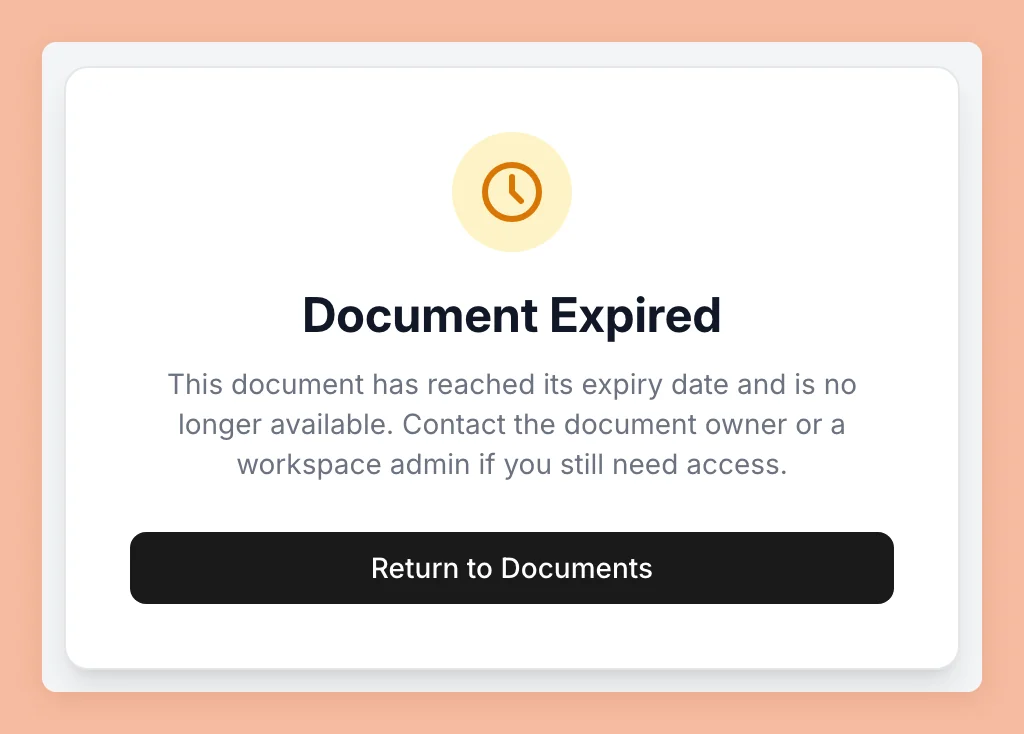
Use an expiry date when a document must not be relied on past a set day. On that date it is hidden from its audience and stays with its Editor and Admins, who can bring it back. Until then, anyone else who opens it sees Document Expired. To bring it back you set a later expiry date, approval restarts at step 1, and readers get access again after it is re-approved. See Renew an Expired Document.
How You Notice a Date
Each document shows its state in two places: a badge beside it in the Docs sidebar, such as Expired, and a banner on the document page.
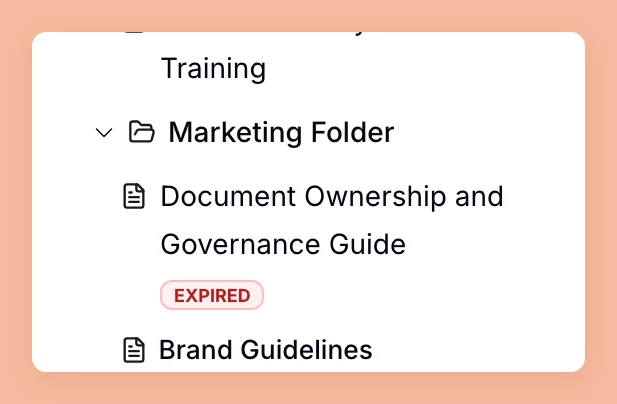
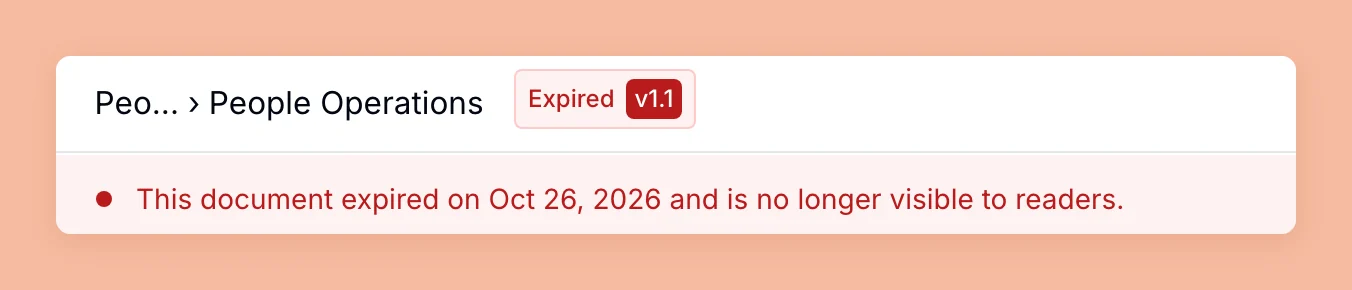
For a review date, the alert is a Review due banner on the document, saying it was due for review on that date, with an Update review date link, and a Review badge beside the document in the Docs sidebar.
Review Dates and Acknowledgment Are Separate
A review date or expiry date is set on the document. Acknowledgment reminders are about people who have not yet responded to a distribution. See Distribute a Document for those.
Common Questions
Does everyone have to re-acknowledge every year?
Only changed policies go back out. An unchanged policy is re-approved at review, and nobody is asked again.
Which should I use for our handbook?
A review date, usually recurring, because the handbook should stay available while you check it. See Run Your Annual Handbook Update.
Next Steps
- Set Review and Expiry Dates: put a date on a document.
- Run Your Policy Review Cycle: the routine across all your policies.
New to AllyMatter? Start a 30-day trial. No credit card required.