

Embed Files and Apps
Embed content and videos from other apps, and add images and PDFs inside a document.
Who can do this: Admins and Editors.
Before You Start
- Copy a shareable link to the item, such as a Google Sheet or a YouTube video. In the other app, make sure the people who read your document can view the item.
- For a PDF, have the file ready on your computer. Word files go in Attachments instead.
- Keep forms, such as a Google Form or Typeform, on their own page and link to it from the policy. People acknowledge or sign documents that have no form in them. To learn more, see Slash Menu and Embed Providers.
Embed an App
Open the document on the Edit tab.
Type / where the embed should sit.
Choose the provider. Typing its name filters the list.
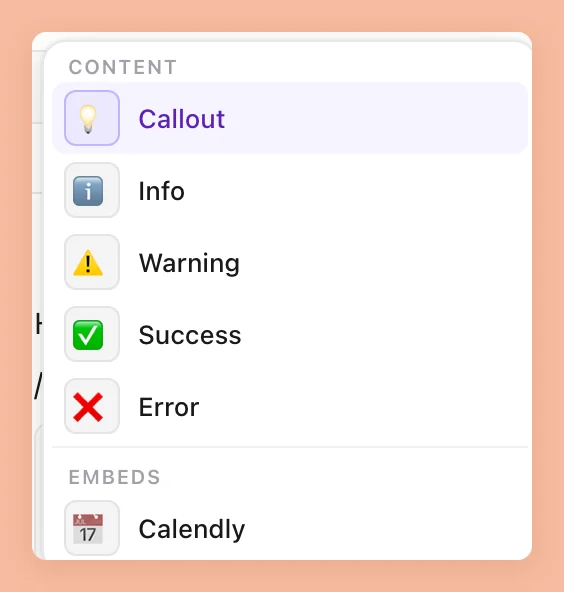
On the Paste URL tab of the Embed block, paste the link.
Under Height, choose S, M, L, or XL. The block shows the height in pixels, such as 480px for M.
Click Embed.
If you see a message or placeholder instead of the item, the link is invalid or the item is private. Change its sharing in the other app, then paste the link again.
Upload a PDF
Type / where the PDF should sit.
Choose PDF.
Click the Upload PDF tab.
Choose the file. Readers view it in place in the document.
To add images, paste or drag them in. See Write and Format a Document. To add a video, embed it from YouTube, Vimeo or Loom, as in Embed an App.
Check That It Worked
The embedded item or PDF shows in the document in place of the block, and Viewers see it there too. A document holding a PDF goes through approval like any other, and you can choose Acknowledge when you distribute it.
Next Steps
- Slash Menu and Embed Providers: the full list of providers.
- Limits: upload and storage limits.
New to AllyMatter? Start a 30-day trial. No credit card required.