

Send a Document for Approval
Save a version, check the approvers, and send your document into its workflow.
Who can do this: the document's Editor and Admins.
Before You Start
- The document needs at least one tag. See Tag Folders and Documents.
- If the document is Private, set it to Internal in Document Settings first.
- Admins create saved workflows in Admin > Approval Workflows. See Set Up an Approval Workflow.
Send the Document
Click Save Version. The Save Version dialog opens.
Choose Major Version or Minor Version. The choice is a label only.
Click Save Version in the dialog.
If Send for Approval stays locked, you have changes not yet saved as a version. Save again.
Click Settings (the gear) in the top bar. Document Settings opens on the right.
In the Approval Workflow section, click Link a workflow, then Select Existing Workflow. Skip to step 8 if a workflow is already named there.
Click a workflow and check its steps under Workflow Preview.
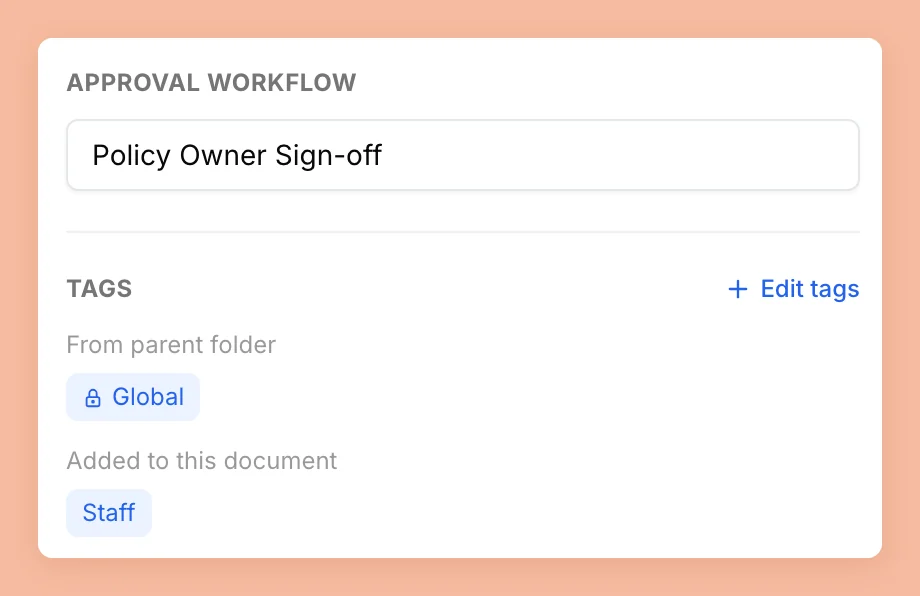
Click Use this workflow. Its name appears in the Approval Workflow section, above the document's tags.
Click Send for Approval in the top bar. Ready to send for approval? opens.
Check the Document, Version and Tags, and each approver marked Will be notified.
Click Send for approval.
If you see "Document has no tags. Cannot start approval flow.", add a tag in Document Settings and send again.
Check That It Worked
The In Review bar appears with Withdraw on the right. The document is locked while it is reviewed, and your audience keeps any earlier approved version.
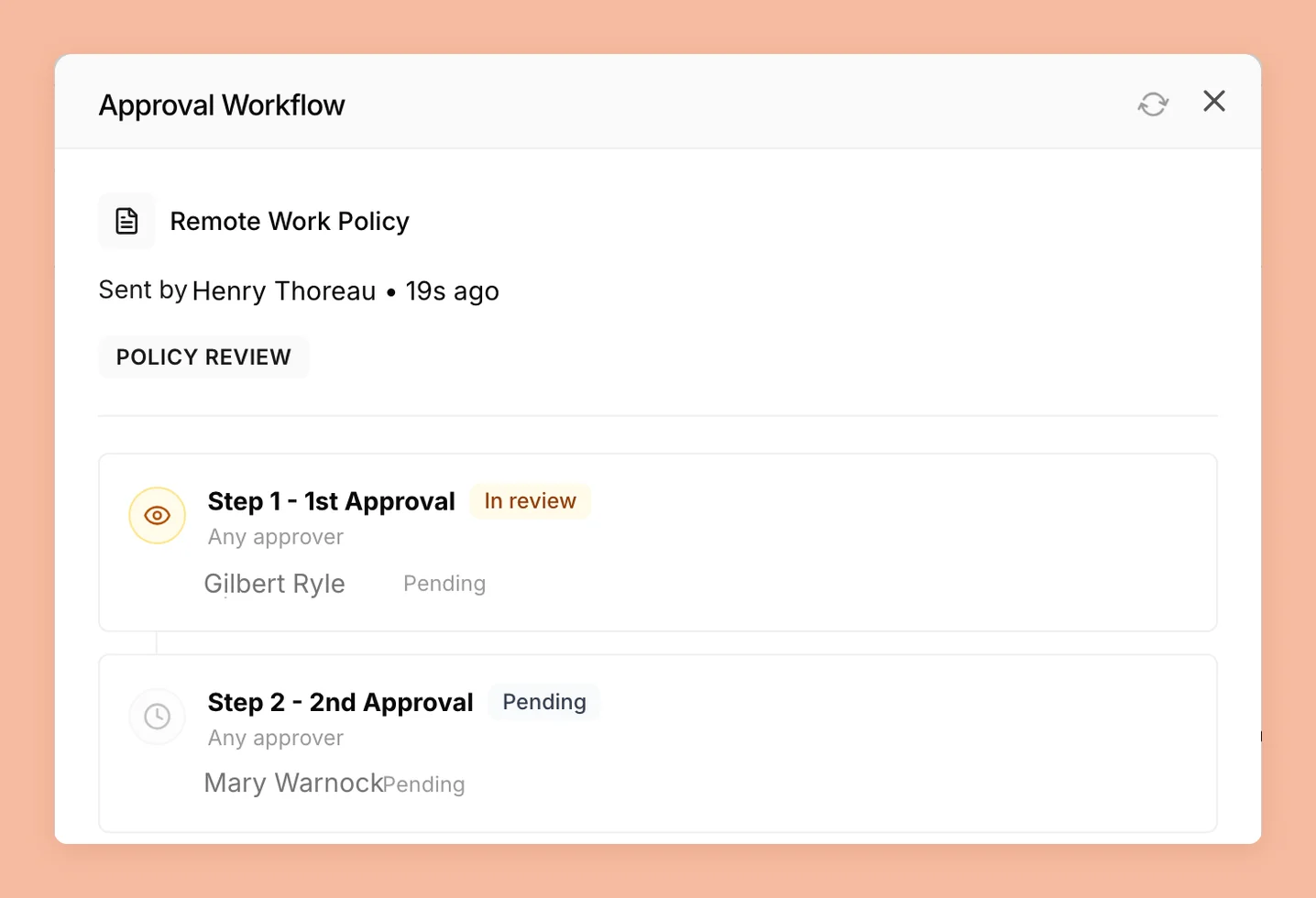
To follow progress, click Approval Workflow (the branching icon) in the top bar. The panel shows who sent the document and the status of each step and approver.
To learn what happens during approval, see How Approvals Work.
Common Questions
I spotted a mistake after sending. What now?
Click Withdraw to bring the document back to Draft, fix it, and send it again. See Withdraw or Restart an Approval.
Is my audience notified?
Not yet. Only your approvers are notified now. Your audience is notified when you distribute the document after approval.
Next Steps
- Approve or Reject a Document: what your approvers do next.
- Distribute a Document: send the document out once it is approved.
New to AllyMatter? Start a 30-day trial. No credit card required.