

Set Review and Expiry Dates
Add a review date that flags a document for a check, or an expiry date that hides it from its audience on that day.
Who can do this: the document's Editor.
Before You Start
Decide which date the document needs, because it carries one at a time. A Review by date keeps the document visible and flags it for a check. An Expiry date hides it from its audience on that day. To compare them, see Review Dates and Expiry Dates.
Set a Date
Open the document.
Click the Settings gear in the top bar. Document Settings opens.
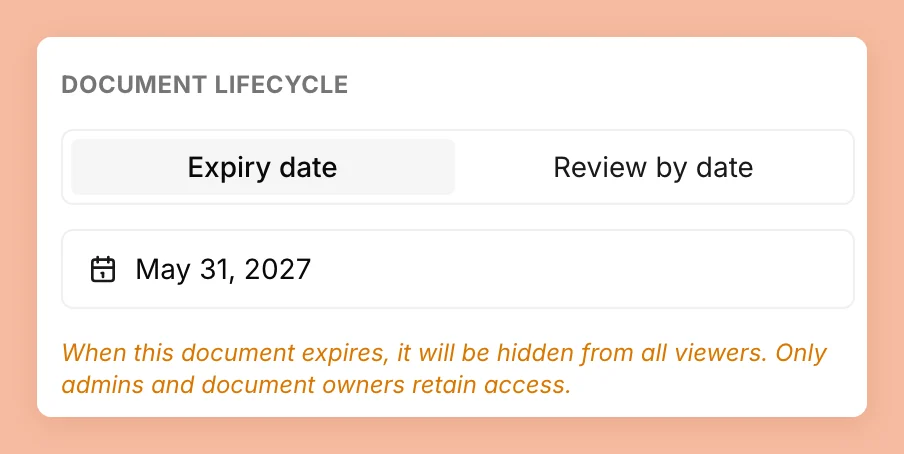
In the Document Lifecycle section, click Review by date or Expiry date. Expiry date is selected first.
Click Select a date.
Use the arrows to reach the month, and click the day.
Click Save Changes.
If you switch between Review by date and Expiry date, the date you picked is cleared, so pick it again.
For an expiry date, the note under the date warns that the document will be hidden from all viewers when it expires.
Set the Next Date After a Review
When a review is done, the date does not move on its own. Open Document Settings, pick a date in the future under Review by date, and click Save Changes. The new date sends the document back through approval. If nothing changed, the version stays the same. See Review a Policy That Has Not Changed.
Check That It Worked
Open Settings again. The Document Lifecycle section shows your option and the date.
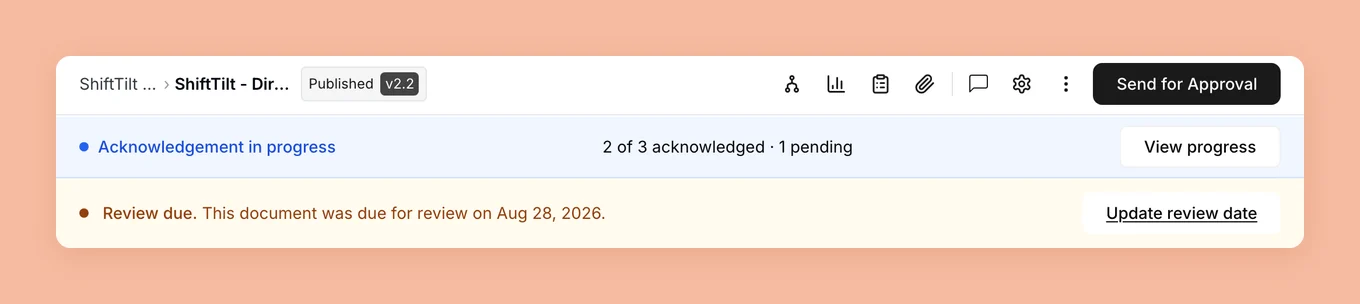
When a review date passes, the document stays visible and shows a Review due banner with an Update review date link.
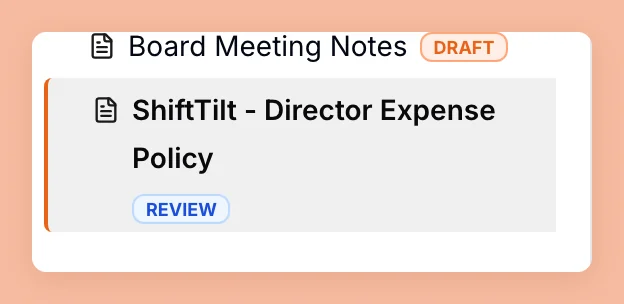
A REVIEW badge also appears under its name in the Docs sidebar.
When an expiry date passes, the document shows "This document expired on" with the date, and only its Editor and Admins can open it.
What to Do Next
- If a reviewed policy has not changed, see Review a Policy That Has Not Changed.
- If it needs changes, see Edit an Approved Document.
- If it has expired, see Renew an Expired Document.
Common Questions
Can I change the date later?
Yes. Open Settings, pick a new date, and click Save Changes.
Next Steps
- Run Your Policy Review Cycle: review each policy when it is due.
New to AllyMatter? Start a 30-day trial. No credit card required.