

Approve or Reject a Document
Review a document waiting on your step, then approve it or send it back to its Editor with a reason.
Who can do this: anyone set as an approver on the current step, whatever their role.
Before You Start
- Use a computer. Approve and Reject sit in the top bar of the computer view.
- You are notified when your step is due, by email and in the app, and in Slack if your workspace has connected it. The first email is titled Document Approval Workflow Started.
Open the Request
Click Home in the left navigation. The number under Documents needs approval shows how many documents wait on you.
Next to the document marked Approval, click View document. The In Review bar shows across the top.
Read the document.
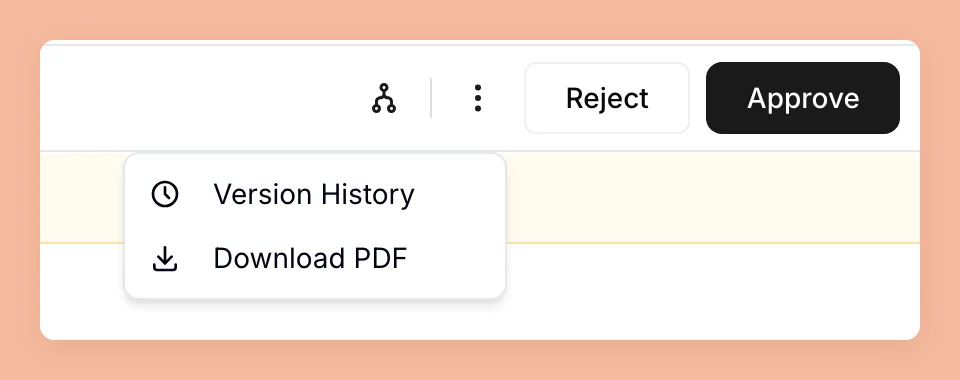
To see what changed, click More options (the three dots), then Version History. Version History shows for Editors and Admins. Viewers see it only when Viewers can see version history is on in the document's settings.
Approve the Document
Click Approve at the top right. The Approve Document dialog opens.
Click Approve.
An approval takes no comment. If something needs to change, reject the document instead.
Reject the Document
Click Reject at the top right. The Status: Rejected dialog opens.
In Reason For Rejection, type what needs to change. A reason is required, and the Editor sees it exactly as you wrote it.
Click Confirm Rejection.
Check That It Worked
After you approve, Reject and Approve leave the top bar and a message confirms the approval. If yours was the last step, the Editor or an Admin can now distribute the document.
After you reject, the document returns to Draft and its Editor sees a red Rejected bar with View Rejection Note.
To see each step and who has approved, click Approval Workflow (the branching icon) in the top bar. To learn what happens after each outcome, see How Approvals Work.
Common Questions
Can I still open a document I rejected?
Yes, if you hold every tag on the document. If you do not, you see Access Revoked. You review it again when the Editor sends it back and it reaches your step.
I am a Viewer. Can I approve?
Yes. Approving is a job on a document, not a role. See Approve When Someone Asks You To.
Next Steps
- Work with Versions: compare versions word by word.
- View a Document's Log: see approvals and rejections on the record.
New to AllyMatter? Start a 30-day trial. No credit card required.