

Run Your Annual Handbook Update
Update your handbook once a year so that only the policies that changed go back to your people, and every other policy is re-approved as it stands.
When You Need This
Use this for the yearly handbook review, when you need a record that each policy was checked and want people to read only what changed. It works when your handbook is a set of separate policies. If yours is one long file, split it into separate documents first, because any edit to one file sends all of it back out.
Before You Start
- Each policy's Editor works on that policy. Admins can work on any policy.
- List every policy in the handbook and who edits it.
Put Each Policy on a Yearly Review
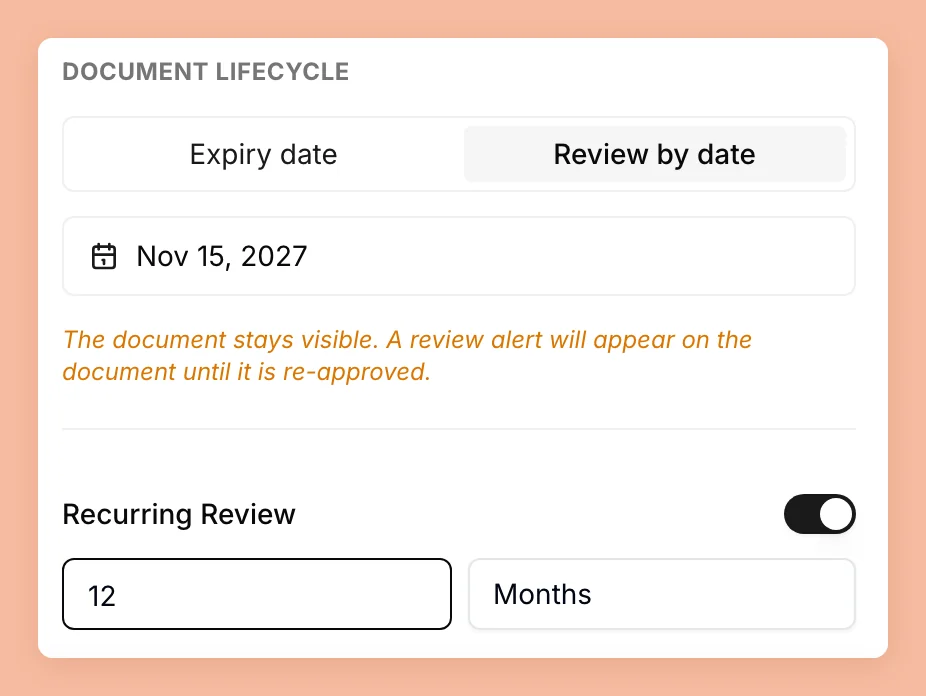
Do this once for each policy. The date does not move on its own, so you set the next one after each review.
Open a policy and click the gear icon. Document Settings opens.
Under Document Lifecycle, click Review by date.
Pick this year's review date.
Click Save Changes.
The date does not repeat. After each yearly review, the Editor picks the next date.
Sort Changed from Unchanged
Ask each Editor to read their policy against how the company works today. Anne Conway might confirm that the Code of Conduct still holds, while Mortimer Adler finds that the Expense Policy needs a new mileage rate.
Re-Approve the Unchanged Policies
For each unchanged policy:
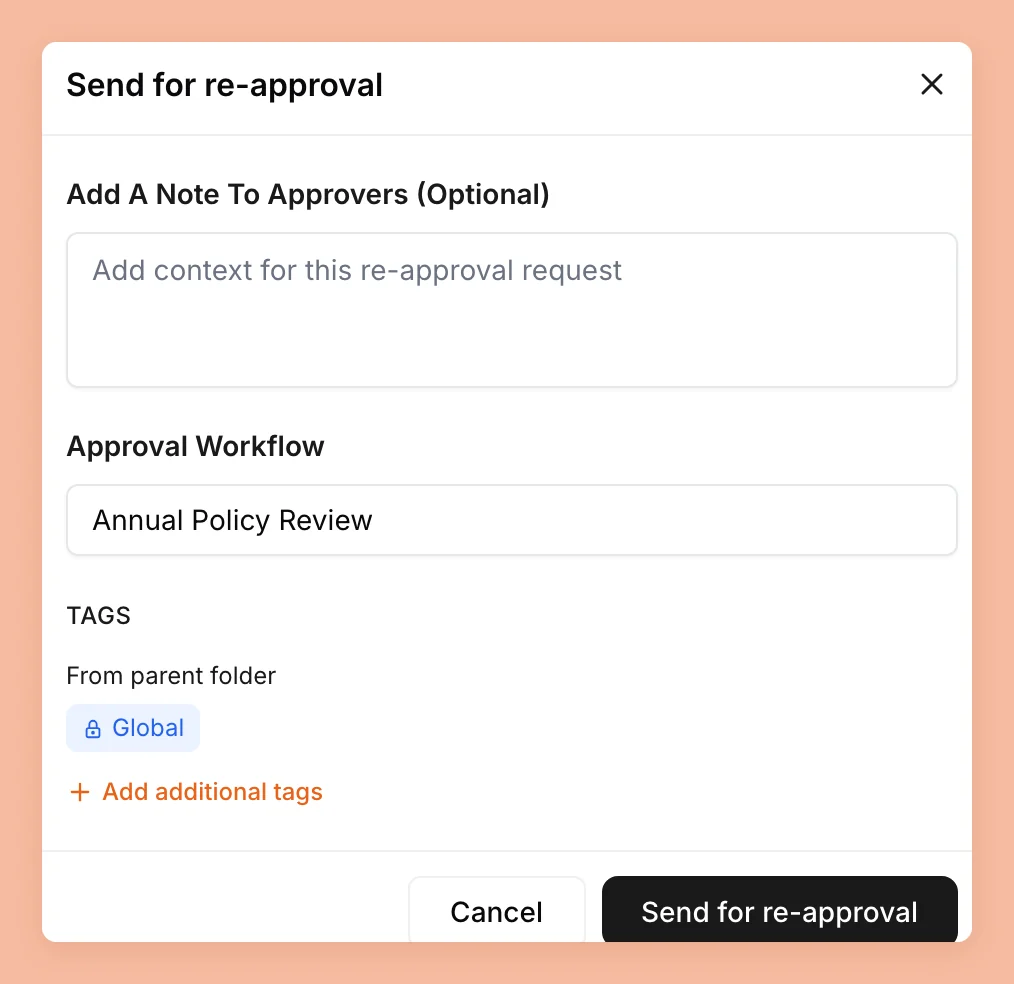
Click Re-approve in the top bar. The Send for re-approval panel opens.
Add a note to approvers if it helps, such as "Annual review, no changes".
Check the Approval Workflow and Tags.
Click Send for re-approval.
Click Send for approval in the Ready to send for approval? dialog.
Once approved, the bar reads Re-approved with the date. The version stays the same and nobody is asked to acknowledge it again. People who gain its tags later get the request automatically. See Review a Policy That Has Not Changed.
Edit and Approve the Changed Policies
For each changed policy:
Click Edit and make the change.
Click Save Version, choose Minor Version or Major Version, and click Save Version in the dialog.
Click Send for Approval.
Click Send for approval in the dialog.
Until the new version is approved, the header shows a switch with the published version and Draft, and your people see only the published version. Approvers can open the three dots menu, click Version History, and see every word added and removed. An approver who is a Viewer sees Version History only if Viewers can see version history is turned on in that policy's Document Settings. See Work with Versions.
Send Out Only What Changed
When a changed policy is approved:
Click Distribute on the green Approved bar.
Choose Acknowledge.
Turn on Send Automated Reminders and pick a schedule.
Check the line starting All those with tags.
Click Send for Acknowledgement.
People get a request for each policy that changed and nothing else. See Send Out a Changed Policy.
Check That It Worked
On each changed policy, the bar shows Acknowledgement in progress with a count. Click View progress to see who is still pending.

On every policy, open Document Settings and check the date under Review by date. If it still shows this year's date, set next year's yourself.
What You End Up With
Every policy in the handbook has a new log entry: unchanged policies show a new approval on the same version, and changed policies show a new version, its approvals, its distribution and each acknowledgment by name. See View a Document's Log to read or export it.
Next Steps
- Run Your Policy Review Cycle: keep reviews moving through the year.
- Track Who Has Acknowledged: see who has acknowledged each changed policy.
New to AllyMatter? Start a 30-day trial. No credit card required.