

Renew an Expired Document
Bring an expired document back to its audience by sending it through approval again, with or without changes.
Who can do this: the document's Editor.
Before You Start
- Decide whether the document needs changes. If the wording still holds, renew it unchanged.
- Pick a new expiry date later than today. Approval starts only once the date is set.
- An expired document restarts its workflow at step 1, so check that your approvers are available.
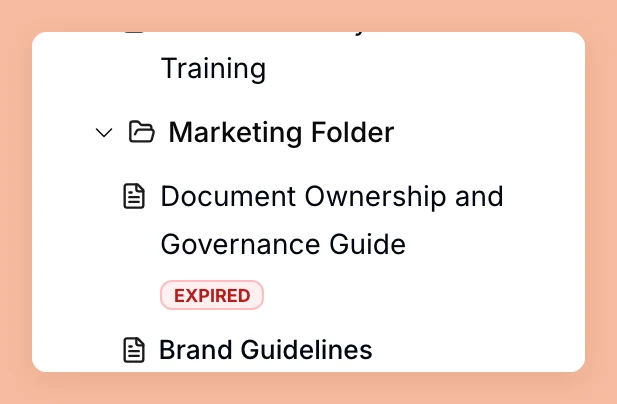
An expired document shows an Expired badge under its name in the Docs sidebar.
Renew It Unchanged
Open the document. A red banner reads "This document expired on" with the date.
Click Re-approve.
In the Send for re-approval panel, add a note under Add A Note To Approvers (Optional) if it helps.
Click Send for re-approval. Document expiry date required opens.
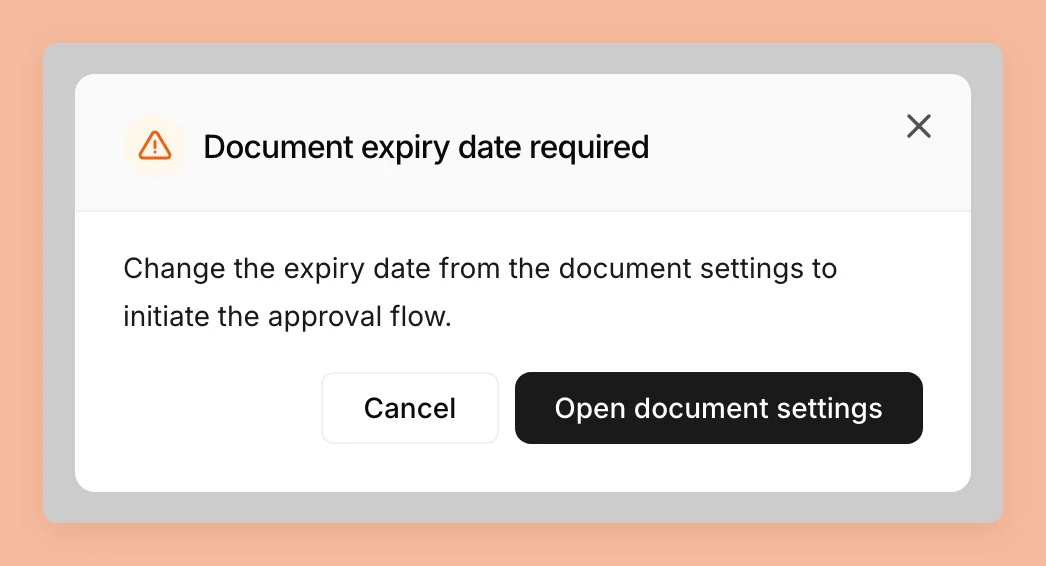
Click Open document settings.
In the Document Lifecycle section, click the date and pick a later day.
Click Save Changes. A message confirms "Document expiry updated."
Click Send for Approval.
If Re-approve still shows instead of Send for Approval, refresh the page.
Check the details in Ready to send for approval?, then click Send for approval. The document shows In Review.
When the approvers have approved and the green Approved bar appears, click Distribute and send it out. See Distribute a Document.
Renew It With Changes
Open the document and click Edit.
Make your changes, then click Save Version.
Open Settings and set a later date in the Document Lifecycle section.
Click Save Changes.
Click Send for Approval, then Send for approval.
When the Approved bar appears, click Distribute and send the new version out.
If you see "Change the expiry date from the document settings to initiate the approval flow.", do steps 3 and 4 first.
Check That It Worked
The red expiry banner is gone and the green Approved bar shows. Readers get access again once the document is re-approved and distributed. An unchanged document keeps its version number, and people who already acknowledged it are not asked again.
Common Questions
Will people have to acknowledge it again?
Only if they have not acknowledged it yet. If you renew it without changes, people who already acknowledged that version get access back and are not asked again. If you renew it with changes, the new version is sent to everyone, as after any edit.
Someone needs the document today. What can they do?
Its Editor and Admins can still open it. Everyone else sees Document Expired until it is re-approved and distributed.
Next Steps
- Review Dates and Expiry Dates: how expiry differs from a review date.
- Track Who Has Acknowledged: follow the new round of acknowledgments.
New to AllyMatter? Start a 30-day trial. No credit card required.