

Send a Document for Signature
Send an approved document for e-signature, choose who signs, place the fields, set a deadline, and send it.
Who can do this: the document's Editor or an Admin, once the document is approved. Scale plan.
Before You Start
- The document is approved. Only an approved version can be sent for signature.
- Signers and countersigners are AllyMatter users who can open the document.
- Your workspace has signatures available under Settings > Billings. Each person signing one copy uses one signature, countersigns included. See Buy and Track Signature Packs.
To learn how signing works, see How e-Sign Works. A document with an embedded form stays out of signing; see Embed Files and Apps.
Choose Who Signs
Open the approved document and click Distribute at the right end of the green Approved bar. Distribute Document opens.
Under How should recipients engage?, choose E-sign.
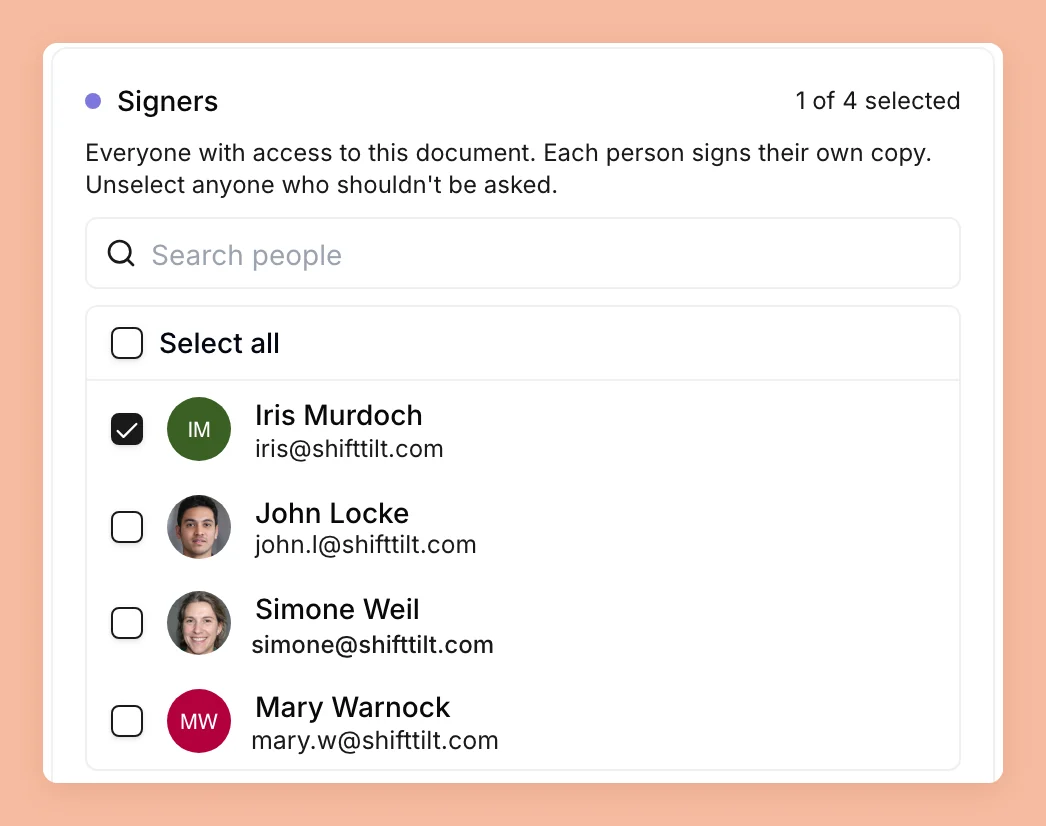
Under Signers, unselect anyone who should not be asked. The count shows how many are selected, such as 1 of 4 selected.
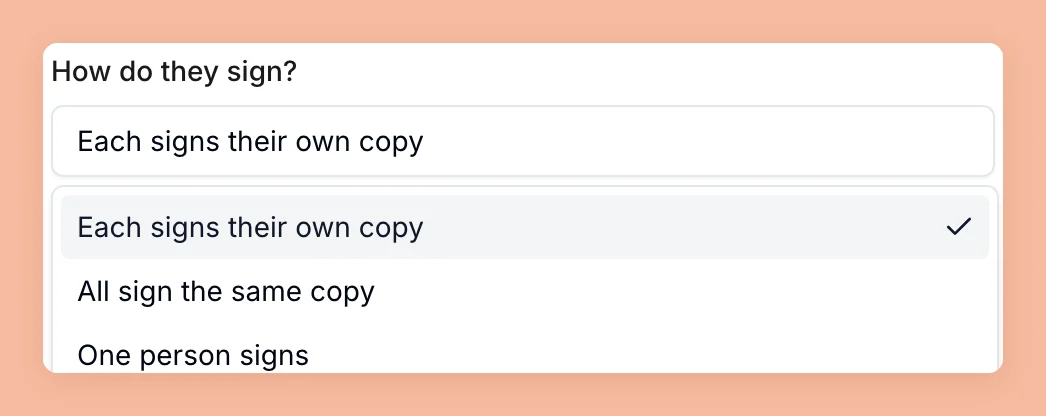
Under How do they sign?, choose Each signs their own copy, All sign the same copy, or One person signs.
To add a countersigner, click Add countersigner and search for an Admin or anyone holding the document's tags.
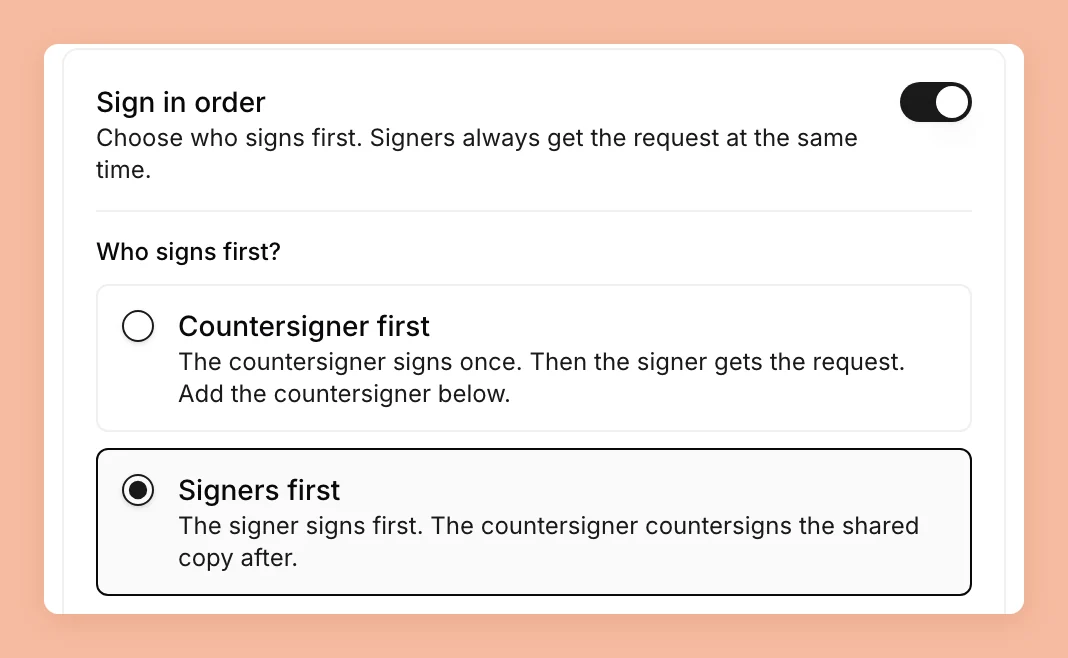
To choose who signs first, turn on Sign in order, then under Who signs first? choose an option. The table below explains each one.
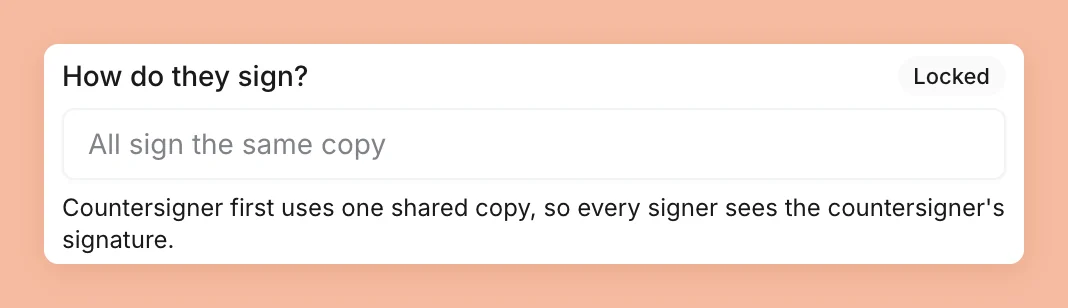
With Sign in order on, How do they sign? is locked to All sign the same copy.
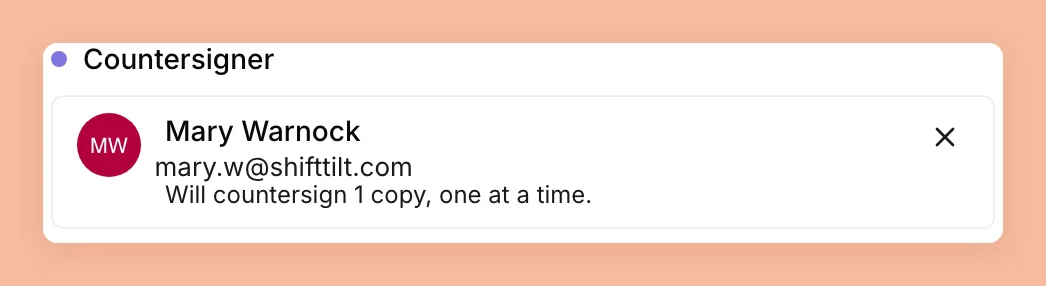
Check the line at the bottom, such as 2 people will sign. Mary Warnock first.
Click Continue. The builder opens.
| Option | What happens |
|---|---|
| Countersigner first | The countersigner signs once. Then the signers get the request. |
| Signers first | The signers sign first. The countersigner countersigns the shared copy after. |
| Sign in order off | Signers get the request at the same time, and the countersigner signs after them. |
Place the Fields
Check the line at the top, such as 1 signer · Each signs their own copy · 1 countersigner. To go back, click Change signers.
Drag the signers' fields, such as Signature, Initials and Date Signed, from the panel on the right to their places on the document. Changes save automatically.
Open the list at the top of the panel and choose the countersigner by name, such as Mary Warnock.
Drag the countersigner's Signature field to its place.
Click Continue. Review and send opens.
If a party has no field, go back to the list and place one for them.
Review and Send
Check Signing order. It lists the signers, then the countersigner, with the number of fields for each.
Under Signing deadline, choose a date. Signers are reminded until they sign or the deadline passes.
Set Remind every, such as 3 days.
Leave Notify me when each party signs checked if you want to hear as each party signs.
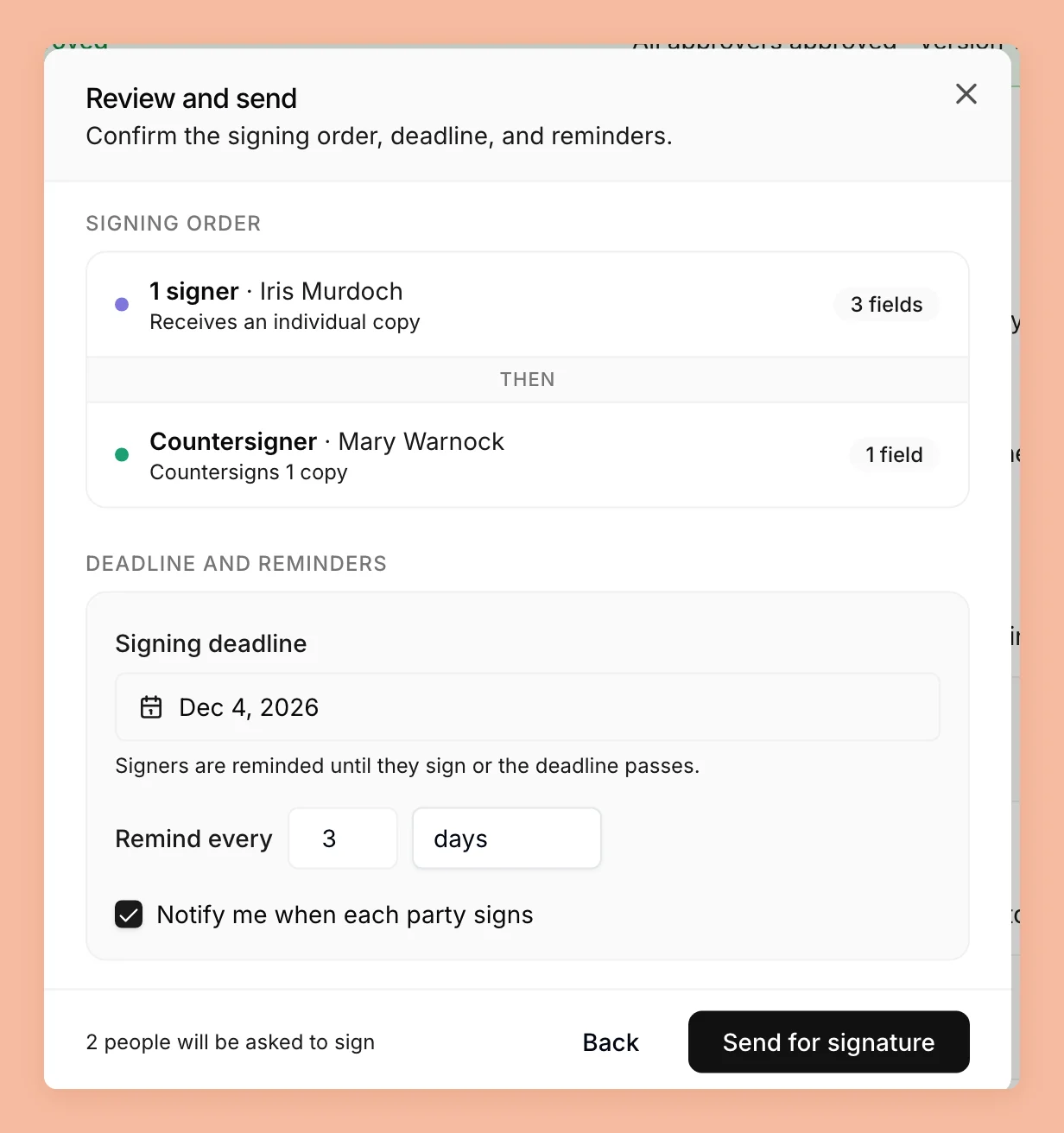
Click Send for signature.
Check That It Worked
The bar across the top of the document reads E-signature in progress, with a count such as 0 of 1 signed · 1 pending. See Track Signing.
Next Steps
- Track Signing: see who has signed.
- Signed Copies and Completion Certificates: find the finished documents.
New to AllyMatter? Start a 30-day trial. No credit card required.