

How Access Works
Two settings decide who can open a document: its visibility, and, for Internal documents, its tags.
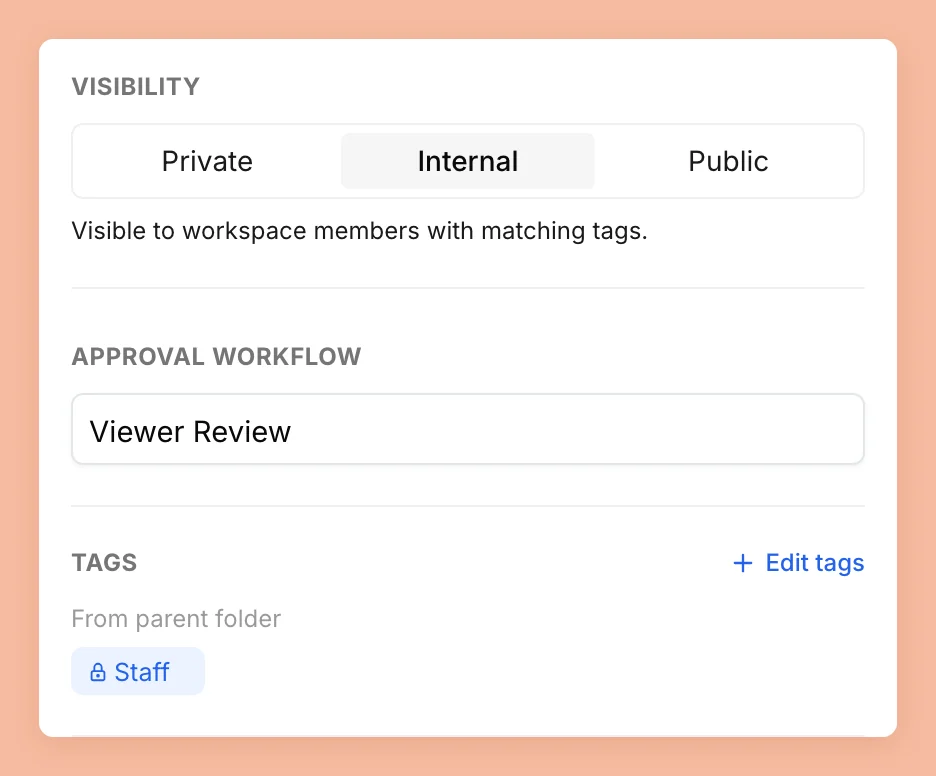
Visibility Comes First
Every document is Private, Internal, or Public, and new documents start as Internal.
| Visibility | Who can open it |
|---|---|
| Private | Only the document's Editor. Admins do not see it. |
| Internal | People holding every tag on the document, plus Admins and the document's Editor. |
| Public | Anyone, with no sign-in. |
Private, Internal, and Public covers each state and how to change it.
Tags Decide Internal Access
A tag is a label with people attached. You create it, add people to it, and put it on documents or folders, and everyone holding it can open what it covers. A document with several tags asks for all of them, and holding extra tags makes no difference. How Tags Combine shows how tags combine.
A new workspace starts with one tag, Global, which an Admin can keep or delete. Nobody holds it automatically: an Admin adds people to it like any other tag. Beyond that, nobody has access until someone gives it. This means:
- An Internal document with no tags is visible only to Admins and its Editor, and Public stays greyed out on it with "Add a tag to make this document Public."
- A person with no tags sees only Public documents. That includes someone who joins as a Viewer through your Google Workspace domain, until they are given tags.
Whoever creates a tag owns it, and a tag can have several owners. A tag's only owner adds another owner before removing themselves. A tag marked Inactive is out of use, and while it stays inactive it has no effect on the documents and folders it is on.
Tags do more than open documents. A distribution goes to everyone holding the document's tags, and approvers must hold those tags too, though Admins can approve without them.
Folders Pass Tags Down
A tag on a folder applies to everything inside it, including documents added later. A document can add tags of its own to narrow its audience further, and the tags it inherited stay on it. See Tag Folders and Documents.
What Each Role Sees and Controls
| Role | Sees | Controls |
|---|---|---|
| Admin | Every Internal document, whatever its tags, and every tag. | Invites people, changes visibility, and manages every tag. |
| Editor | Their own documents, and Internal documents whose tags they hold. | Writes documents, changes visibility on their own documents, tags folders, and edits the name and owners of the tags they own. |
| Viewer | Internal documents whose tags they hold. Viewers see no tags and no comments, and see Version History only where the document allows it. | Reads documents and downloads the approved PDF. |
The full list is in Roles and Permissions.
How People Sign In
People sign in with email and password, Google, or Microsoft. An account keeps the method it was created with, so settle your company's method before people's accounts are created. See Choose How People Sign In.
| Person | How they sign in the first time |
|---|---|
| Invited at your workspace's Google or Microsoft sign-in domain | With Google or Microsoft. The invitation has no password. |
| Invited, new to AllyMatter, any other address | With the temporary password in the invitation email |
| Invited, already has an AllyMatter login | With their existing login |
| On your Google Workspace domain, not invited | With Google. They join as a Viewer with no tags. |
| Creating a new workspace | With the method they choose at sign-up. They become its Admin. |
Why Tags Work This Way
- No access by default: a person sees an Internal document only after someone gives them its tags.
- Reusable tags: a few tags for team, role, location, and product combine into any audience, so you do not need one tag per audience.
- Tags set the audience: the people holding the tags are the distribution list, so each acknowledgment belongs to a known audience.
- Folder tags stay on: tags on a folder apply to everything inside it, including documents added later.
Common Questions
Why can a colleague not see a document I can see?
They are missing at least one of its tags. If they tried to open it, the attempt appears on the Access Attempts tab in Document Analytics.
Why can nobody else see the document I just created?
A draft stays with its Editor and Admins, and the people holding the tags see the approved version. If the document has no tags, add them first, or the audience stays empty.
Next Steps
- Plan Your Folders and Tags: decide your tags before you invite anyone.
- Create and Manage Tags: set up tags and tag owners.
- Invite Your Team: give people their role and tags in one step.
- Why Can't I...: fix a specific access problem.
New to AllyMatter? Start a 30-day trial. No credit card required.