

Send Out a Changed Policy
Edit an approved policy, get the new version approved, and send it so people acknowledge the wording that now applies.
Who can do this: the document's Editor and Admins.
Before You Start
- Every new version is approved and sent again, however small the change. Major and minor are labels only.
- Your audience keeps reading the last approved version until the new one is approved, so you can edit without rushing.
Send the New Version
Open the document and click Edit.
Make your changes. A DRAFT badge appears next to the version number.
Click Save Version in the top bar.
Choose Major Version or Minor Version. Each option shows the number it moves to, such as v1.1 → v1.2.
Click Save Version.
Click Send for Approval. Ready to send for approval? opens with the new version and the approvers.
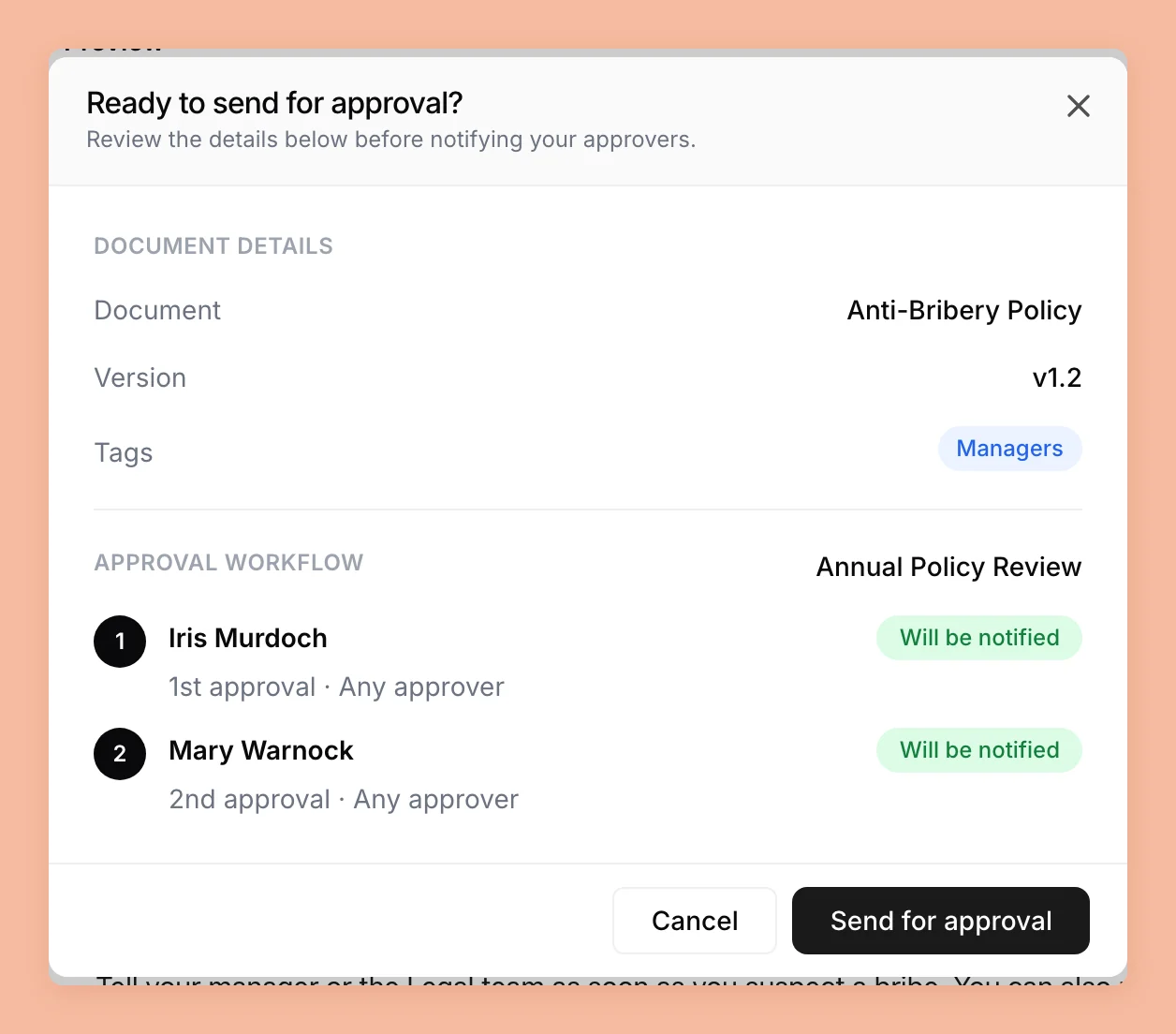
Click Send for approval. The document shows In Review, and the workflow runs from step 1.
When the last approver approves, the green Approved bar returns. Click Distribute.
Under How should recipients engage?, choose Acknowledge.
Set Exclude Members and Send Automated Reminders. Both start off on every send.
Check the line that names the tags, such as "All those with tags: Staff will be sent an acknowledgement".
Click Send for Acknowledgement.
If Send for Approval is greyed out, save the version first (steps 3 to 5).
Check That It Worked
The Acknowledgement in progress bar shows a new count, such as 0 of 11 acknowledged · 11 pending. Everyone in this send is pending for the new version, including people who acknowledged the last one. Requests still open on the old version are replaced, so people acknowledge only the newest version. Responses to the last version stay in the log. To learn more, see Understand Acknowledgment Records.
Common Questions
Can I leave some people out of a small fix?
Yes. Turn on Exclude Members and pick their names before you send. Excluded people receive nothing and stay out of the count.
What if the policy has not changed?
Re-approve it instead. It keeps its version, nobody is asked again, and it is not distributed again. People who gain its tags later get the request automatically. See Review a Policy That Has Not Changed.
Next Steps
- Track Who Has Acknowledged: follow the new count.
- Push an Urgent Policy Change: the same steps when time is short.
New to AllyMatter? Start a 30-day trial. No credit card required.