

Run Policies as a Team of One
Run the whole policy job on your own, from writing to acknowledgment records, with yourself as approver and an outside reviewer when a policy needs one.
When You Need This
Use this when you handle policies alone, with nobody to send a draft to, and you still need a record that each policy was checked, sent and acknowledged.
Set Up Once
Setup takes about half an hour. As the person who creates the workspace, you are an Admin.
Create a few simple tags, such as All Employees and Managers.
Invite everyone else as a Viewer, with the tags that match their job. Viewers are free and unlimited on both plans.
See Set Up AllyMatter in 30 Minutes.
Make Yourself the Approver
Every document is approved before it goes out. Working alone, you are the workspace's Admin, so you can build a one step workflow with yourself in it from the document, once.
Open your first policy and click the gear icon. Document Settings opens.
Click Link a workflow.
Click Create New Workflow.
Type a Workflow Name.
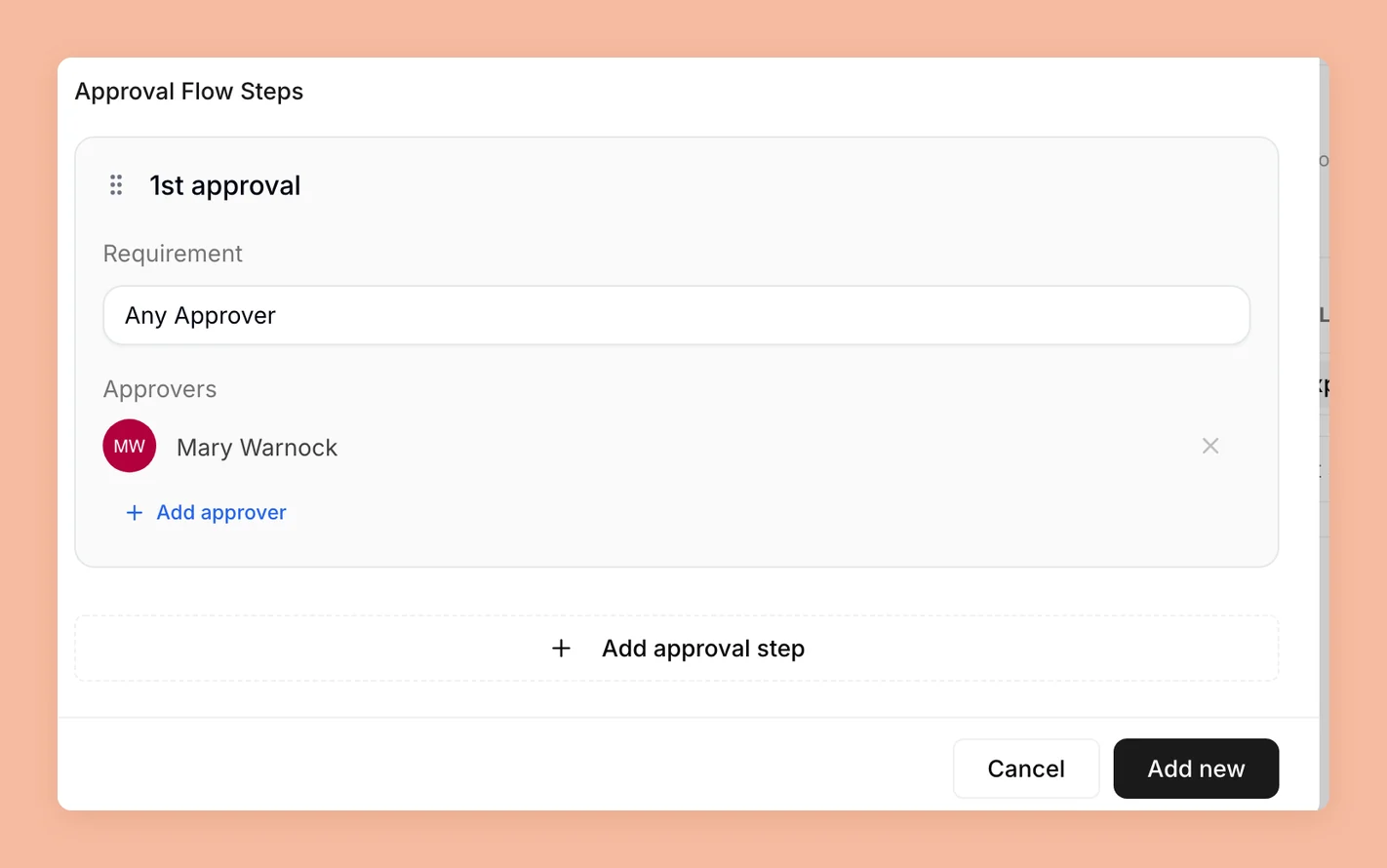
Under 1st approval, leave Requirement as Any Approver.
Click Add approver and choose yourself.
Click Add new. The workflow is saved as a template, so you can link it to later policies with Select Existing Workflow.
Approve Your Own Policy
Click Send for Approval.
Check that the Ready to send for approval? dialog lists you as the only approver, then click Send for approval. The policy shows In Review.
Read the final text once more.
Click Approve.
Click Approve in the Approve Document dialog. The green bar reads All approvers approved.
One person as Editor and approver, from sending to Approved.
The document's log records your approval and when you gave it. See Set Up an Approval Workflow.
Add a Second Approver for Some Policies
Some policies need a second reviewer, such as a harassment or data privacy policy. Build a second workflow with Add approval step, and put a colleague or an outside lawyer in the second step. Invite the lawyer as a Viewer with the document's tags; approvers are free only as Viewers. See Add an Outside Approver.
Send with Reminders
On the Approved bar, click Distribute.
Choose Acknowledge.
Turn on Send Automated Reminders and pick a schedule.
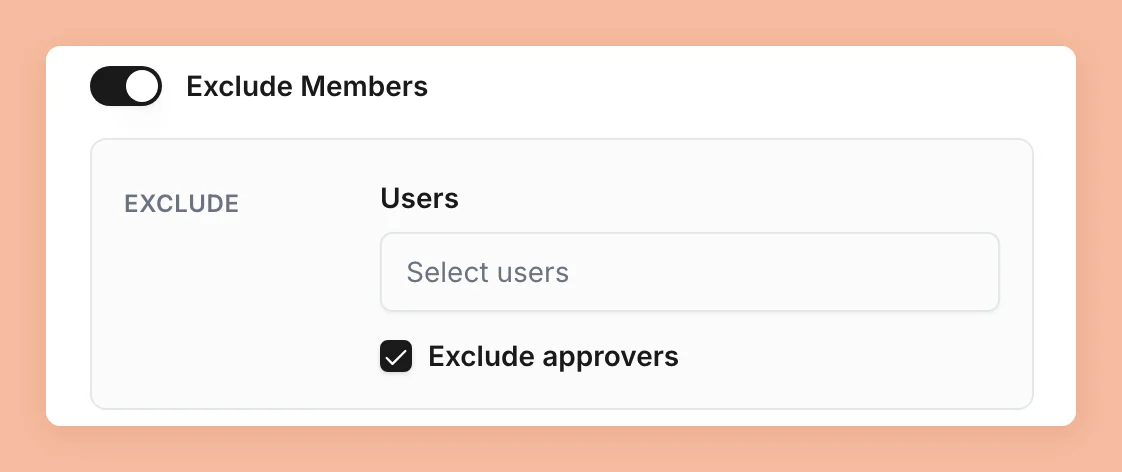
Turn on Exclude Members and check that Exclude approvers is ticked, so you are not asked to acknowledge your own policy.
Click Send for Acknowledgement.
Reminders stop after five, so contact anyone still pending yourself after that. See Distribute a Document.
Set Review Dates
In Document Settings, click Review by date and pick a date.
Click Save Changes. The date does not repeat, so pick the next one after each review.
When the review comes due, re-approve the policy if it is unchanged, or edit it and send the new version. See Run Your Policy Review Cycle.
What You End Up With
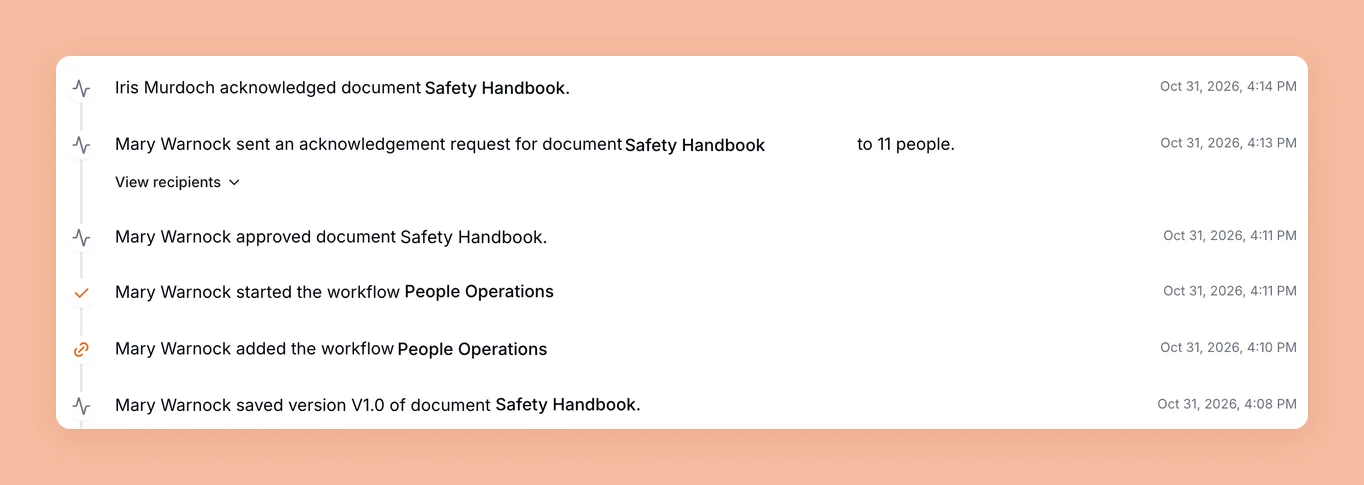
Each policy has a record of who approved it, who received it, and who acknowledged it, even when the Editor and the approver are the same person. You can export the log as PDF or CSV.
When you hire help, add them as an Editor. Startup includes up to 20 Editors, and Scale includes unlimited Editors.
Next Steps
- Roll Out a New Policy to Everyone: the full job for one policy.
- Answer an Auditor's Request: export your records when someone asks.
New to AllyMatter? Start a 30-day trial. No credit card required.