

Publish the Policies Customers Ask For
Put the policies customers keep asking to see on a public page, approved like any other policy, with one link to send them.
When You Need This
A customer's procurement form asks for your privacy policy. Another wants your security policy, and a third wants your supplier code of conduct. PDFs sent by email go out of date as the policies change. A public page gives you one approved copy to link to.
Before You Start
- You need to be the policy's Editor or an Admin. Only they can change a document's visibility.
- The policy needs tags and an approval workflow, and it must be approved.
- On the Startup plan, public documents use your workspace's allymatter.app address. The Scale plan adds your own domain, such as policies.shifttilt.com. To use one, upgrade to Scale and follow Set Up a Custom Domain. See Plans, Storage, and Billing.
Choose What Goes Public
Choose policy by policy. Common choices are your Privacy Policy, Security Policy, Acceptable Use Policy and Supplier Code of Conduct. Anyone with the link can read a public document without signing in, so keep operational detail in Internal documents. To learn what each visibility means, see Private, Internal, and Public.
Write only what is true of your company today. For help with the wording, a compliance consultant can work through it with you.
Approve It
Take the policy through approval with a reviewer who knows the subject, such as Karl Popper for the Security Policy. See Send a Document for Approval.
Put an effective date in the text itself, since public visitors see no version number or approval date.
Make It Public
Open the approved policy.
Click the gear on the top bar. Document Settings opens.
Under Visibility, click Public.
In the Change Visibility? dialog, click Yes, change. A message says "Visibility changed to public".
Making an approved policy public.
The policy is public straight away, with no further approval. See Publish to Your Public Pages.
Set the End of the Link
On the document, click Page Settings.
Under Document URL, type the slug, such as security-policy.
Click the check button. A message says "Document URL updated".
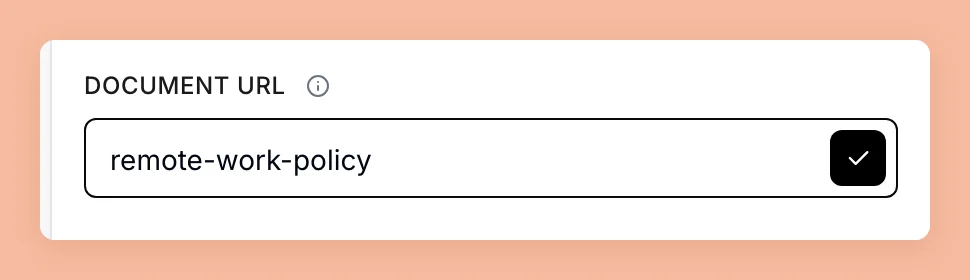
If you see "This URL is already in use. Try another.", another document has that slug, so choose a different one.
Check That It Worked
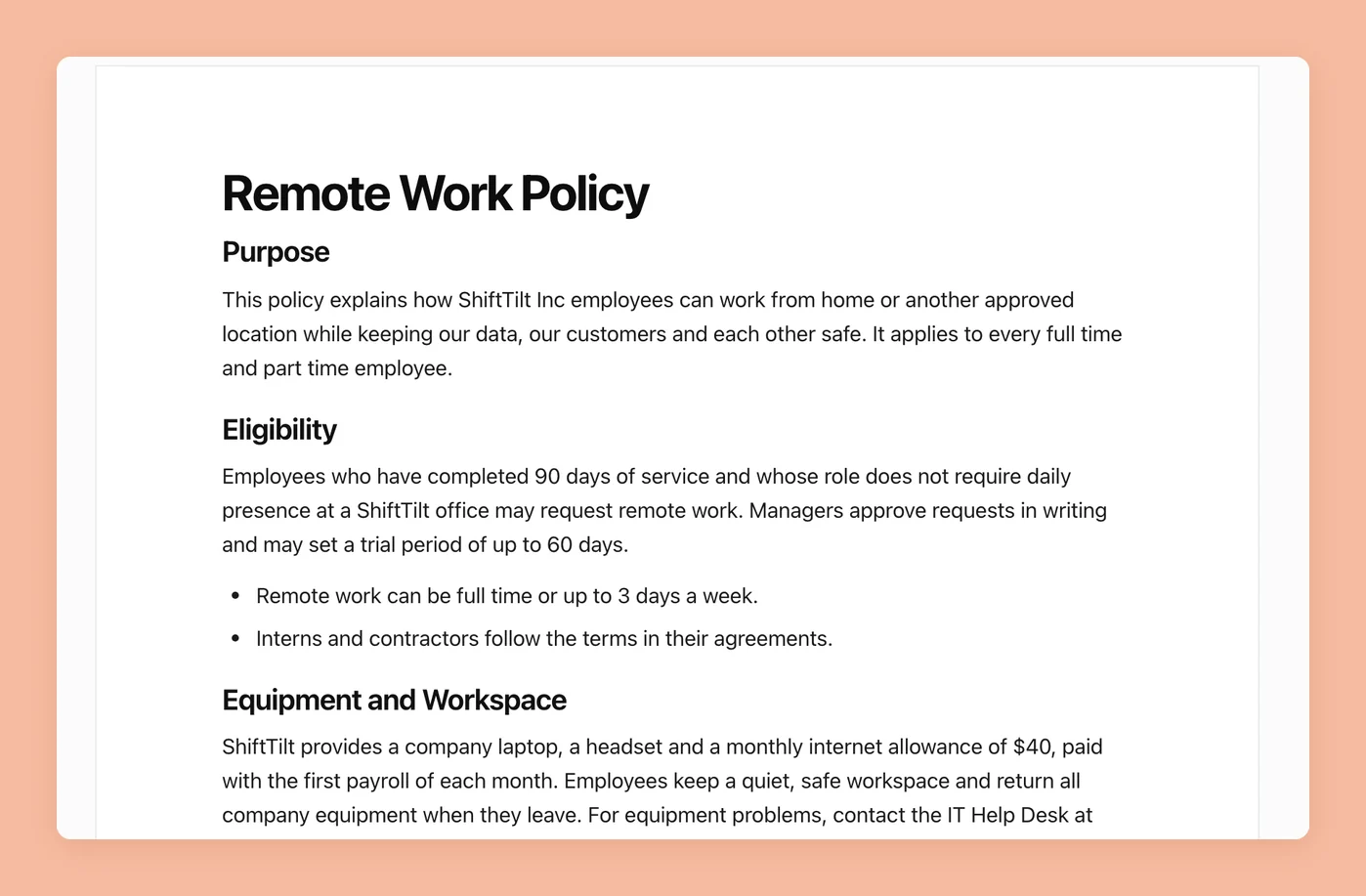
Open the public link in a private browser window, where you are not signed in. You should see the policy text with no app menus and no sign-in.
Share the Link
Copy the link.
Add it to your sales replies, your website footer or the next procurement form.
Admins can see every public link under Admin > Public Link Management. See See and Turn Off Public Links.
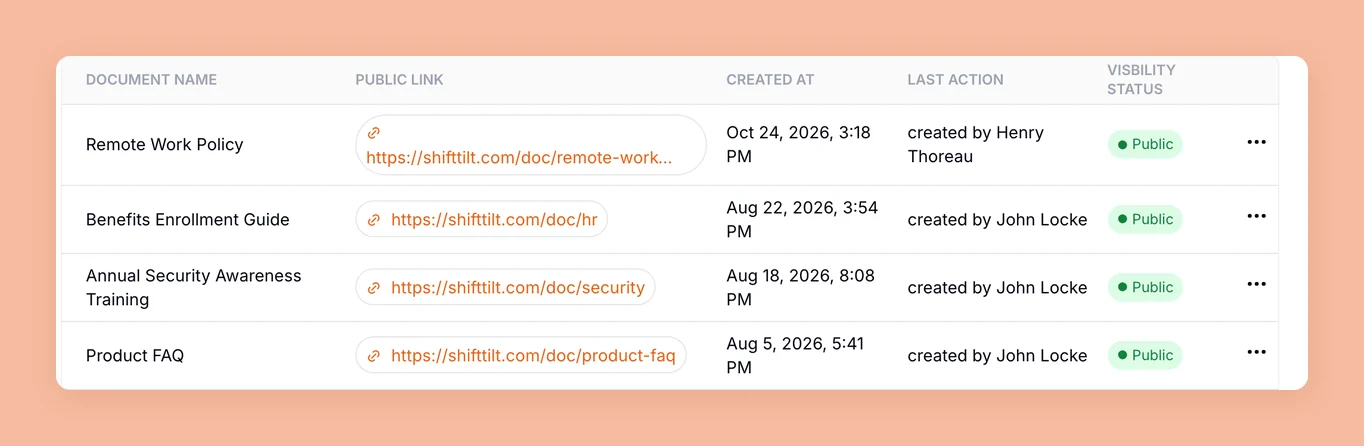
To take a policy down, switch it away from Public in Document Settings. It stops being public at once.
Keep It Current
Each edit becomes a new version that is approved before it replaces the public text. Set a Review by date to keep it on your schedule. See Run Your Policy Review Cycle.
Next Steps
- Keep Evidence with the Policy: store supporting reports on the policy, visible to the Editor and Admins.
New to AllyMatter? Start a 30-day trial. No credit card required.