

Organize a Multi-Location Company with Tags
Use a few reusable tags so each office sees its own policies, shared policies reach everyone, and each office keeps its own lists current.
When You Need This
ShiftTilt Inc has offices in London and Tokyo. Some policies apply to everyone, some to one office, and some only to managers in one office. You give each person a few tags that describe them.
Before You Start
- You need to be an Admin to create tags and give them to people. Admins and Editors can tag folders.
- Write down your offices and any levels, such as managers, that get their own policies.
Choose Your Tags
Create one tag for each fact you need: All Employees for the whole company, London and Tokyo for location, and Managers for level. Create them under Admin > Tags Management, as Create and Manage Tags shows.
A person needs every tag on a document to see it:
| Audience | Tags on the document |
|---|---|
| Everyone at the company | All Employees |
| Everyone in London | London |
| Managers in Tokyo | Tokyo, Managers |
| Every manager | Managers |
A document tagged London and Tokyo reaches only people who hold both, so tag a policy for both offices All Employees. To learn more, see How Tags Combine.
Build the Folders
In Docs, create top-level folders named Company, London and Tokyo.
Click the three dots on the London folder.
Choose Manage Tags.
In the Manage tags dialog, add London under Additional tags.
Click Save.
Repeat for Tokyo with Tokyo and for Company with All Employees.
A tag added to a folder reaches every document inside it.
If the dialog will not save, check whether a document in the folder is in an approval flow. Tags can be added to the folder once that approval finishes.
Every document in the Tokyo folder now carries Tokyo. A Managers folder inside Tokyo adds that tag too. For a manager's pack that crosses folders, leave those folders untagged and tag each document. To learn how folder tags pass down and what a move does, see Tag Folders and Documents and Move Documents and Folders.
Give Everyone Their Tags
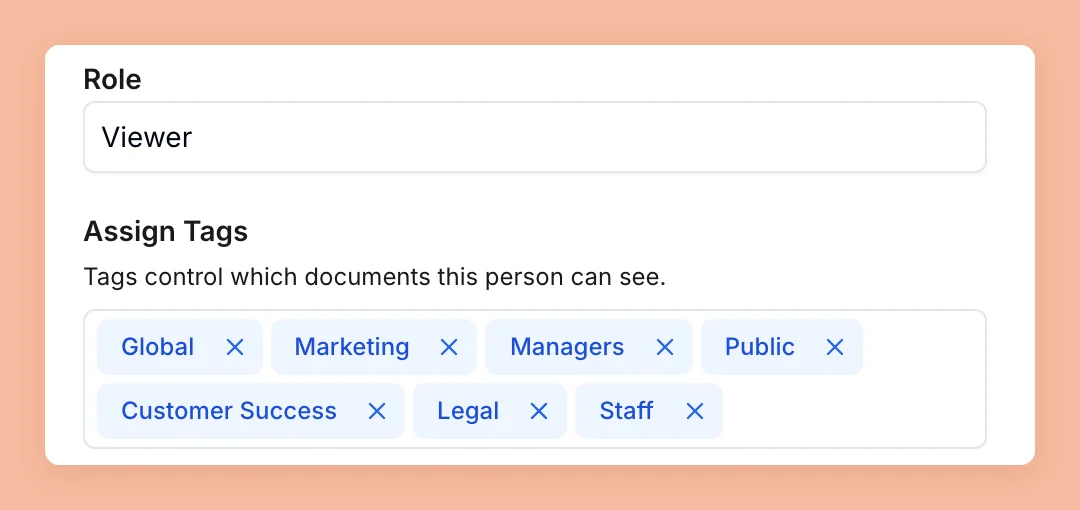
Each person holds All Employees plus their office, and managers also hold Managers. For new people, choose the tags in the invite, as Invite Your Team shows. For people already in the workspace:
Click Users in the left navigation.
Click the pencil on the person's row. Edit User opens.
Under Assign Tags, add the tags.
Check What This Grants, which lists the documents the person will see.
Click Save Changes.
Give Each Office a Tag Owner
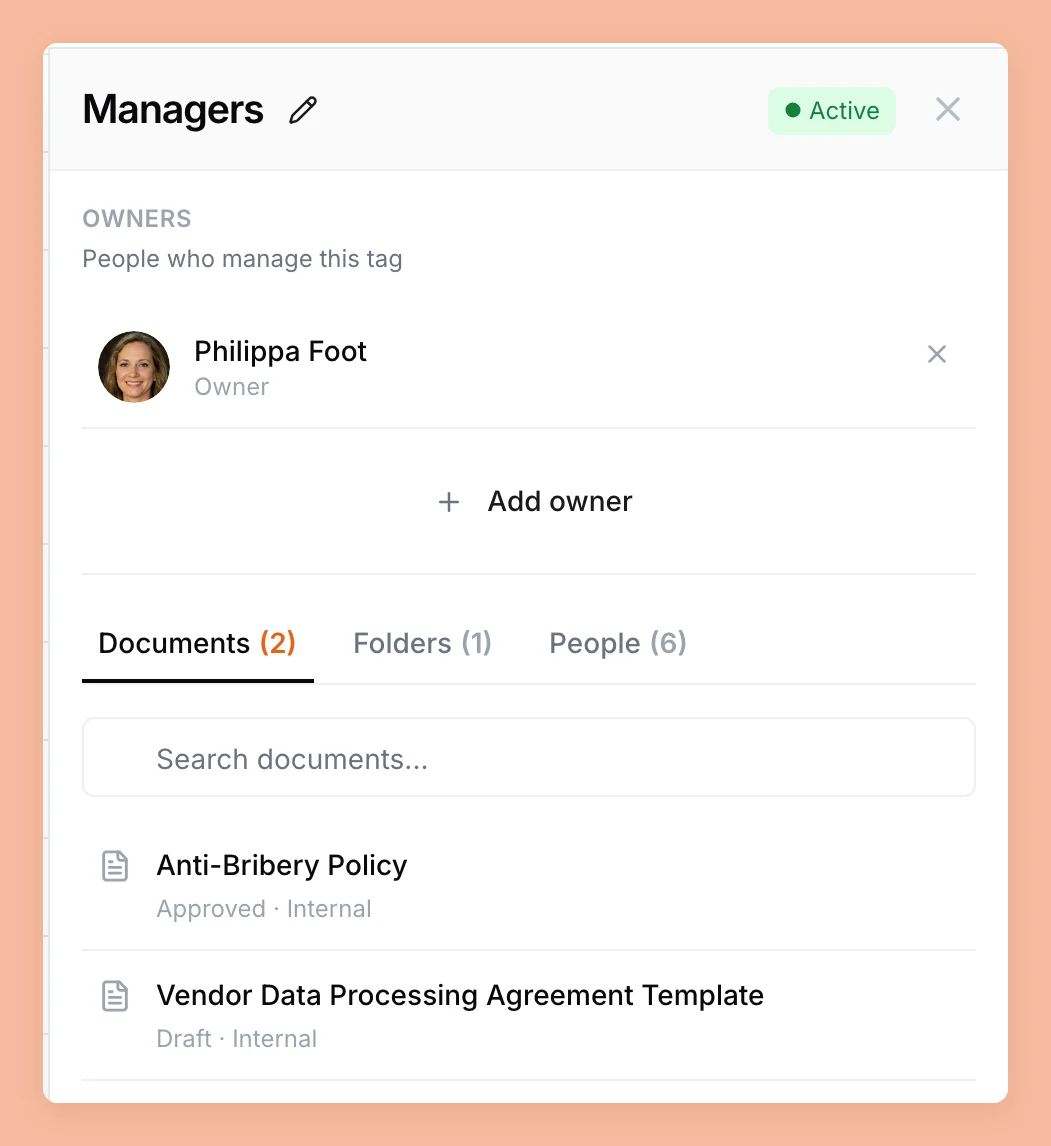
In Admin > Tags Management, click the office's tag, such as London.
Click Add owner.
Choose someone in that office who is an Admin or Editor, such as Mortimer Adler.
Making someone an owner also gives them the tag. On the tag's People tab, an owner can check who holds it and tell an Admin when someone joins or leaves.
Write and Send Office Policies
A local Editor writes and sends a policy for their own office. Approvers must hold the document's tags, so a Tokyo policy needs Tokyo approvers or an Admin. The Distribute Document dialog names the tags whose holders will receive it. See How Policy Distribution Works.
Handle Someone Moving Offices
Open Edit User for the person, such as Henry Thoreau.
Remove London.
Add Tokyo.
Click Save Changes.
He receives "Access removed: London" and "Access added: Tokyo" by email. If he was an approver on a London document in progress, that approval stops and the document goes back to Draft, ready to send again. See What Happens When Tags Change.
Check That It Worked
Open Edit User for one person in each office and read What This Grants. A London employee should see the Company and London documents and none from Tokyo.
Next Steps
- Give a New Hire the Right Policies on Day One: use these tags for each new hire.
- Plan Your Folders and Tags: the decisions to make before inviting anyone.
New to AllyMatter? Start a 30-day trial. No credit card required.