

Comment on a Document
Add a comment to selected text, then reply to it and resolve it from the Comments panel.
Who can do this: the document's Editor and Admins.
Before You Start
Open the document from Docs in the left navigation. Comments stay with the Editor and Admins, and Viewers never see them. To learn what each role sees, see Roles and Permissions.
Add a Comment
Click the Edit tab.
Select the words your comment is about. The floating toolbar appears.
Click Add comment, the last icon on the toolbar.

If the toolbar shows no comment icon, check that you are on the Edit tab.
In the Add a comment dialog, type your comment.
Click Add comment. The words you selected are highlighted in yellow.
Reply To and Resolve a Comment
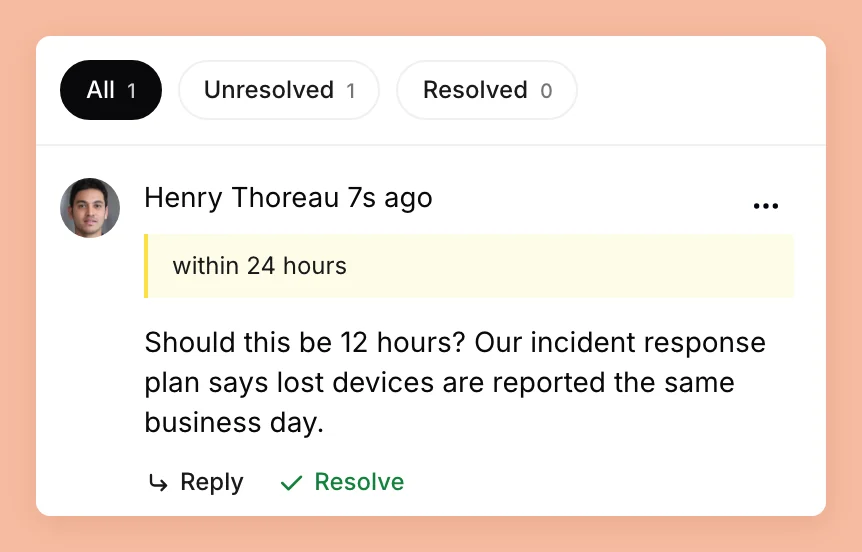
Click the Comments icon in the top bar. The Comments panel opens.
Click All, Unresolved, or Resolved to filter the list. Each shows a count.
To answer a comment, click Reply.
When the point is handled, click Resolve. The highlight leaves the text, and the comment moves to Resolved.
To bring a resolved comment back, click Reopen on it.
Edit or Delete a Comment
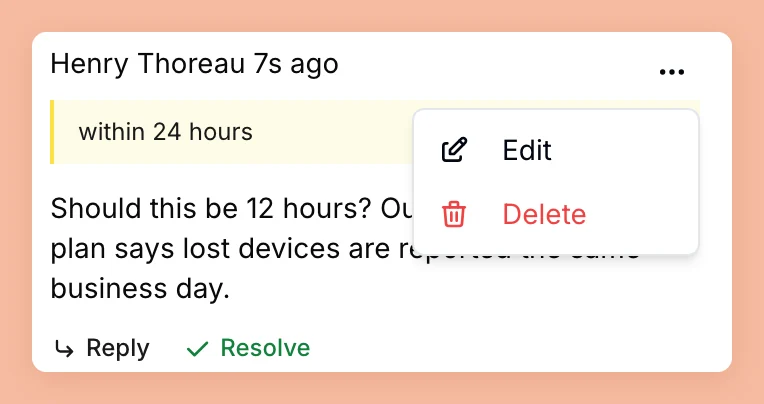
Click the three dots on the comment.
Choose Edit or Delete.
Check That It Worked
In the Comments panel, your comment shows your name, how long ago you wrote it, the highlighted words, and your text, with Reply and Resolve under it.
Next Steps
- Approve or Reject a Document: how approvers give their decision.
- Write and Format a Document: more on the floating toolbar.
New to AllyMatter? Start a 30-day trial. No credit card required.