

Organize Documents in Folders
Create folders and subfolders, choose where each document lives, and see how folder tags reach the documents inside.
Who can do this: Admins and Editors.
Before You Start
- Folders nest up to three levels deep.
- Decide which tags each folder should carry. A folder's tags reach every document inside it. To plan a structure, see Plan Your Folders and Tags.
Create a Folder
Click Docs in the left navigation.
Click the + on the folder that should hold the new one. For a top-level folder, use the + on the top folder in the tree.
Choose Create a new folder.
If Create a new folder is grayed out, the folder is already at the deepest level. Pick a folder higher in the tree.
In Name, type the folder's name.
Under Assign Tags, click Select Tags.
Tick the tags the folder should carry. Type in Search tag to find one in a long list. You can leave this empty.
Click Create.
Add a Document to a Folder
Click the + on the folder.
Choose Create a document.
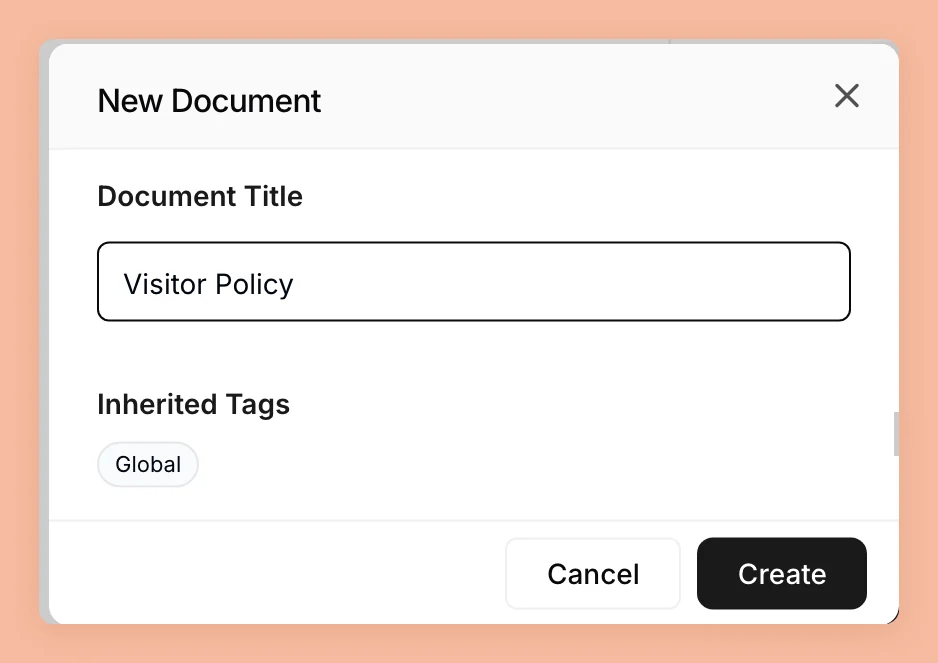
Type the Document Title. Inherited Tags shows the tags the document takes from the folder.
Click Create.
For the full steps, see Write and Format a Document.
Check That It Worked
The new folder appears in the tree under its parent. To rename it, click the three dots on it and choose Rename. To learn how folder tags combine with document tags, see How Tags Combine.
Common Questions
Do I need folders at all?
No. A document can sit at the root, outside any folder. An Internal document at the root has no tags, so only Admins and its Editor can open it until you add tags. See Tag Folders and Documents.
Next Steps
- Move Documents and Folders: what a move does to tags.
- How Access Works: how tags decide who sees each document.
New to AllyMatter? Start a 30-day trial. No credit card required.