

Set Up an Approval Workflow
Create a reusable workflow that sets who approves a document, in what order, and how often they are reminded.
Who can do this: Admins create workflows in Administrative Settings, or from a document's settings. The document's Editor and Admins pick one in the document's settings.
Before You Start
- Decide who approves and in what order. A workflow holds up to 4 steps, 6 people per step and 12 in total, and a person can be in only one step.
- Approvers must hold the tags of the documents they approve. Admins can approve without them.
Create a Workflow
Click Admin in the left navigation.
Under Administrative Settings, click Approval Workflows.
Click New Approval Workflow. Create Approval Workflow opens.
Enter a Workflow Name, and a line under Description (Optional) if it helps people choose.
In 1st approval, set Requirement to All Approvers (everyone approves) or Any Approver (one approval completes the step).
Click Add approver and pick the people for this step.
To add another step, click Add approval step and repeat steps 5 and 6.
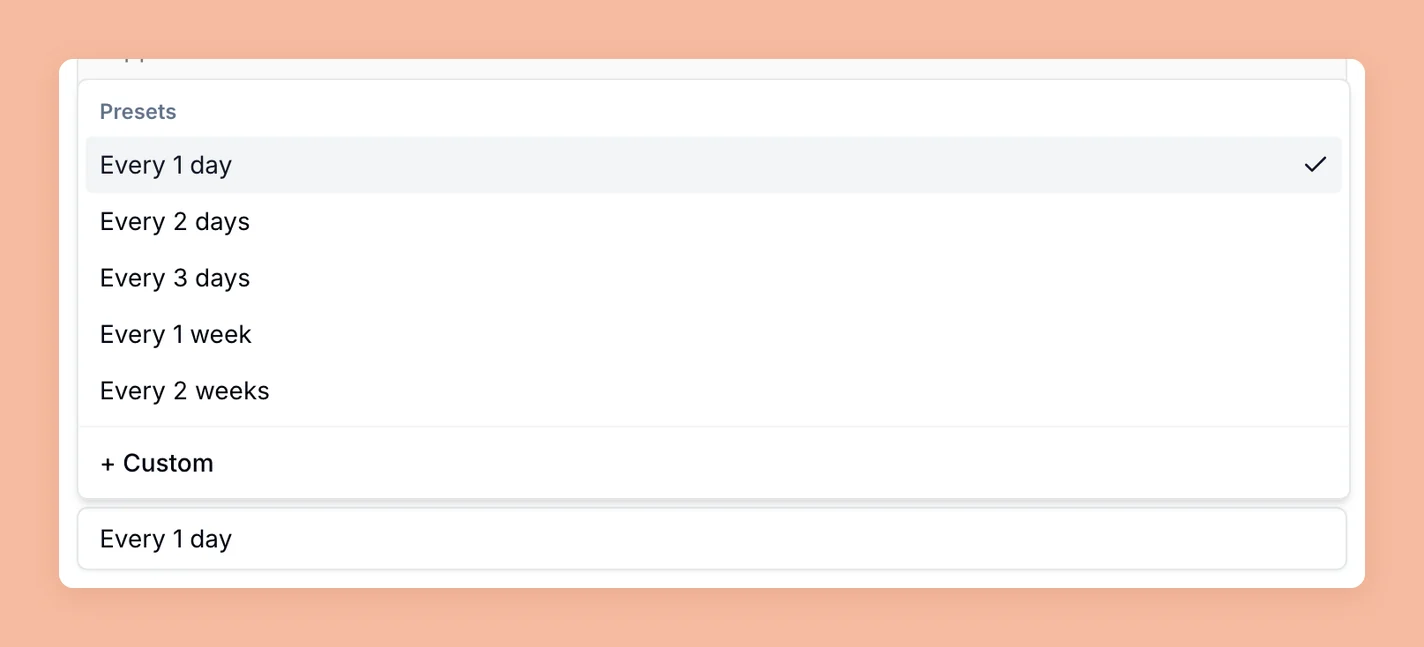
Under Automated Reminders, choose how often the current approver is reminded by email.
Click Add new.
Link a Workflow to a Document
Open the document and click Settings (the gear) in the top bar.
In the Approval Workflow section, click Link a workflow.
Choose Select Existing Workflow.
Click a workflow. Workflow Preview shows each step and its approvers. Use Search workflows if the list is long.
Click Use this workflow. Its name appears in the Approval Workflow section.
Admins can also build a new workflow from here: click Link a workflow, choose Create New Workflow, and fill it in as in Create a Workflow.
Check That It Worked
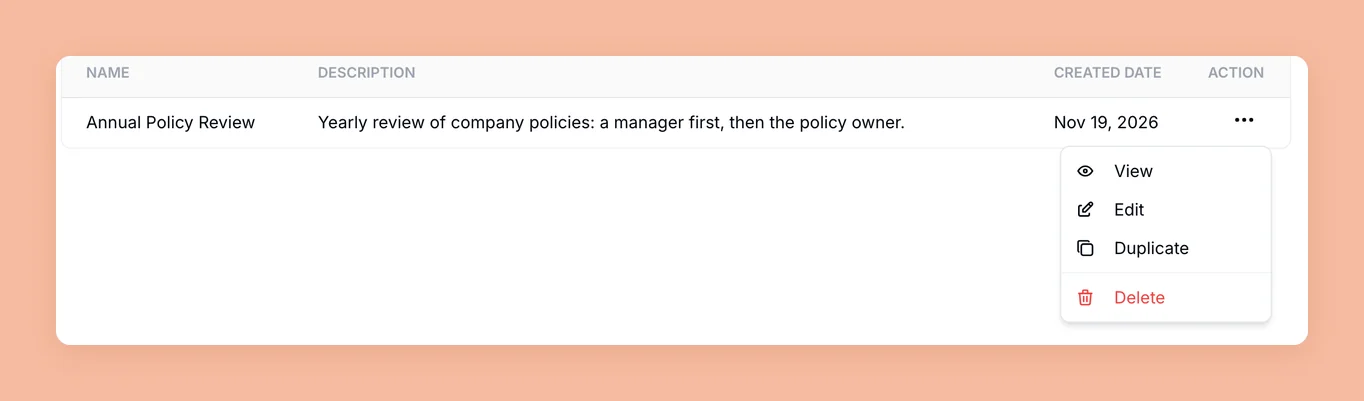
Type the name in the search box on Approval Workflows. The new workflow shows with its description and created date. To view, edit, duplicate or delete it, click the three dots in its Action column.
To learn how steps and reminders run, see How Approvals Work.
Common Questions
I write all our policies myself. Who approves them?
You do. Create a workflow with one step and set yourself as the approver. See Run Policies as a Team of One.
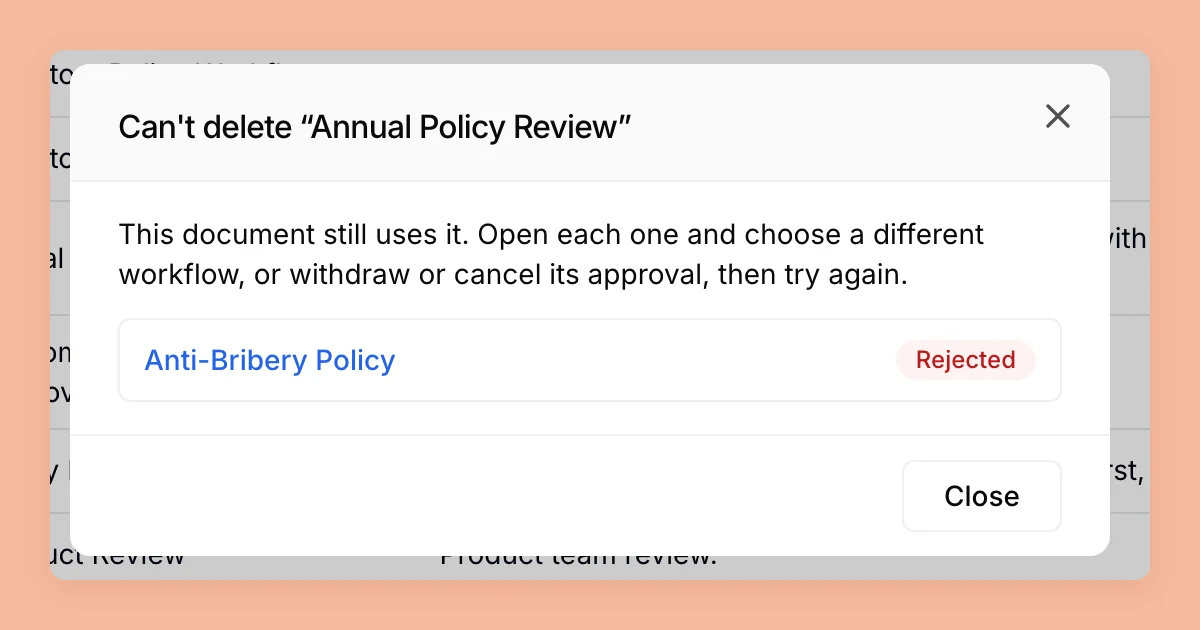
Why can't I delete a workflow?
A document still uses it. Can't delete lists each document that uses the workflow. Open each one and choose a different workflow, or withdraw or cancel its approval, then try again.
Can someone outside the company approve?
Yes, once they are invited as a normal workspace user. See Add an Outside Approver.
Next Steps
- Send a Document for Approval: start the workflow you created.
New to AllyMatter? Start a 30-day trial. No credit card required.