

Publish to Your Public Pages
Make an approved document readable by anyone, with no sign-in.
Who can do this: the document's Editor or an Admin.
Before You Start
- Publishing works one document at a time.
- The document needs at least one tag, an approval workflow, and an approved version, so your public page carries checked wording. See Send a Document for Approval.
Publish an Approved Document
Open the document. The green Approved bar runs across the top.
Click the Settings gear in the top bar. Document Settings opens.
In the Visibility section, choose Public. The line below reads "Visible to anyone with the public document link."
Click Save Changes.
In the Change Visibility? dialog, click Yes, change.
If Public is greyed out with "Add a tag to make this document Public.", add a tag first. See Tag Folders and Documents.
Check That It Worked
A message confirms "Visibility changed to public". To see the page as a visitor does, open its public link in a private browser window. Admins can find each link in Public Link Management. See See and Turn Off Public Links.
Your pages use your workspace's allymatter.app address on the Startup plan. On the Scale plan you can use your own domain. See Set Up a Custom Domain.
Choose the Document's Address
Open the document on the Edit tab.
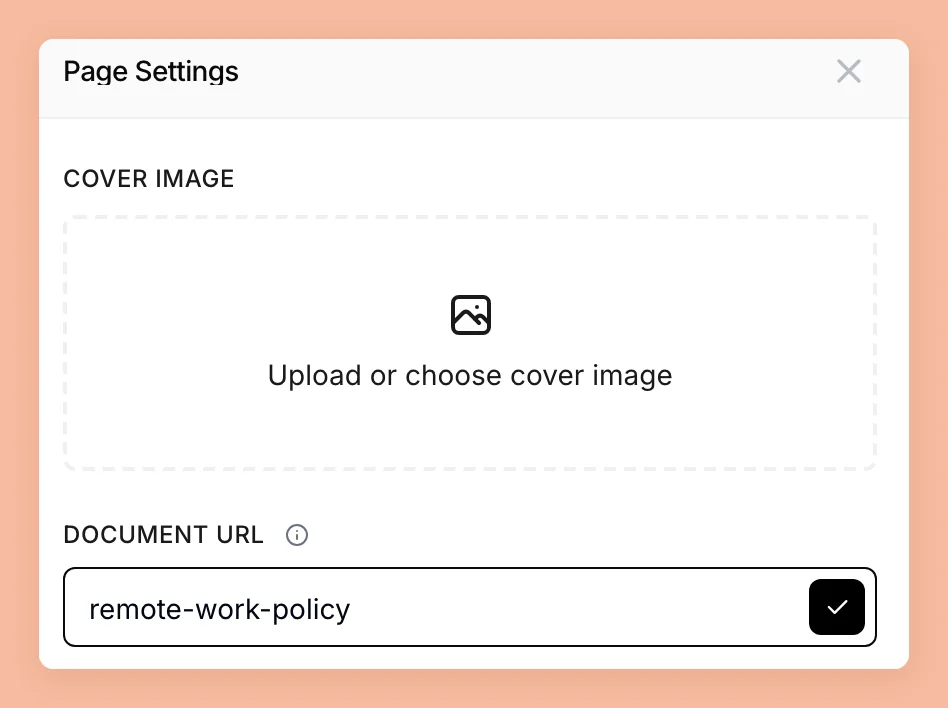
Click Page Settings at the top right.
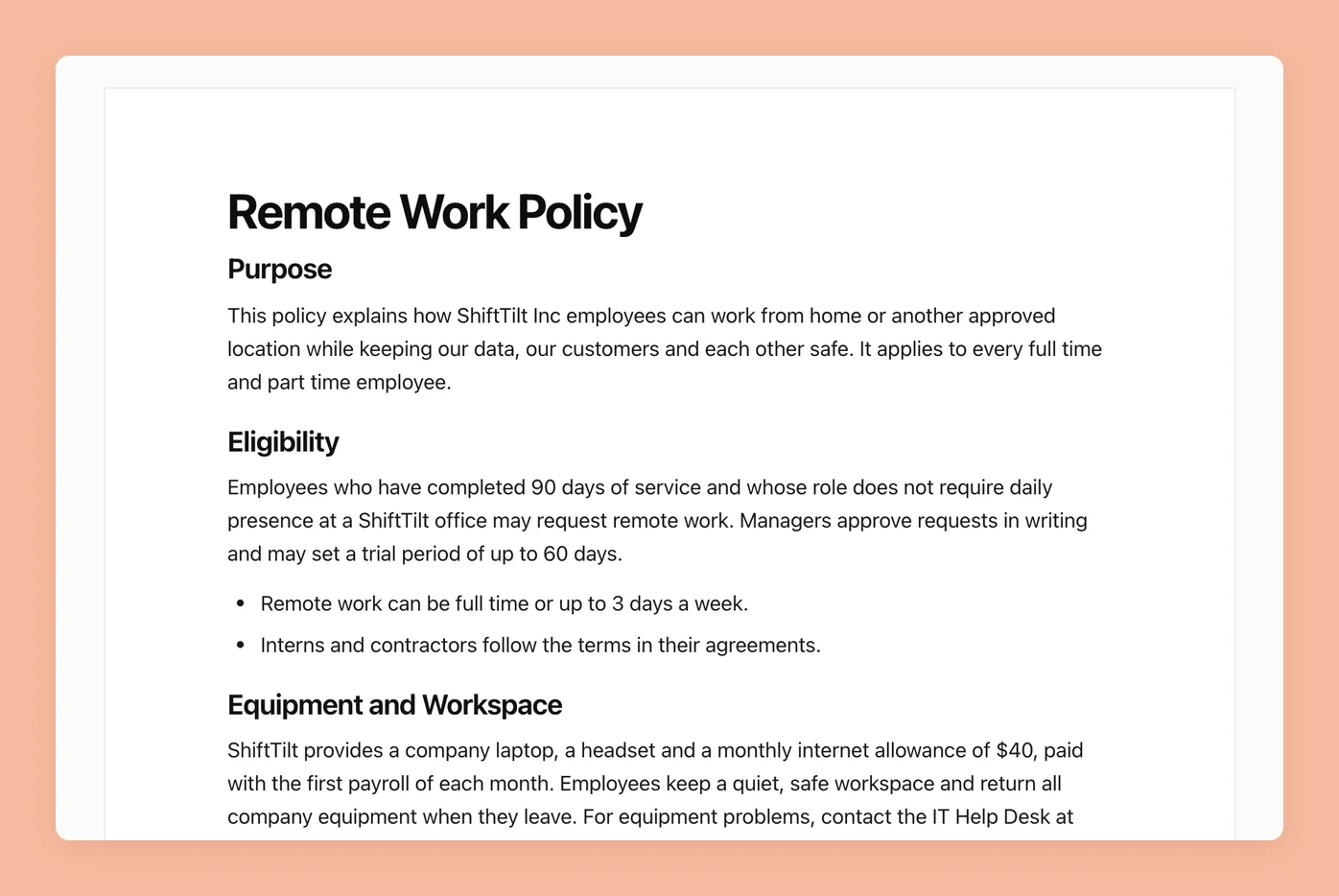
In the Document URL field, type the address in lowercase letters and hyphens, such as remote-work-policy.
Click the tick at the end of the field. A message confirms "Document URL updated", and the address applies at once, with no new approval.
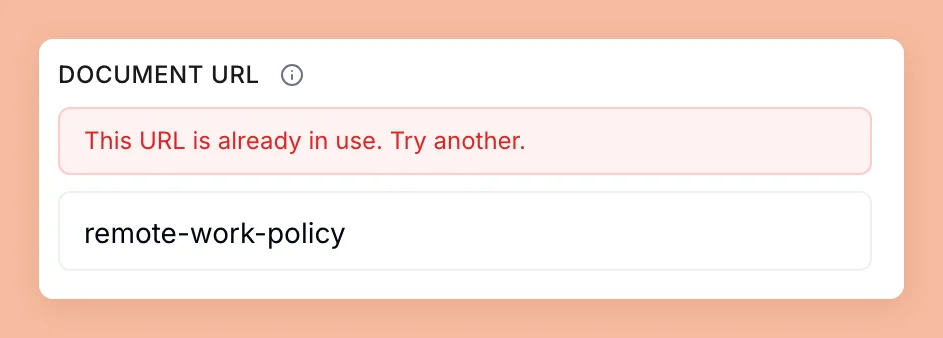
If you see "This URL is already in use. Try another.", change the address and click the tick again.
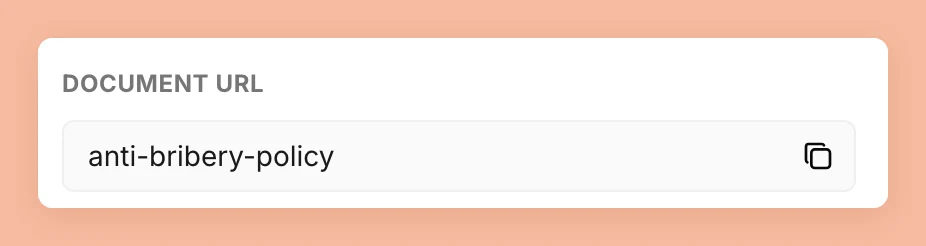
To copy the document's link, open Document Settings and click the copy button at the end of the DOCUMENT URL field. A message confirms "Link copied".
Take a Document Down
Open the document's Settings.
In the Visibility section, choose Internal to keep it for its tag holders, or Private in an emergency.
Click Save Changes.
Click Yes, change.
It leaves your public pages at once. To learn who can open a document in each state, see Private, Internal, and Public.
Common Questions
Does publishing one document expose the rest of my workspace?
No. Public applies to that document alone.
Next Steps
- Publish the Policies Customers Ask For: a playbook for privacy and security policies.
- Edit an Approved Document: update a published policy.
New to AllyMatter? Start a 30-day trial. No credit card required.