

Find the Documents That Apply to You
Use Home, Docs, and search to find the documents your company has shared with you, and download a PDF copy.
Who can do this: everyone.
Before You Start
Your company decides who can open each document, so there is nothing to set up. To learn how access works, see How Access Works.
Browse and Search
On Home, check the tasks waiting for you. Click View document to open one.
Click Docs in the left navigation. The tree shows the folders and documents you can open.
Click a folder's arrow to open it.
Click a document to read it.
To search:
Click Search documents at the top of any page.
Type a word or part of one, such as "brib". Results appear under Documents, with matches highlighted.
Click a result. If nothing comes up, try a shorter word or a phrase from the document's text.
Search covers document names and text, ignores capital letters, and shows only documents you can open.
Download a PDF
Open the document.
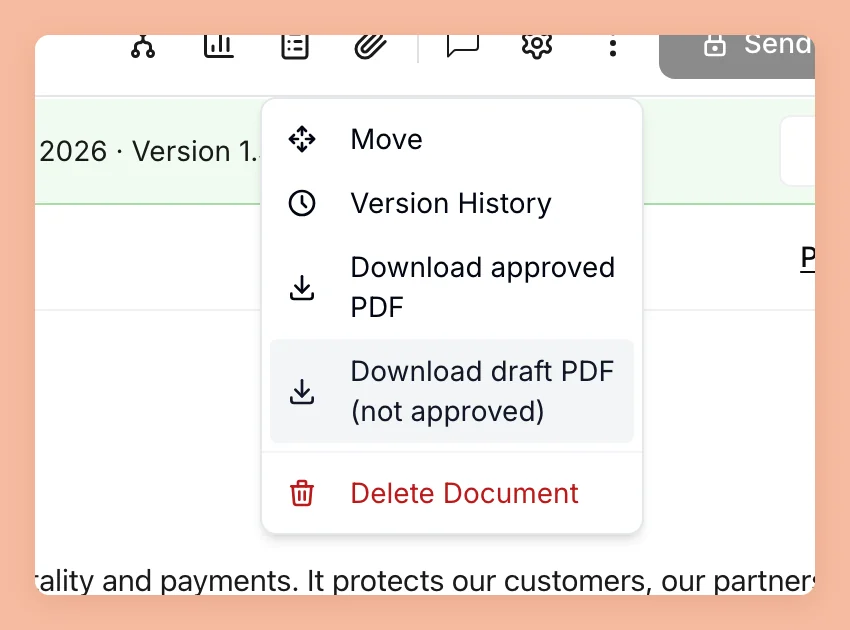
Click the three dots (More options) at the top right.
Click Download PDF. The file holds the approved version.
Admins and Editors see two choices instead: Download approved PDF and Download draft PDF (not approved). The draft file's name ends in "(draft)".
Check That It Worked
The document opens on screen, or the PDF lands in your downloads.
Common Questions
A Document I Could Open Yesterday Is Gone. Why?
Your access may have changed, or the document reached its expiry date. Check for an email titled Access removed, and ask an Admin if it is a mistake.
A Document I Expected Is Not Here.
Ask an Admin. Once you have access, it appears, and you get an email titled Access added.
Next Steps
- Acknowledge a Document: confirm you have read something.
- Manage Your Account: your name and password.
New to AllyMatter? Start a 30-day trial. No credit card required.