

Push an Urgent Policy Change
Get a corrected policy edited, approved, sent and tracked quickly, while your people keep the last approved version until the new one is approved.
When You Need This
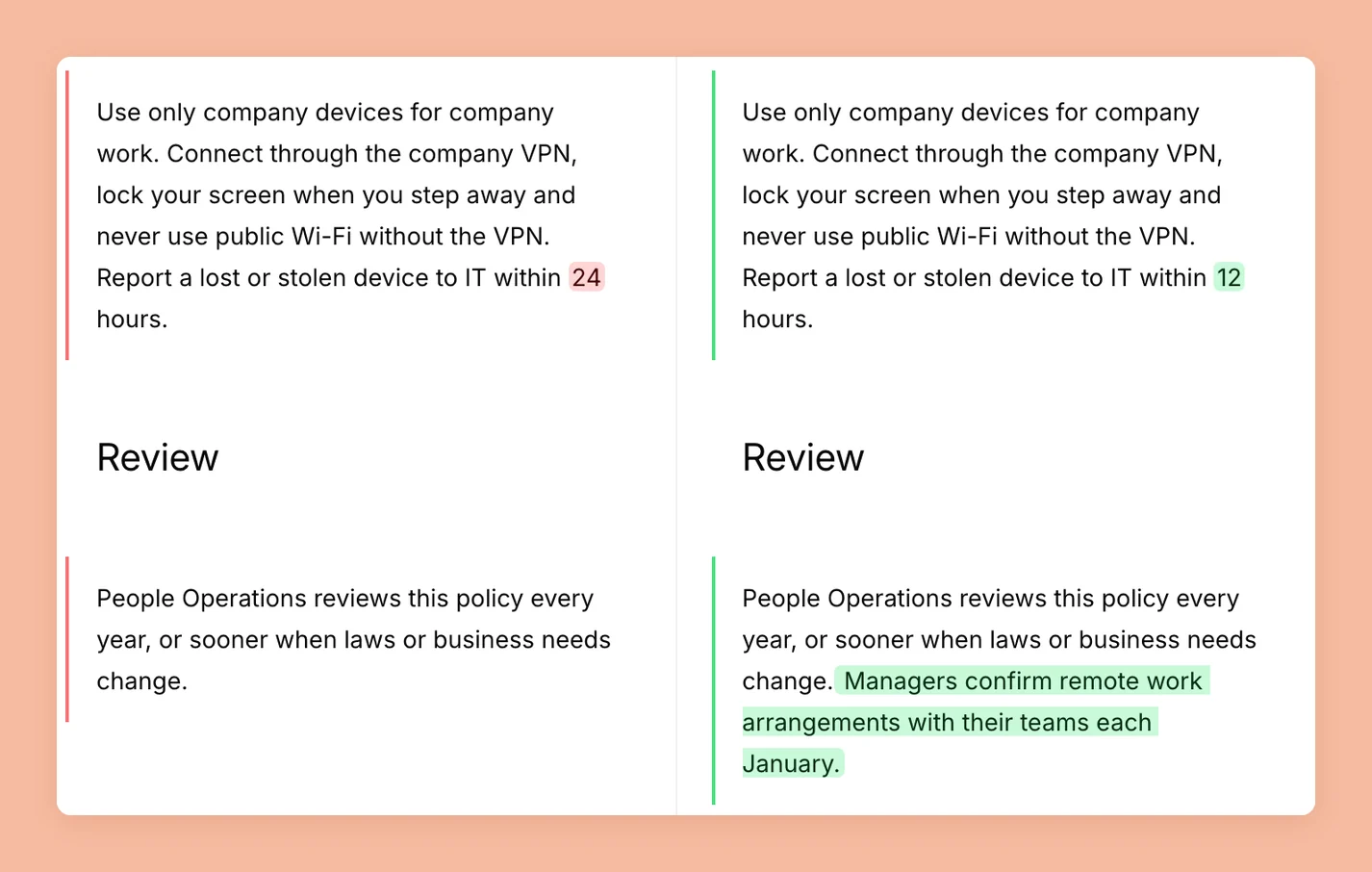
Use this when a policy is now wrong and must change quickly. For example, your Remote Work Policy says to report a lost laptop within 24 hours, and after an incident it has to be 12. You need to be the policy's Editor or an Admin.
Decide Whether the Current Version Can Stay Up
In most cases it can, because your audience keeps the last approved version while the new one is approved. If the current wording could cause harm while you work, take it out of view:
Open the policy and click the gear icon. Document Settings opens.
Under Visibility, click Private.
Click Save Changes. Nobody can acknowledge the document while it is Private.
Before you send the fix for approval, set Visibility back to Internal and click Save Changes. If Send for Approval does not go through, check that the document is not still Private.
To learn what each setting does, see Private, Internal, and Public.
Make the Edit
Click Edit in the top bar.
Change only what has to change. A small edit is quicker to approve.
Click Save Version.
Choose Minor Version or Major Version. Both take the same path.
Click Save Version in the dialog. The header now shows a switch with the published version, such as Published v1.3, and Draft.

Your people see only the published side until the new version is approved. Approvers can compare the versions word by word. An approver who is a Viewer sees Version History only if Viewers can see version history is turned on in Document Settings.
Get It Approved Quickly
If the usual workflow has several steps, link a shorter saved one in Document Settings first.
Click Send for Approval.
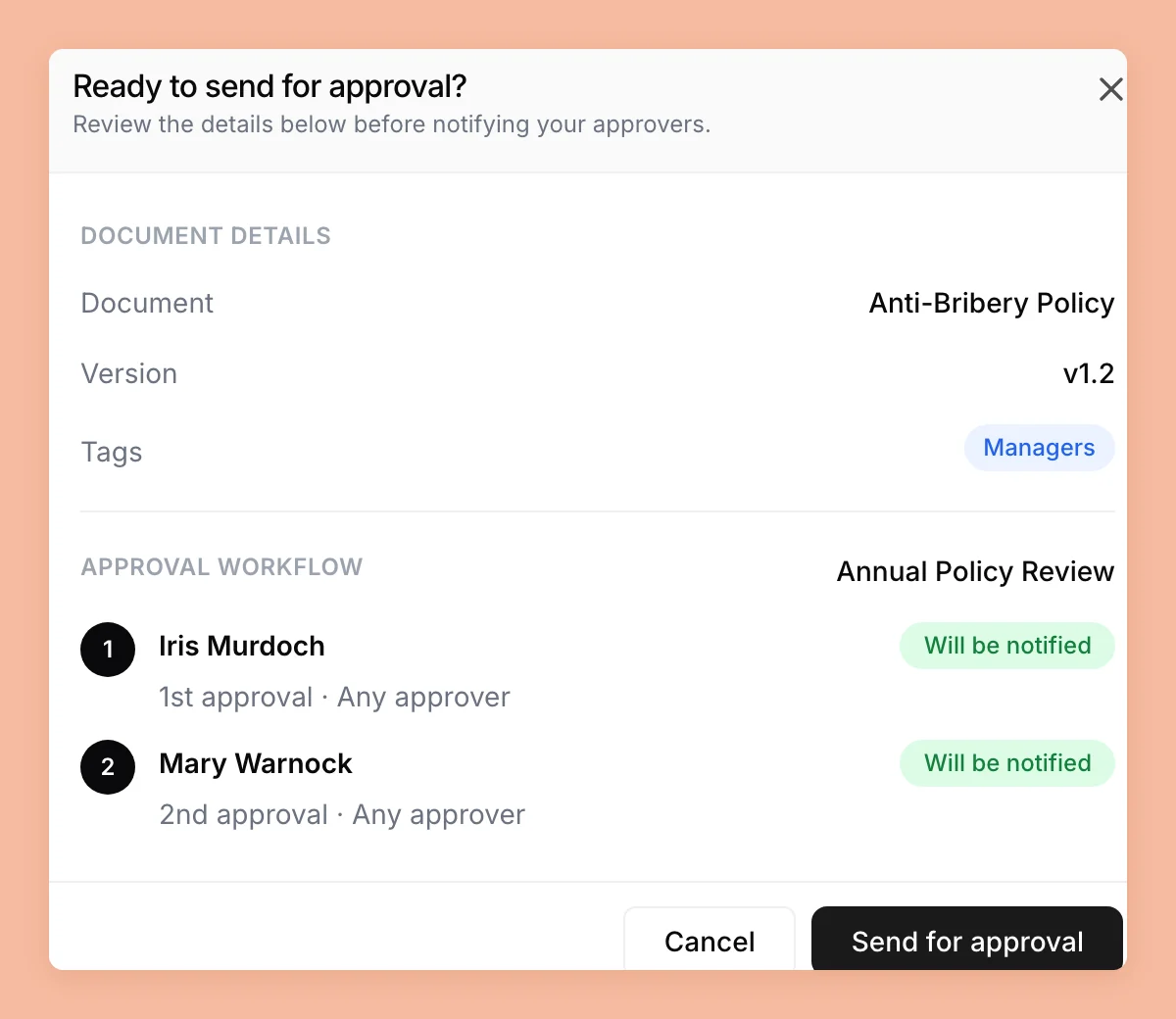
Check the version and approvers in the Ready to send for approval? dialog.
Click Send for approval. The document shows In Review and locks.
Tell your approvers directly that it is coming.
Each approver clicks Approve, then Approve again to confirm.
If an approver is away, click Withdraw on the In Review bar. The document goes back to Draft, so you can link a different workflow and send it again. If someone rejects it, fix what their comment asks for and resubmit; approval starts again at step 1. See Withdraw or Restart an Approval.
Anyone with a request still open on the old version has it replaced, so they acknowledge only the new version.
Send It
On the Approved bar, click Distribute.
Under How should recipients engage?, choose Acknowledge.
Turn on Send Automated Reminders.
Choose Every 1 day.
Check that the line starting All those with tags names the right tags. If it does not, click Cancel, change the tags in Document Settings, and click Update tags; a preview lists who gains or loses access before anything changes. A tag change on an approved document sends it back through approval.
Click Send for Acknowledgement.
Check That It Worked
The top bar shows Acknowledgement in progress with a new count, such as "0 of 11 acknowledged · 11 pending". Click View progress and open the Requests tab to see each person. Reminders stop after five, so contact anyone still pending yourself after that. See Track Who Has Acknowledged.
What You End Up With
Both versions sit in Version History with a word by word compare. The document's log shows who saved the new version, who approved it, who it went to, and each acknowledgment by name and time. You can export it as PDF or CSV.
Next Steps
- Answer an Auditor's Request: hand over the record of this change.
- Read Document Analytics: see who viewed the new version.
New to AllyMatter? Start a 30-day trial. No credit card required.