

Edit an Approved Document
Change an approved document while your audience keeps reading the approved version until the new one is approved.
Who can do this: the document's Editor and Admins.
Before You Start
- Edit appears once the document has been distributed. An approved document that has not gone out yet shows Send for Approval and Distribute instead.
- Every new version is approved and sent again, however small the edit. To confirm a policy with no edits, see Review a Policy That Has Not Changed.
Edit and Send a New Version
Open the document and click Edit in the top bar. A Draft badge appears beside Published.
Make your changes. They save automatically, and your audience sees none of them.
Click Save Version.
Choose Major Version or Minor Version, and click Save Version in the dialog.
Click Send for Approval. Ready to send for approval? opens with the new version number.
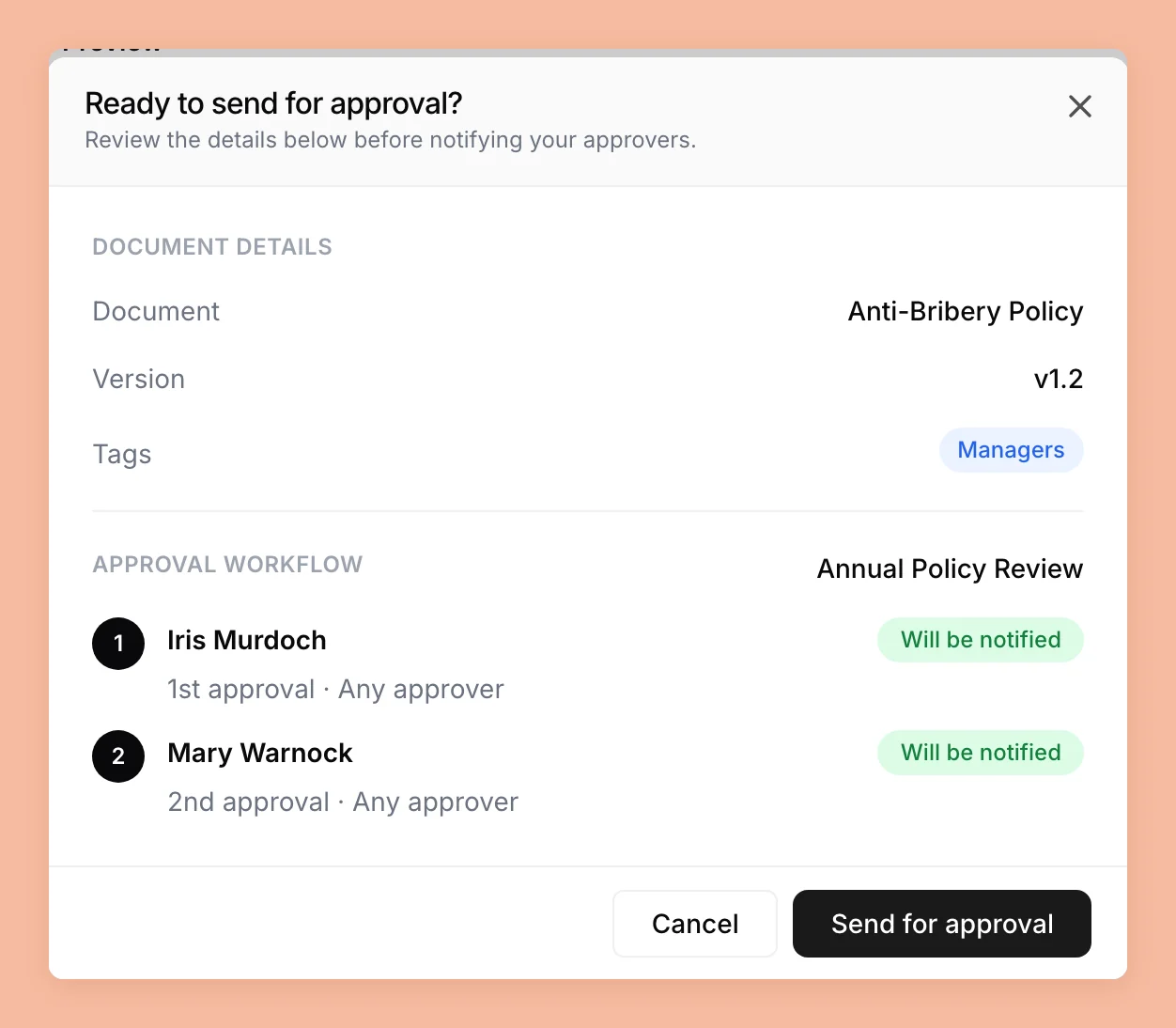
Click Send for approval. The In Review bar appears.
To use a different workflow, click Withdraw, change it in the Approval Workflow section of Settings, and send again.
When the green Approved bar shows All approvers approved, click Distribute and send the new version out. See Send Out a Changed Policy.
Check That It Worked
The green bar names the new version, such as Version 1.2. Until it appears, your audience keeps the last approved version.
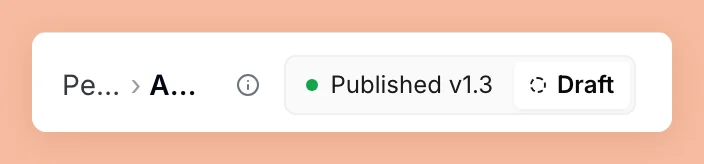
While a newer draft exists, the header shows a switch with the published version and Draft, for example Published v1.3 and Draft. Click Published v1.3 to see the version your audience reads, with Continue editing in the top bar. Click Draft to go back to your changes. Viewers see only the latest approved version and have no switch. Admins and Editors can switch between the draft and the live version.
To download either version, click the three dots, then Download approved PDF or Download draft PDF (not approved).
Requests still open on the old version are replaced, so people acknowledge only the newest version.
Common Questions
Does a minor version skip re-acknowledgment?
No. Major and minor are labels only. When you distribute, everyone you include is asked again.
Can I edit while the document is in approval?
The document locks during approval. Click Withdraw to bring it back to Draft, edit it, and send it again. See Withdraw or Restart an Approval.
There is an urgent error in the live version. What do I do?
Set the document to Private while you fix it. Nobody can acknowledge it while it is Private. See Push an Urgent Policy Change.
Do tag changes need approval too?
Changing the tags on an approved document leaves it Approved, and the document page offers re-approval. Re-approve it before you distribute again.
Next Steps
- Track Who Has Acknowledged: track acknowledgments of the new version.
- Work with Versions: compare or restore versions.
New to AllyMatter? Start a 30-day trial. No credit card required.