

Acknowledge a Document
Open a document your company has asked you to read, read it, and confirm that you have with one click.
Who can do this: anyone who receives an acknowledgment request.
Before You Start
- Use a computer, because the Acknowledge button sits in the top bar of the computer view.
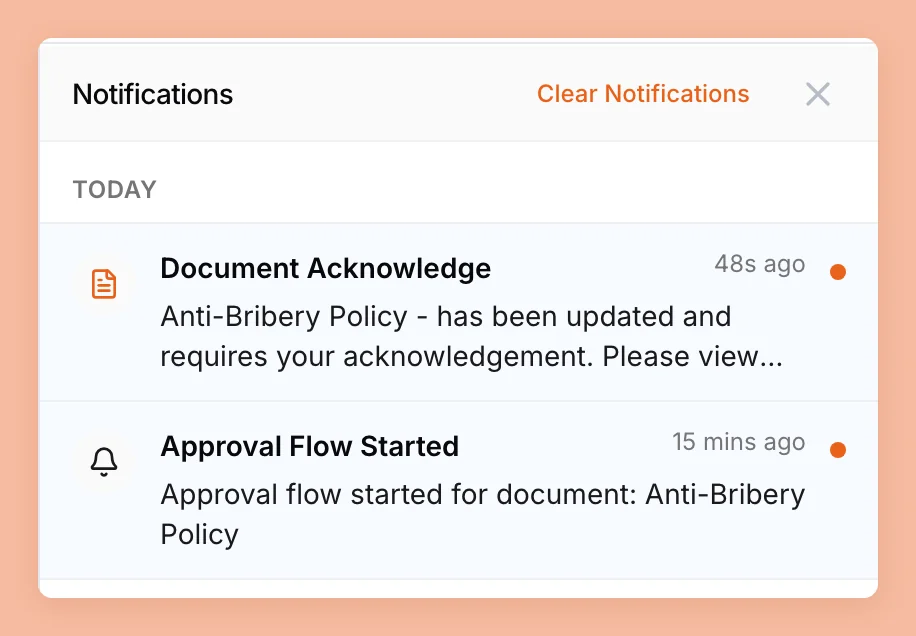
- You get an email, a Document Acknowledge notification in the bell at the top right, and a Slack message if your company has connected Slack. These only link to the document: you acknowledge on the document itself.
Acknowledge the Document
Click Home in the left navigation. The number under Documents needs acknowledgment shows how many wait for you.
Next to the document marked Acknowledgement, click View document. You can also use the View Document button in the email, and sign in if asked.
Read the document.
Click Acknowledge at the top right.
If Acknowledge is missing, you may already have acknowledged this version. If you have not, a newer version may have replaced your request, and you acknowledge that one once it is sent to you.
Check That It Worked
The button shows Acknowledging... and then disappears, and a message confirms You acknowledged this document. The task leaves your Home page.
AllyMatter records your name, email address, the date and time, and the version. To learn more, see Understand Acknowledgment Records.
Common Questions
I already acknowledged. Why am I being asked again?
The document has changed, and each new version needs its own acknowledgment, however small the change.
Will I keep getting reminders?
If the sender set up reminders, they arrive until you acknowledge, up to five in all. Acknowledging stops them.
What if I disagree with the document?
Talk to your manager or an Admin before you acknowledge. Acknowledging records that you have read the document.
What If I Never Got the Email?
Check your Home page, which lists everything waiting for you.
Next Steps
- Find the Documents That Apply to You: where to find everything else.
New to AllyMatter? Start a 30-day trial. No credit card required.