

Keep Evidence with the Policy
Store each certification, calibration report and inspection report on the policy it supports, so you can download it when someone asks.
When You Need This
Your Forklift Safety Policy says only certified operators drive, and the inspector asks to see the certificates. Your calibration SOP says gauges are checked every quarter, and a customer wants last quarter's report. Keep those files on the policy they support, instead of in a filing cabinet or an inbox.
Before You Start
- You need to be an Admin or the policy's Editor. Only they can see and upload evidence.
- Have the files ready as PDF, PNG, JPG, DOCX or XLSX. A scan of a paper certificate saved as PDF works well.
- Know the date each file is for, such as the date on a certificate or of an inspection.
Match Evidence to Policies
Start with the policies someone is most likely to ask you to back up.
| Policy | Evidence to keep with it | Evidence date to use |
|---|---|---|
| Forklift Safety Policy | Each operator's certification | The date on the certificate |
| Equipment Calibration SOP | Calibration reports from your outside lab | The date of the calibration |
| Fire Safety Policy | Inspection reports | The date of the inspection |
Upload Each File
Open the policy.
Click the Attachments icon, the paperclip, on the top bar.
Click Upload evidence.
In the Upload evidence dialog, drag your files in, or click browse to choose them. You can add several at once.
For each file, set Evidence date.
In Comment (optional), add a line that helps you find the file later, such as "London front desk sign-in log for November, showing every visitor signed in and out". Comments can be up to 500 characters.
Click Upload.
Uploading evidence to a policy, start to finish. 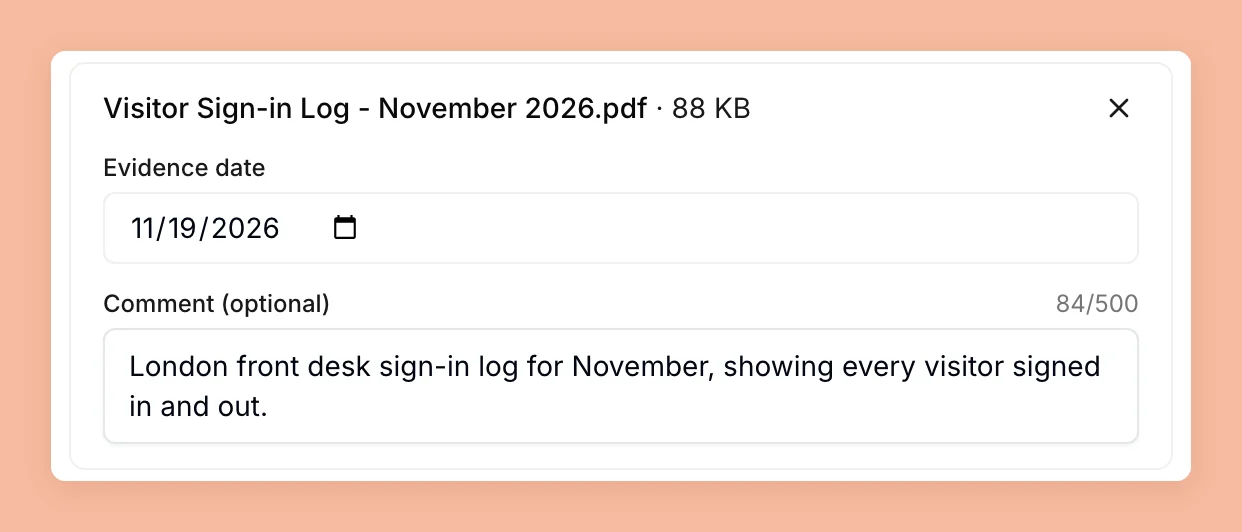
If the upload stops with "Storage limit exceeded", your workspace storage is full. Startup includes 1 GB and Scale includes 5 GB. Upgrade to Scale for more room, or contact AllyMatter support to add extra storage at $10 a month per 10 GB. See Plans, Storage, and Billing.
Check That It Worked
The file appears under Uploaded evidence:
| Column | What it shows |
|---|---|
| File | The file name and size |
| Evidence date | The date you set |
| Comment | Your comment, or a dash if you left it empty |
| Uploaded | Who uploaded it, and the date and time |
The upload is recorded in the policy's log. The policy's version and approval stay as they are, so nothing needs approving again.
Keep It Current
When a certificate is renewed or a new inspection comes in, upload the new file the same way.
To change a file's details, click the three dots on its row and choose Edit details.
When an old file no longer belongs, click the three dots on its row and choose Delete. The removal is recorded in the log.
To find a file, type in Search files, comments or people at the top of the page.
Use the policy's Review by date as the time to check its evidence. See Set Review and Expiry Dates. Storage at the bottom of the page shows how much space you have used.
Who Sees It
Files are visible to Admins and the policy's Editor only. Everyone else who opens the policy's Attachments page sees "Attachments are restricted", which suits files that carry personal details.

Share It When Asked
Open the policy's Attachments page.
Find a file the person asked for.
Click the three dots on its row.
Choose Download.
If they also want to see that the policy was approved and acknowledged, see Answer an Auditor's Request. Signed copies from e-sign are stored on the same page, under Signed documents.
Next Steps
- Add Attachments to a Policy: every detail of the Attachments page.
- Run Your Policy Review Cycle: build evidence checks into each review.
New to AllyMatter? Start a 30-day trial. No credit card required.