

Move Documents and Folders
Move a document or folder to a new location, and check what the move does to its tags and its audience.
Who can do this: the person who created the document or folder, and Admins.
Before You Start
- A move drops every tag on the document, including tags you added to it directly. The document then takes the tags of its new folder, and a move to the root leaves it with none.
- Note any tags you added to the document by hand. Moving it back to its old folder restores only that folder's tags, so you add the others again yourself.
- Moves wait until approvals are complete, so finish or withdraw any approval on the document, or on any document in the folder.
Move a Document
Open the document.
Click the three dots in the top bar.
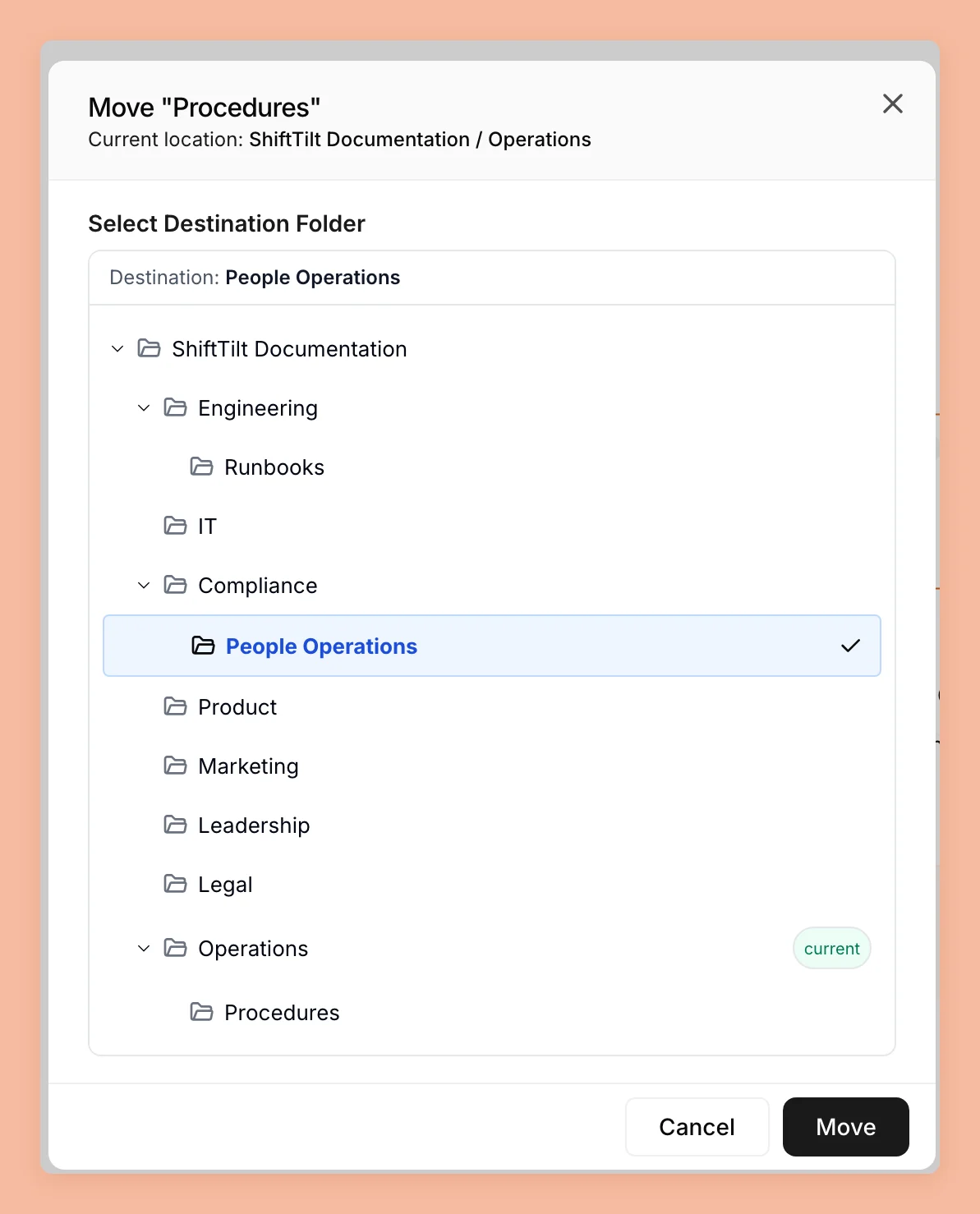
Choose Move. The dialog shows the document's name and its Current location, and its current folder is marked current.
Under Select Destination Folder, click the folder you want. The line at the top shows your Destination.
Click Move Document.
You can also drag the document to its new folder in the folder tree.
Move a Folder
In the folder tree, click the three dots on the folder.
Choose Move to....
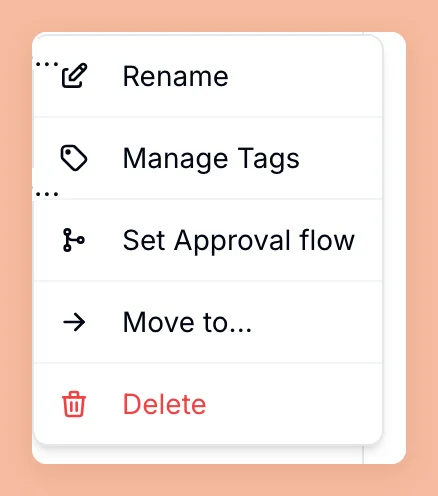
Under Select Destination Folder, click the folder that should hold it.
Click Move.
If you see "Some documents in this folder are in an approval flow", wait until those approvals are complete, then move the folder.
Check That It Worked
Open the document in its new folder.
Click the gear icon in the top bar to open Document Settings.
Look under Tags. From parent folder shows the new folder's tags. If the new folder has none, you see "No tags assigned to this document yet."
If people who need the document lost access, add the tags they need under Tags with Edit tags. Moving notifies nobody, so tell the people affected yourself. To learn more, see What Happens When Tags Change.
Common Questions
I moved a document back. Why are some tags still missing?
Moving it back gives it the old folder's tags only. Tags you had added to the document directly were dropped by the first move, so add them again under Edit tags.
Next Steps
- Organize Documents in Folders: create folders and subfolders.
- Tag Folders and Documents: add tags to a folder or a document.
New to AllyMatter? Start a 30-day trial. No credit card required.