

Roll Out a New Policy to Everyone
Take a new policy from first draft to a named record of everyone at your company who has acknowledged it.
When You Need This
Use this when your company has a new policy that applies to everyone, such as an Anti-Bribery Policy. You need to be an Admin or an Editor.
Write the Policy
In Docs, click the + next to the folder where the policy belongs.
Click Create a document.
Type the title under Document Title and click Create.
Write the policy. The editor saves as you go, and the draft sits in the Drafts tab. See Write and Format a Document.
When the wording is final, click Save Version.
Choose Major Version and click Save Version in the dialog.
Set the Audience First
"Everyone" means everyone holding a tag. A new workspace starts with one tag, Global, and nobody holds it until an Admin adds them, so new people do not get it automatically.
If you need one, create a tag such as All Employees and add your whole company to it. See Create and Manage Tags.
Click the gear icon. Document Settings opens.
Under Tags, click Edit tags.
Pick the tag from the list. It saves at once and shows under Added to this document.
Adding a tag to a policy in Document Settings.
Do this before approval: a tag change on an approved document means re-approving it. To learn how tags reach a document, see Tag Folders and Documents.
Get It Approved
In Document Settings, click Link a workflow.
Click Select Existing Workflow.
Pick a workflow and check the approvers under Workflow preview.
Click Use this workflow.
Click Send for Approval.
Check the document, version, tags and approvers in the Ready to send for approval? dialog, then click Send for approval. The document shows In Review and locks.
Each approver clicks Approve, then Approve again in the Approve Document dialog.
Approvers need to hold the document's tags; Admins can approve without them. If someone rejects it, their comment comes back to you, the document returns to Draft, and resubmitting starts again at step 1. See Send a Document for Approval.
Send It
When the green bar shows All approvers approved, click Distribute.
Under How should recipients engage?, choose Acknowledge.
Turn on Send Automated Reminders and pick a schedule, such as Every 2 days.
To leave anyone out, turn on Exclude Members and choose them under Users.
Read the line starting All those with tags. If it does not name the tag everyone holds, click Cancel and fix the tags first.
Click Send for Acknowledgement.
Share Acknowledge a Document with your staff.
Check That It Worked
The bar shows Acknowledgement in progress with a count, such as "0 of 7 acknowledged · 7 pending". Click View progress and open the Requests tab to see each person. Reminders stop after five, so contact anyone still pending yourself after that. See Track Who Has Acknowledged.
What You End Up With
The document's log holds the approved version with each approval by name, the distribution with its recipients, and each acknowledgment with name, email, date and time, and version. Completed acknowledgments stay on record after someone leaves.
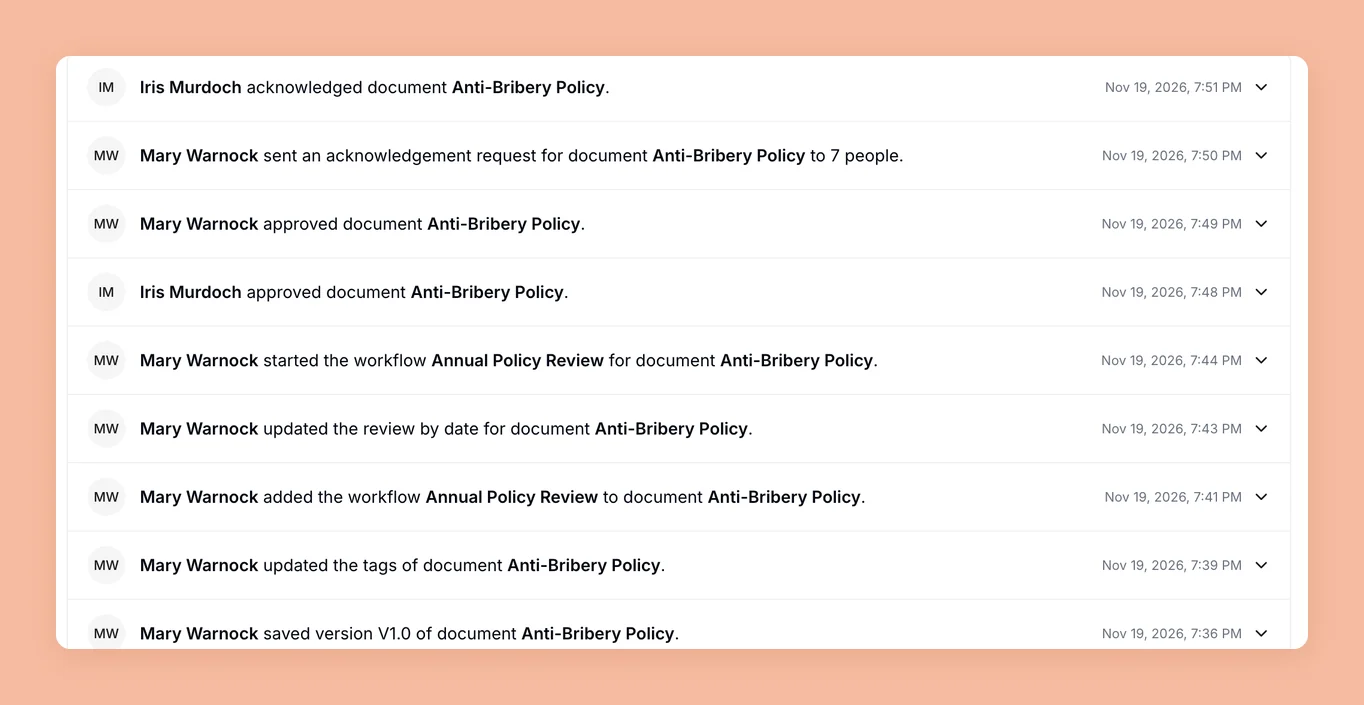
To hand over the record, see Export Logs and Records.
Next Steps
- Give a New Hire the Right Policies on Day One: how people who join later receive the policy.
- Send Out a Changed Policy: what to do when this policy changes.
New to AllyMatter? Start a 30-day trial. No credit card required.