

See and Turn Off Public Links
See all the public links in your workspace, and turn off any link you no longer want open.
Who can do this: Admins.
See Your Public Links
Click Admin in the left navigation.
Under Administrative Settings, click Public Link Management.
Read the list. Each row shows the Document Name, its Public Link, Created At, Last Action, and a colored Visibility Status.
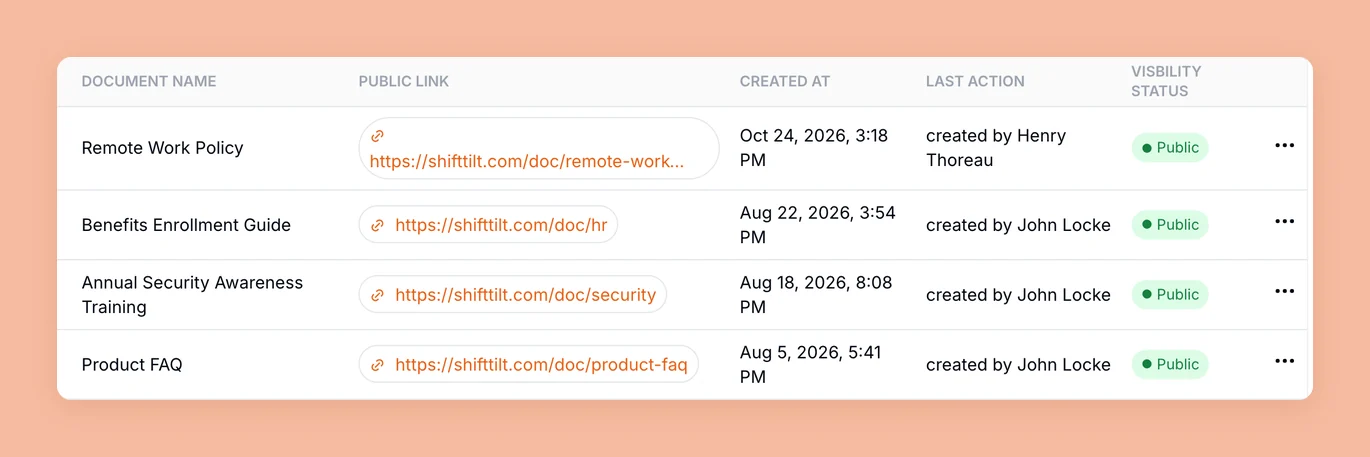
To narrow the list, set the status filter to Public, or click the search icon and type a document's name.
Only documents marked Public are open to visitors.
Turn Off a Public Link
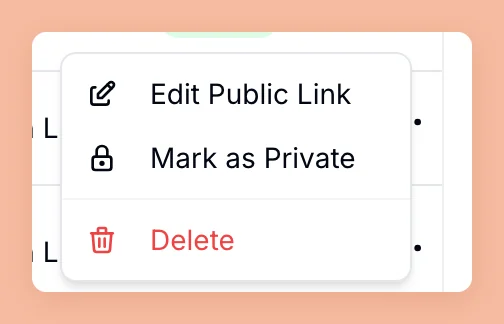
Click the three dots at the end of the document's row.
Click Mark as Private.
In the Change Visibility? dialog, click Yes, change.
Marking a link Private also takes the document away from its tag holders. To keep it open to them, change it to Internal from the document's Settings instead. See Publish to Your Public Pages.
Check That It Worked
The row now shows a red Private status. Open the old link in a private browser window: it no longer opens the document without a sign-in.
Next Steps
- Private, Internal, and Public: who can open a document in each state.
- Set Up a Custom Domain: show these links on your own domain.
New to AllyMatter? Start a 30-day trial. No credit card required.