

Error Messages
Look up the exact message on your screen, see what caused it, and fix it.
If your message is not listed here, write to [email protected].
Signing In
"User has been removed from the organization. Contact Administrator"
Cause: an Admin deleted your account from this workspace.
Fix: ask an Admin of the workspace about your access. They can invite you again from Users > Invite. If you belong to other workspaces, you still sign in to those as before.
"Incorrect password. Please try again."
Cause: the password does not match the one on your account.
Fix:
On the sign-in page, click Forgot password?.
Type your email in Work email.
Click Send reset link.
Open the email and set a new password.
If your workspace signs in with Google or Microsoft, use Continue with Google or Continue with Microsoft instead.
Opening Documents
"Your access to this document has been revoked by an administrator. If you believe this is a mistake, please contact your administrator for assistance."
This appears under the heading Access Revoked.
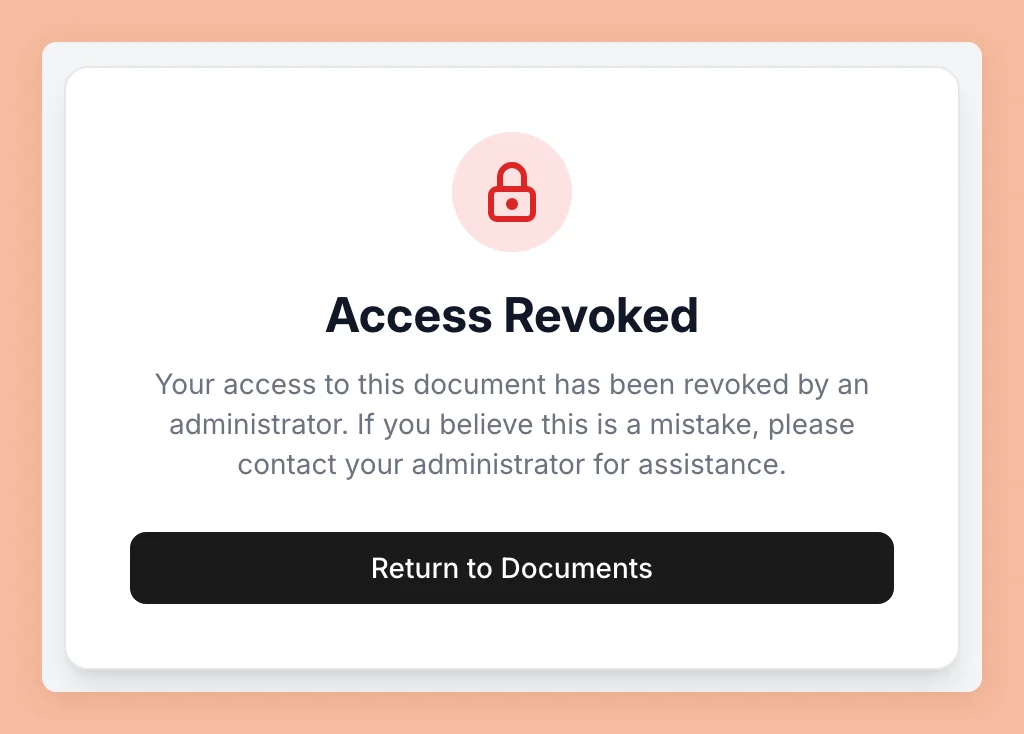
Cause: you do not hold the tags this document needs, or you rejected it as an approver and have no published version to open.
Fix: click Return to Documents to go back to your list. If you need this document, ask an Admin to add you to its tags from the pencil on your row on the Users page.
"Only one version exists for the document."
Cause: you are reading the current approved version, which is the one people acknowledging a document see. Editors and Admins always see Version History, and Viewers see it only when it is turned on for the document.
Fix: none needed. To let Viewers see earlier versions, the document's Editor or an Admin turns on Viewers can see version history in Document Settings.
Approvals
"Create a saved version before sending for approval."
Cause: Send for Approval stays locked until you save a version.
Fix:
Click Save Version in the document's top bar.
Choose Major Version or Minor Version.
Click Save Version in the dialog.
Click Send for Approval, which is now active.
Saving a version so the approval can start.
"Please select approval workflow!"
Cause: the document has no workflow linked.
Fix:
Click the gear in the document's top bar. Document Settings opens.
Under Approval Workflow, click Link a workflow.
Choose Select Existing Workflow.
Pick a workflow.
Click Use this workflow.
Send the document again.
If no workflow exists yet, an Admin creates one in Admin > Approval Workflows. See Set Up an Approval Workflow.
"Document has no tags. Cannot start approval flow."
Cause: the document carries no tags, and every document needs at least one before it goes through approval.
Fix:
Click the gear in the document's top bar. Document Settings opens.
Under Tags, click Edit tags.
Pick a tag from the list. It saves at once.
Click Close.
Send the document again.
See Tag Folders and Documents.
"Change the expiry date from the document settings to initiate the approval flow."
Cause: the document's expiry date has passed.
Fix:
Click the gear in the document's top bar. Document Settings opens.
Under Document Lifecycle, with Expiry date selected, pick a later date.
Click Save Changes.
Send the document again.
See Renew an Expired Document.
"Can't delete [workflow name]"
Cause: a document still uses the workflow. The dialog lists each one with its status.
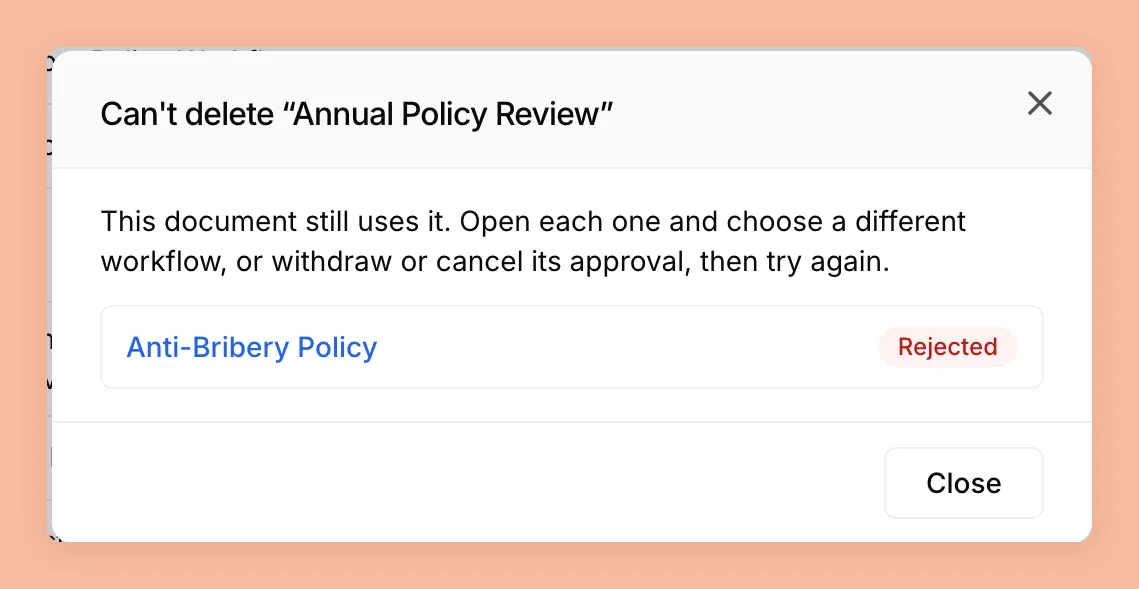
Fix:
Click the document name in the dialog.
Choose a different workflow for it, or withdraw or cancel its approval.
Delete the workflow again. See Withdraw or Restart an Approval.
"This document cannot be restored while it is in an approval flow."
Cause: you tried to restore a version during an active approval.
Fix: wait for the approval to finish, or withdraw it, then restore the version.
Folders and Storage
"Some documents in this folder are in an approval flow. You can move the folder after those approvals are complete."
Cause: a document inside the folder is in an active approval.
Fix: wait for the approvals to finish, or withdraw them, then move the folder.
"Folder has documents, cannot delete."
Cause: the folder still holds documents or subfolders. Documents already in Archive do not count.
Fix: move or delete what is inside, then delete the folder. See Archive, Delete, and Restore.
"Storage limit exceeded"
Cause: your workspace has used all of its plan's storage.
Fix: remove attachments you no longer need from your documents' Attachments pages, then upload again. See Plans, Storage, and Billing. Signed copies are still saved.
Tags
"A tag with this name already exists."
Cause: tag names are unique across the workspace.
Fix: choose another name, or use the existing tag.
"Tags cannot be changed while this document is in an approval flow."
Cause: the document is in an active approval.
Fix: wait for the approval to finish, or withdraw it, then change the tags.
"You cannot remove yourself as the only owner of this tag. Please add another owner first."
Cause: every tag keeps at least one owner.
Fix: in Admin > Tags Management, edit the tag and add another Admin or Editor as an owner. Then remove yourself. See Create and Manage Tags.
Sending Documents
"No recipients remain. Keep at least one member selected for distribution."
Cause: everyone was excluded, or nobody holds the document's tags.
Fix: clear some exclusions, or ask an Admin to give people the document's tags, then distribute. See Create and Manage Tags.
Public Pages
"This URL is already in use. Try another."
Cause: another document already uses that address in the Document URL field.
Fix: choose a different address. See Publish to Your Public Pages.
Logs
"No log entries to export."
Cause: your filters match no entries.
Fix: widen the date range or clear the person filter, then export again. See Export Logs and Records.
Next Steps
- Why Can't I...: fixes listed by problem.
- Withdraw or Restart an Approval: clear an active approval.
- Roles and Permissions: what each role can do.
New to AllyMatter? Start a 30-day trial. No credit card required.