

Use the Workspace Audit Log
See events from all documents in your workspace, and filter them by date range or person.
Who can do this: Admins.
Before You Start
Use the Audit Log for questions that span documents, such as what happened last week or what one person has done. For one policy, its own document's log is quicker to read. To learn what the log records, see What Is an Audit Trail?.
Open the Audit Log
In the left navigation, click Admin.
Under Administrative Settings, click Audit Log. The Audit Log page opens, with entries grouped by day, newest first.
Read the entries. Each one names the document it belongs to, with the date and time on the right.
To see who a distribution went to, click View recipients under it.
Filter the Entries
Click Date Range and choose Today, Last 7 days, Last 30 days, Last 90 days, or Select date range.
Click All People and choose a person.
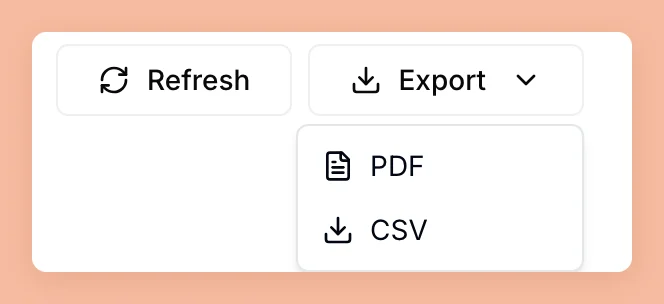
Click Refresh to load the latest entries.
If nothing shows, widen the date range or choose All People again.
To find a deleted document, filter by the date it was deleted and look for the deletion entry.
Export the Audit Log
Click Export at the top right.
Choose PDF or CSV.
Check That It Worked
The button reads Preparing... and a message says Preparing the complete audit export. This may take a moment.... Your browser then downloads the file. See Export Logs and Records.
Common Questions
Can Editors open the Audit Log?
The Audit Log is for Admins. Editors read each document's log instead, and Admins can export the workspace view for them.
How do I check one person's work on one document?
Open that document's log and use All People there.
Next Steps
- See a Person's Activity: other views of what one person has done.
- Answer an Auditor's Request: the steps for an auditor's request.
New to AllyMatter? Start a 30-day trial. No credit card required.