

Set the Acknowledgment Statement
Choose the sentence people tick when they acknowledge a document, or keep the AllyMatter default.
Who can do this: Admins.
What the Statement Is
When people acknowledge a document, they tick a statement. Until you add your own, they tick the AllyMatter default: "I have read and agree to follow the policy in its entirety."
Before You Start
- Write your statement in the first person, as one sentence, for example "I have read this policy and will follow it." It can be up to 200 characters.
- Your statement becomes active as soon as you add it, for every document at once. Agree the wording with whoever owns your policies first.
Add Your Own Statement
In the left navigation, click Admin.
Under Administrative Settings, click Acknowledgements. The page shows Using the AllyMatter default.
In the Add your first statement box, type your statement. The counter shows how many of the 200 characters you have used.
Click Add. To leave the default in place, click Cancel instead.
Check What People See
The What people see when they acknowledge section shows the statement as people see it, with the box they tick.
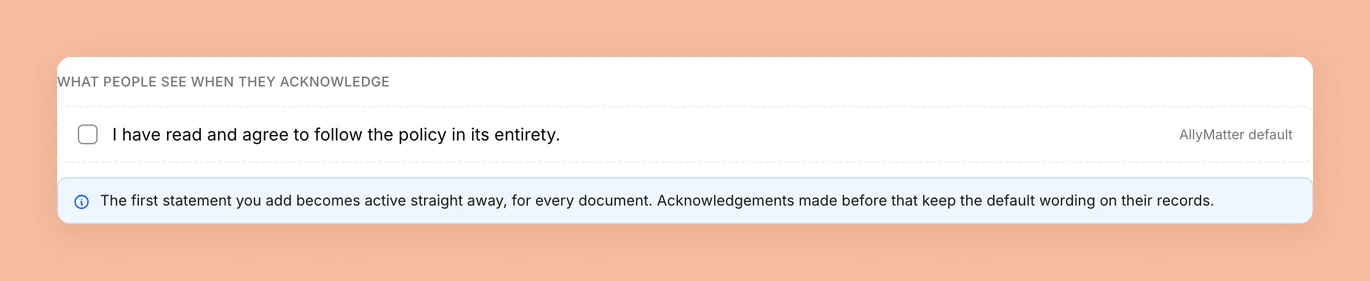
Acknowledgments made before you add a statement keep the default wording on their records.
Common Questions
Does My Statement Apply to Every Document?
Yes. It becomes active straight away for every document. People who acknowledged before you added it keep the default wording on their records.
Next Steps
- Distribute a Document: send a document for acknowledgment.
- Track Who Has Acknowledged: see who has responded.
New to AllyMatter? Start a 30-day trial. No credit card required.