

Work with Versions
Save numbered versions of a document, compare any older version word by word, and restore earlier text.
Who can do this: the document's Editor and Admins. Approvers can see the compare. Viewers see Version History only when you turn it on for the document.
Before You Start
Your text saves automatically, and a version is the numbered copy you send for approval.
Save a Version
In the top bar, click Save Version.
Choose Major Version or Minor Version. Each choice shows the number it gives, such as v0.0 → v1.0.
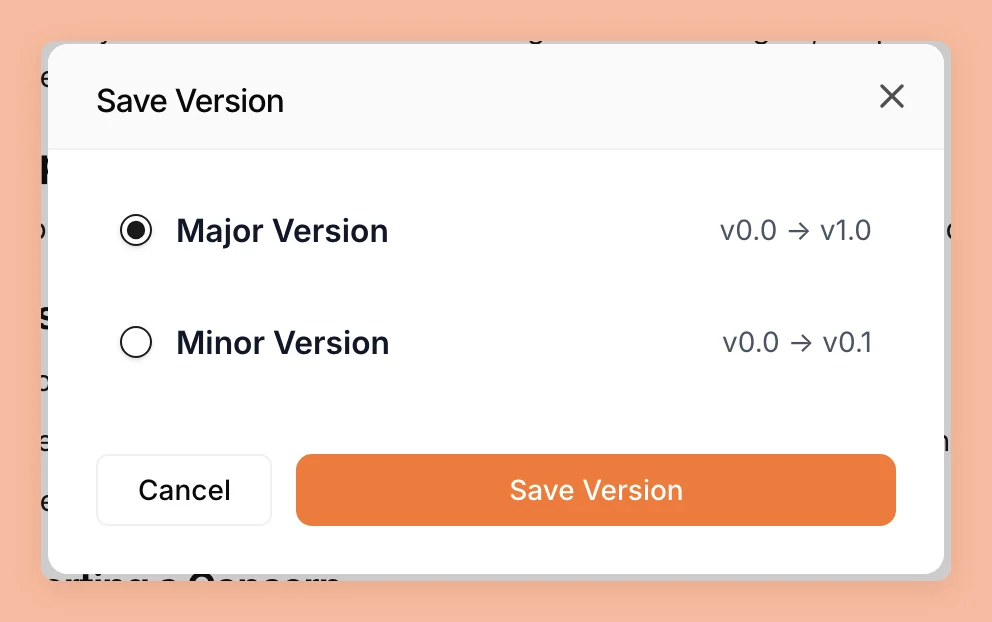
Click Save Version. Send for Approval in the top bar can now be clicked.
The choice is a label only. Every new version goes through approval; see How Approvals Work.
Compare Two Versions
Click the three dots in the top bar.
Choose Version History. The Version Compare page opens, with an older version on the left and the Current version on the right.
Read the summary line at the top for the words added, the words removed, and the sections changed.
Scroll down the two columns. Removed words are marked in red on the left, and added words in green on the right.
To compare a different older version, click its card under Version History on the right.
"Only one version exists for the document." means there is nothing to compare yet.
Restore an Older Version
Open Version History from the three dots menu.
On the card of the version you want, click Restore. The current version has no Restore button.
Restore is turned off during an active approval. If the document is in one, withdraw the approval first, then restore.
Check That It Worked
The restored text is in the editor as a new version. Your audience keeps the last approved version until the new one is approved, and then you distribute it.
Switch Between the Published Version and the Draft
When a document has an approved version and a newer draft, the top bar shows a switch, such as Published v1.3 and Draft.
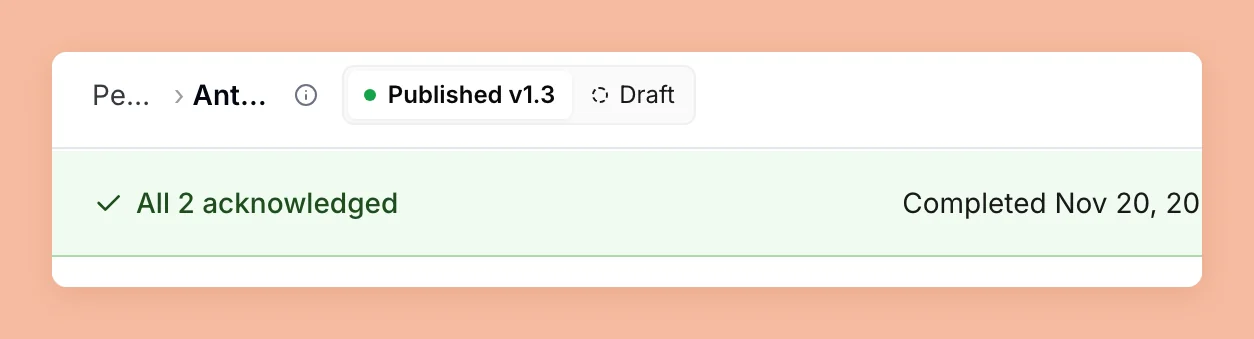
Click Published v1.3 to see the approved version.
Click Draft to return to your draft.
Viewers see only the latest approved version and have no switch. Admins and Editors can switch between the draft and the live version.
Let Viewers See Version History
Click the gear icon in the top bar to open Document Settings.
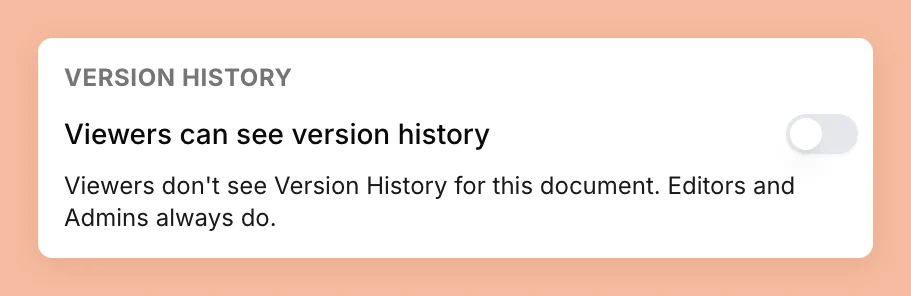
Under Version History, turn on Viewers can see version history. It is off by default.
Next Steps
- Edit an Approved Document: change a policy while people keep the approved version.
- View a Document's Log: see versions and restores in the document's history.
New to AllyMatter? Start a 30-day trial. No credit card required.