

Document Statuses
Every status a document can show, what it means, and what moves the document to the next one.
The Statuses
| Status | Where It Shows | What It Means | What Moves It On |
|---|---|---|---|
| Draft | Badge beside the title and in the Docs list | The document is being written. | Click Save Version, then Send for Approval. |
| In Review | Bar across the top | The document is locked while approvers work through the steps. | Every step approves: Approved. An approver rejects: Rejected. Someone clicks Withdraw: back to Draft. An approver loses a tag, Admins included: the approval is canceled and the document goes back to Draft. |
| Rejected | Red bar across the top | An approver turned it down and gave a reason. Click View Rejection Note to read it. | Click Back to Editing. The document returns to Draft, and sending it again restarts at step 1. |
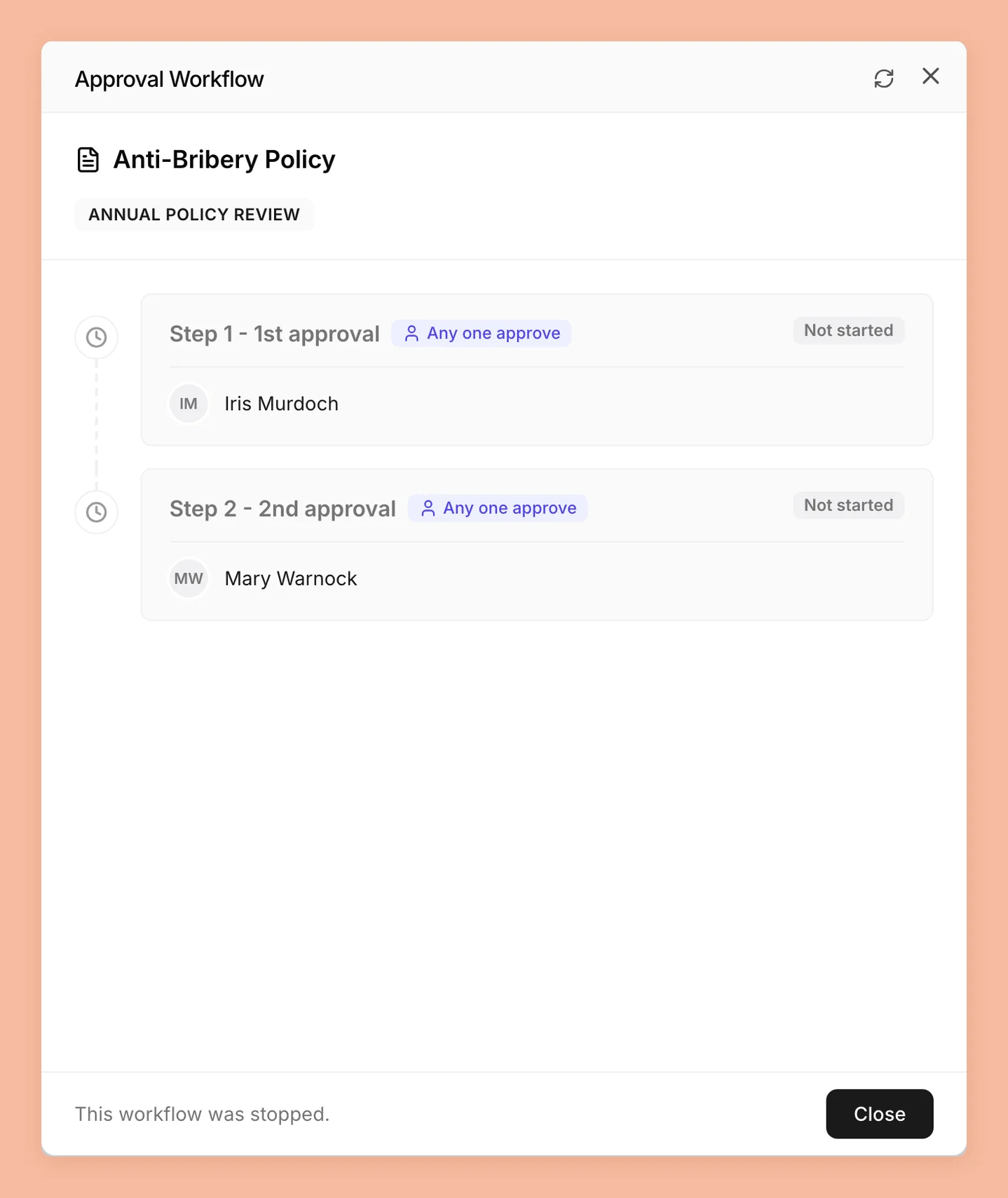
| Canceled approval | No banner. The document shows Draft again, the Approval Workflow panel says "This workflow was stopped.", and the log names the tag and the person. | An approver lost a tag the document carries. | Fix the approver and send it again. See Why an Approval Was Canceled. |
| Approved | Green bar across the top, naming the version | All approvers have approved. | Click Distribute, or choose Public to publish it. |
| Acknowledgement in progress | Blue bar across the top, with a count | The document has gone out, and the count shows acknowledged and pending people. | Click View progress to see each person. Each new version is approved and sent again. |
| All acknowledged | Green bar across the top, for the Editor and Admins on a computer | Everyone has acknowledged. It reads, for example, "All 2 acknowledged", with the completed date, the version and View details. | A new version starts a new count. |
| E-signature in progress | Bar across the top, for the Editor and Admins on a computer | The document is out for signing, with a count such as 12 of 47 signed, 35 pending. | Signers finish signing. |
| Expired | Badge in the Docs list, and a red banner and Expired badge on the document | The expiry date has passed, and the document is hidden from its audience. Editors and Admins keep it. | Send it for approval again, which restarts at step 1. Once approved, the audience sees it again, and people who already acknowledged that version are not asked again. |
| Review alert | Sidebar badge and banners on the document page | The review date has arrived. The document stays visible. | Change the date, or re-approve the document. |






Behavior Notes
- While a new version is in review, the audience keeps the last approved version.
- Requests still open on an older version are replaced, and people acknowledge only the newest version once it is sent.
- A document sent with Notify shows no bar afterward. Check the document's log to see that it went out.
- Published with a version number sits beside the title once a document has been approved. It moves to the newest saved number as soon as you save a version, so check the green Approved bar to see whether that version has cleared approval.
- Private, Internal and Public are visibility settings, separate from these statuses. See Private, Internal, and Public.
- A document has either a review date or an expiry date, never both. See Review Dates and Expiry Dates.
Next Steps
- How Approvals Work: what happens during In Review.
- Distribute a Document: send an approved document.
- Renew an Expired Document: make an expired document visible again.
Was this page helpful?
New to AllyMatter? Start a 30-day trial. No credit card required.