

Create and Manage Tags
Create the tags that decide who can open your Internal documents, and keep the people on them up to date.
Who can do this: Admins and Editors create tags. Admins add and remove people.
Before You Start
- Pick a name your team will recognize, such as Finance. Names must be unique.
- Only Admins add people to a tag, from the Users page.
Create a Tag
Click Admin in the left navigation.
Under Administrative Settings, click Tags Management.
Click New Tag. The Create tag dialog opens.
Type the name in Tag Name.
Click Create tag.
If you see "A tag with this name already exists.", choose another name.
Check That It Worked
The tag appears at the top of the list as Active, with you under Owners.
Add and Remove People
Click Users in the left navigation.
Click the pencil on the person's row. Edit User opens.
Under Assign Tags, click in the field and pick a tag. To remove a tag, click its x.
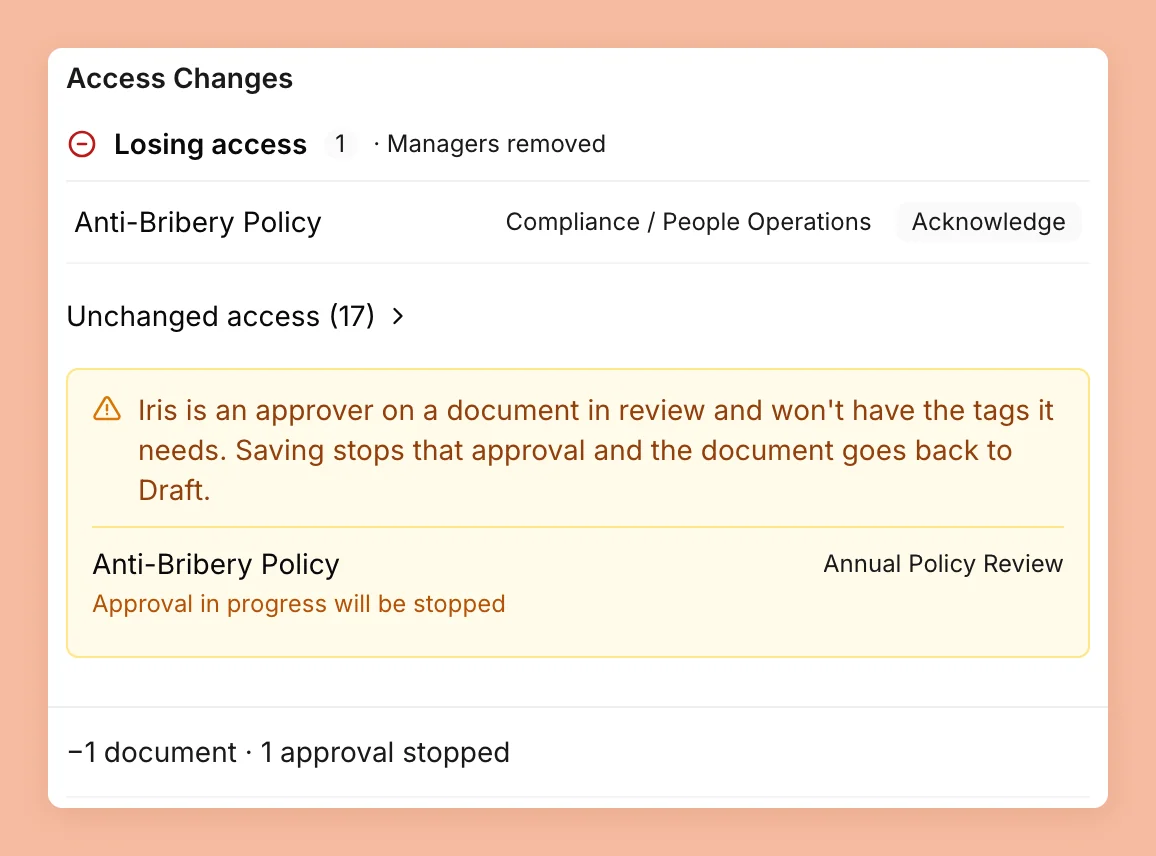
Check Access Changes. It lists the documents the person is gaining or losing, such as "Losing access 1", the number of documents with Unchanged access, and the change in their document count.
Click Save Changes.
In Confirm Tag Updates, click Yes, update.
If Access Changes shows the person losing a document they still need, put the tag back before you save.
If the person is the waiting approver on a document in review, a yellow warning says that saving stops that approval and the document goes back to Draft. To keep the approval running, put the tag back before you save.
You can also give tags when you invite someone. See Invite Your Team. To learn what people are told, see What Happens When Tags Change.
Make Someone an Owner
In Tags Management, click the tag. Its panel opens.
In the Owners section, click Add owner.
Type the person's name in Search user.
Select the person.
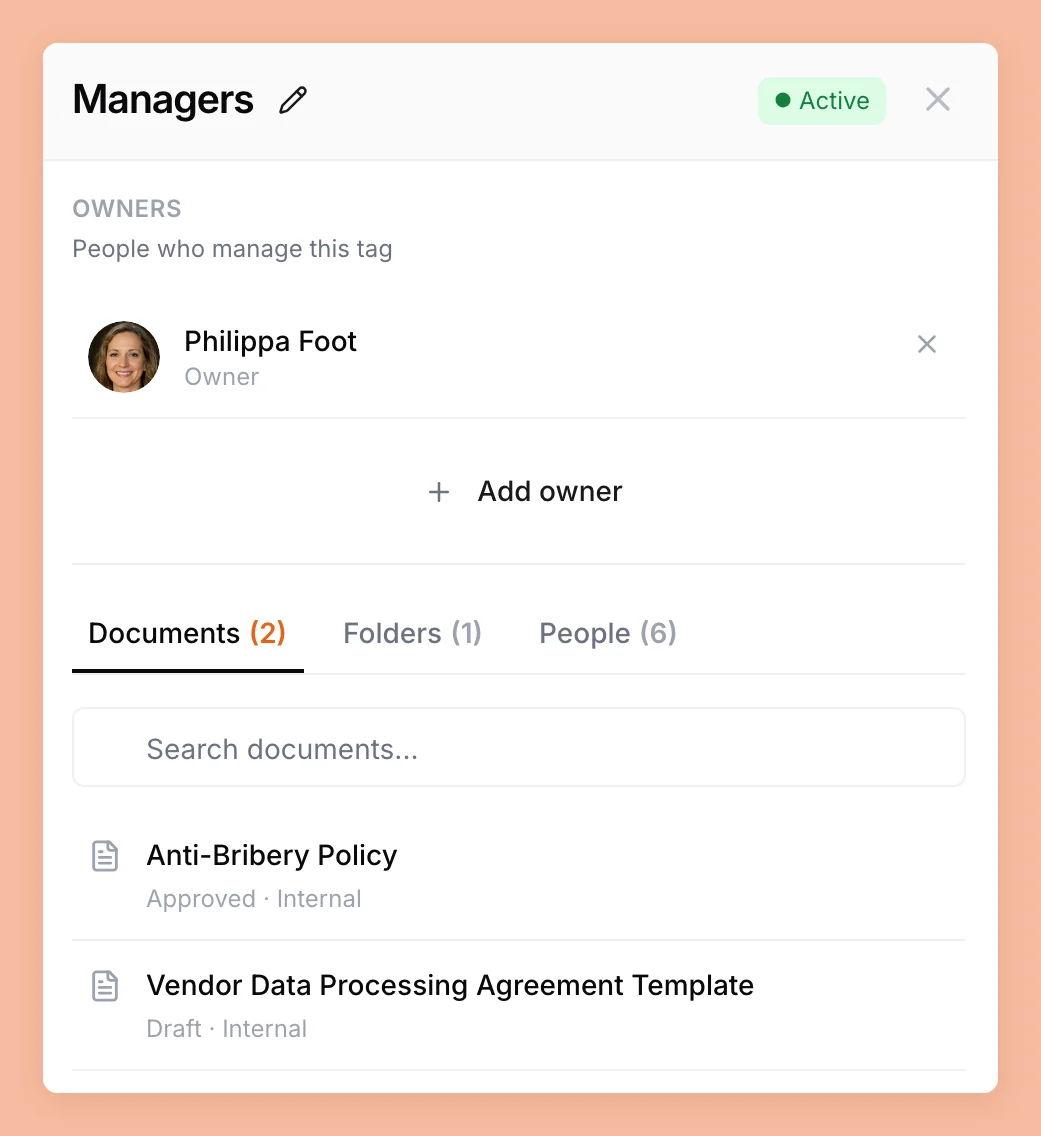
An owner is also assigned the tag, and can edit the tag's name and its owners. To step down as the only owner, add another owner first.
Delete a Tag
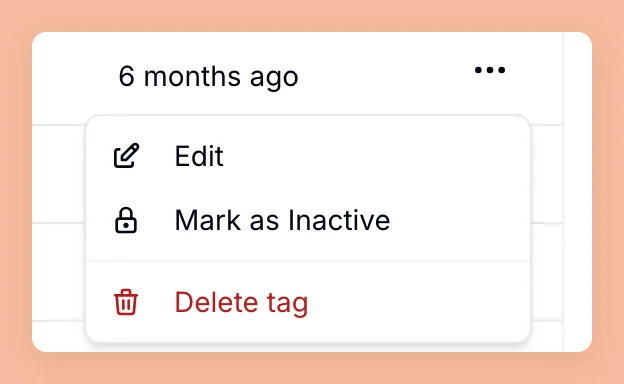
In Tags Management, click the three dots on the tag's row.
Click Delete tag.
If the tag is in use, read the Impact section, which lists the documents, folders, and people affected.
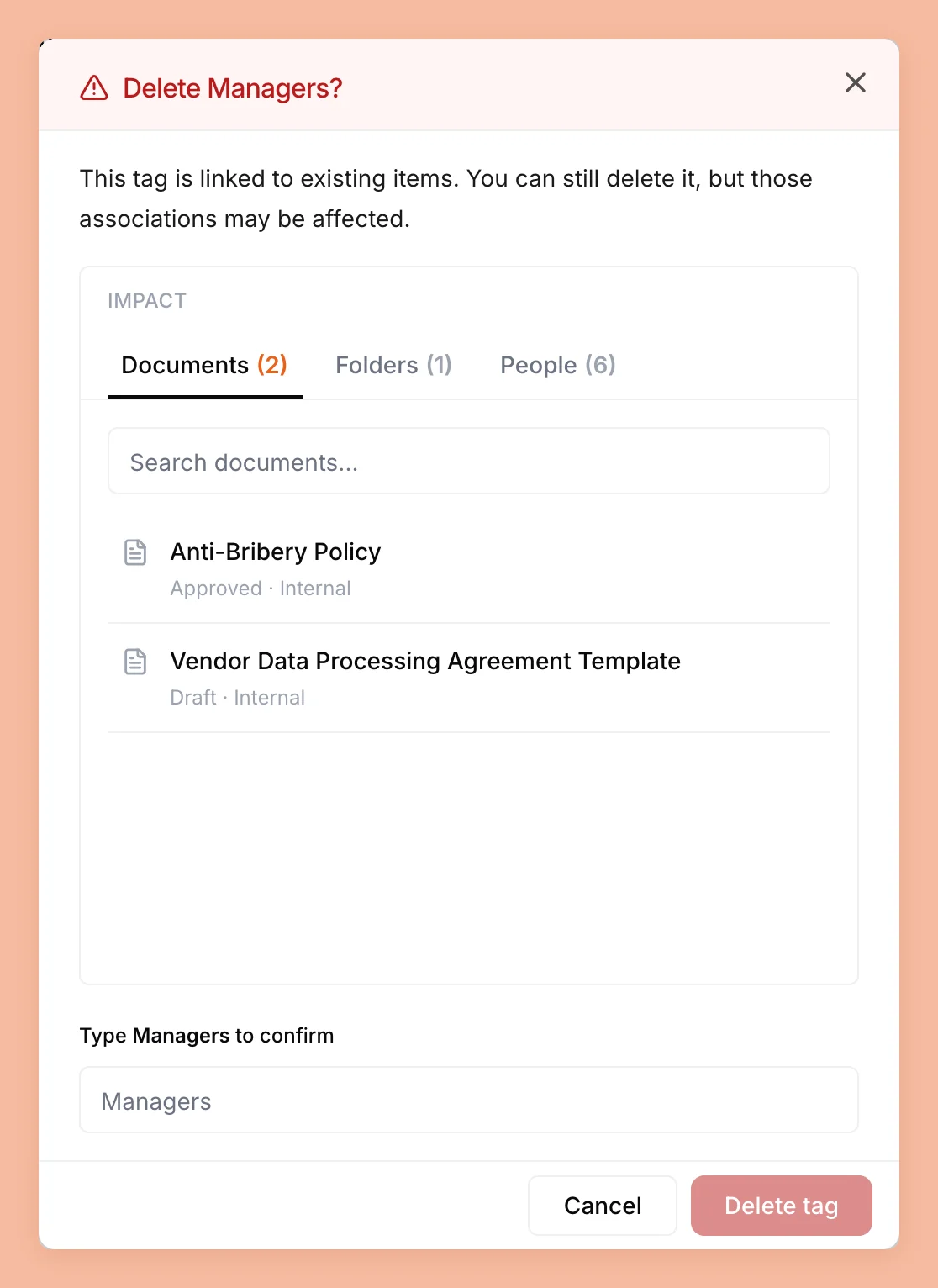
Type the tag's name to confirm.
Click Delete tag.
Deleting a tag clears pending acknowledgments tied only to that tag, and the tag goes to Archive. To pause a tag instead, choose Mark as Inactive. See Archive, Delete, and Restore.
Common Questions
Can a Viewer own a tag?
Owners are Admins or Editors, so change the person's role to Editor first.
How do I get someone added to a tag I own?
Ask an Admin, who assigns tags from the Users page.
Next Steps
- Tag Folders and Documents: add your new tag to folders and documents.
- How Tags Combine: combine tags to choose exactly who gets a document.
New to AllyMatter? Start a 30-day trial. No credit card required.