

Send Your First Policy
Write one policy, get it approved, and send it out for acknowledgment.
Who can do this: Admins and Editors.
Before You Start
- You need at least one tag that other people hold. See Create and Manage Tags.
- You need an approval workflow. If none exists, see Set Up an Approval Workflow.
- You can be your own approver. Anyone else who approves must hold the document's tags, unless they are an Admin.
Write the Policy
In the left navigation, click Docs.
Click the + on the folder where the policy belongs.
Choose Create a document.
Enter the Document Title and click Create. The document opens with a Draft badge.
Write or paste your policy. Changes save automatically.
Click Save Version.
Choose Major Version and click Save Version in the dialog.
Add a Tag
Click the gear icon in the top bar. Document Settings opens.
Under Tags, check the tags shown under From parent folder. If they already cover your audience, skip to the next section.
Click Edit tags.
Click Add tags and pick a tag. It saves at once.
Click Close. The tag shows under Added to this document.
Send It for Approval
In Document Settings, under Approval Workflow, click Link a workflow.
Choose Select Existing Workflow.
Click a workflow and check its steps in Workflow Preview.
Click Use this workflow.
Click Send for Approval in the top bar. If it is grayed out, save a version first.
Check the details and click Send for approval. The document shows In Review.
The approver opens Home and clicks View document on the task.
The approver clicks Approve, then Approve again to confirm. If they reject it instead, the document returns to Draft with View Rejection Note: make your changes, save a version and send it again.
Send It Out
On the green Approved bar, click Distribute.
Under How should recipients engage?, choose Acknowledge.
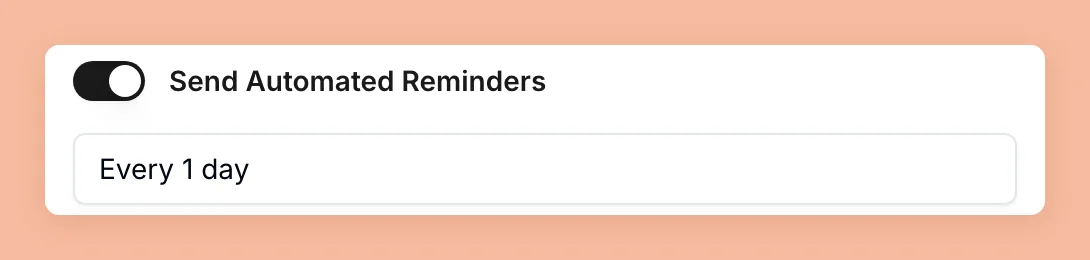
To remind people automatically, turn on Send Automated Reminders.
Choose how often.
Check the line naming the tags. Everyone holding them receives the request.
Click Send for Acknowledgement.
Check That It Worked
The bar changes to Acknowledgement in progress with a count, such as "0 of 7 acknowledged · 7 pending". Click View progress to see each person's status.
Common Questions
Can I Approve My Own Document?
Yes. See Run Policies as a Team of One.
Next Steps
- Track Who Has Acknowledged: follow each person's response.
- Acknowledge a Document: the page to send your team.
New to AllyMatter? Start a 30-day trial. No credit card required.