

Distribute a Document
Send an approved document to the people who need it, and choose whether they acknowledge it, sign it, or are just told about it.
Who can do this: the document's Editor or an Admin, once the document is approved.
Send a Document for Acknowledgment
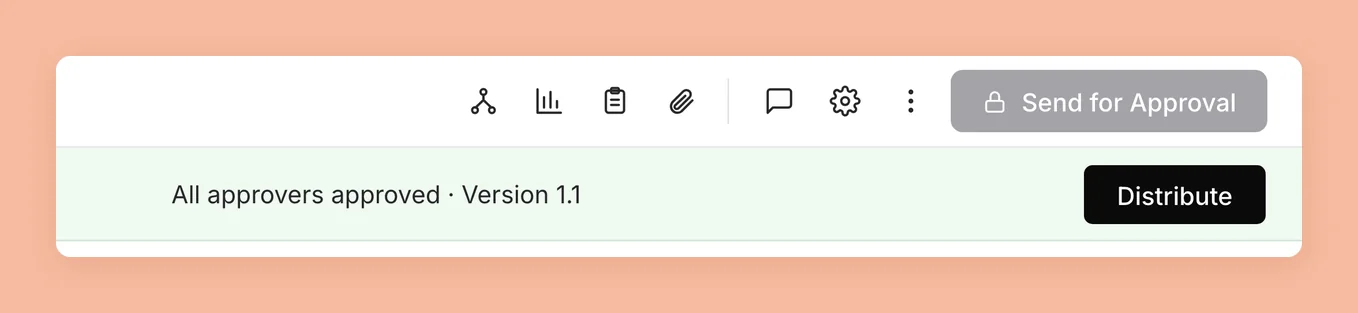
Open the approved document. The green Approved bar shows across the top. Click Distribute at its right end.
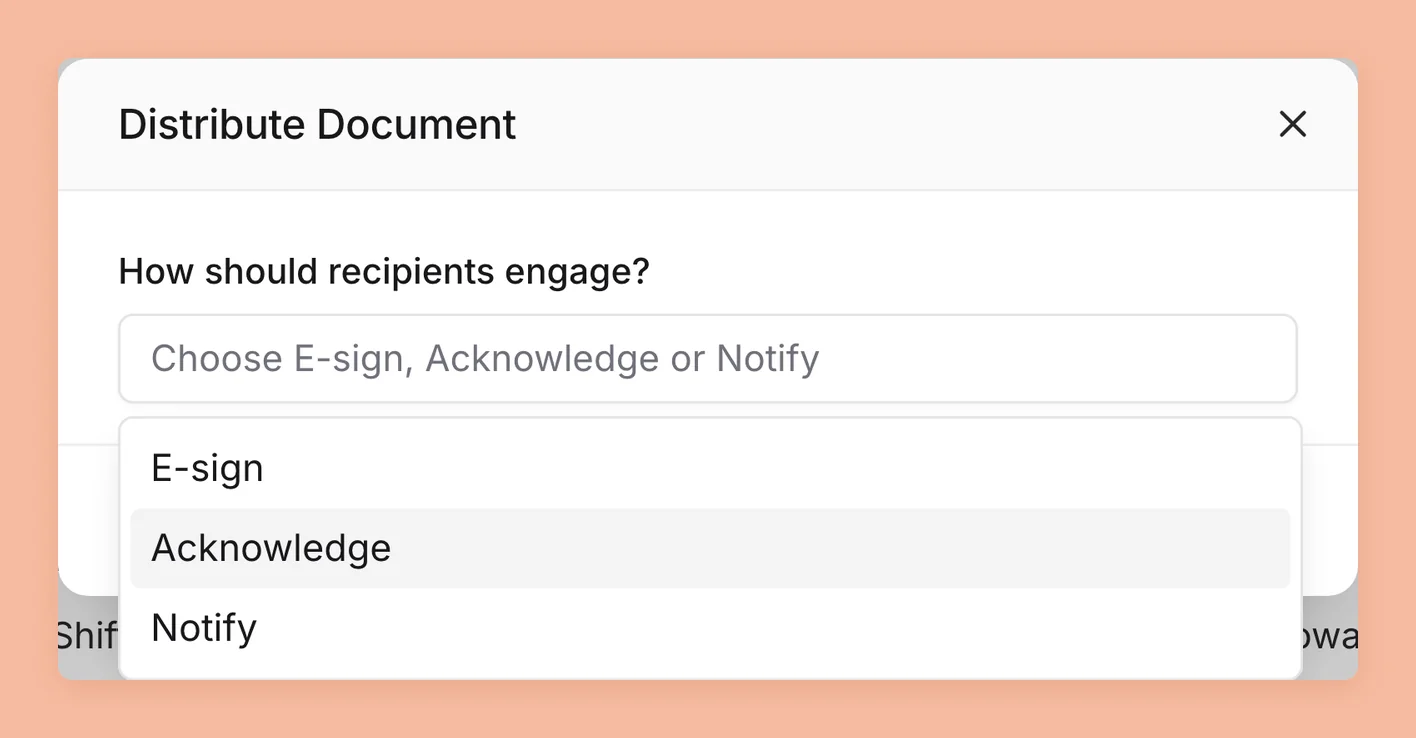
Under How should recipients engage?, choose Acknowledge.
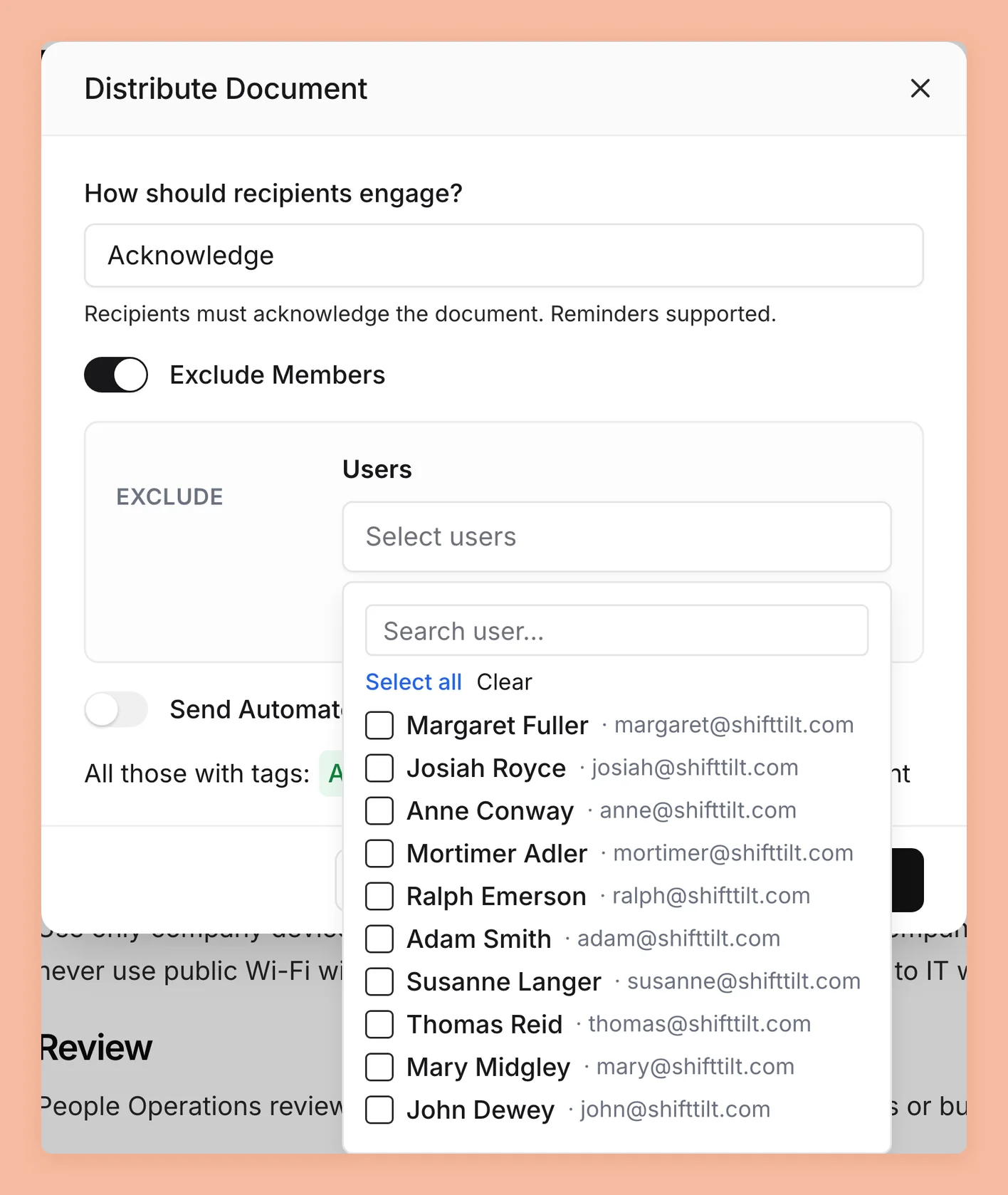
To leave people out, turn on Exclude Members. Pick names under Users. Exclude approvers leaves out everyone who approved this document, and it can start ticked, so check it before you send.
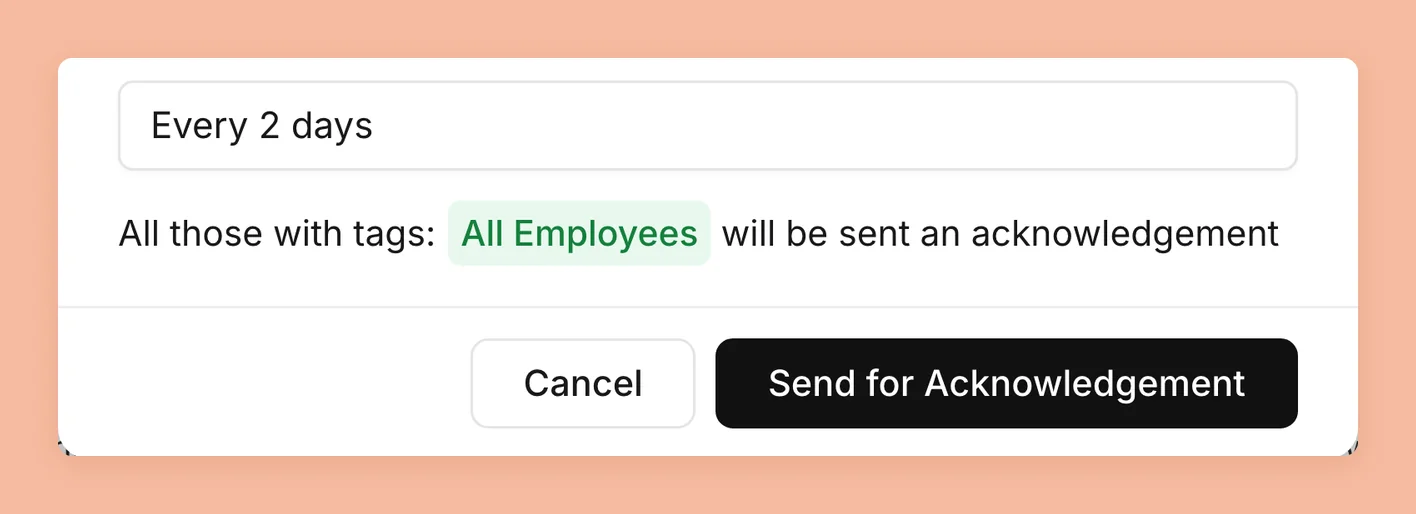
To remind people automatically, turn on Send Automated Reminders and choose how often.
Exclude Members and Send Automated Reminders set in the same dialog. Check the line above the buttons. It names the tags, and everyone holding them receives the request. Then click Send for Acknowledgement.
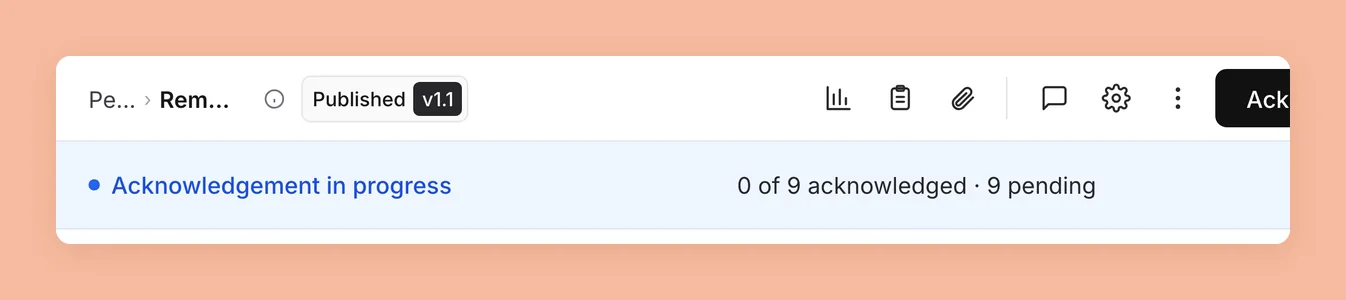
The bar changes to Acknowledgement in progress and counts acknowledged and pending people as they respond. Click View progress to see each person's status.
Recipients get an email, and the request appears on their Home page. They open the document and click Acknowledge. Share Acknowledge a Document with your team if it is their first time.
Choose How Recipients Engage
You choose this each time you distribute, per document.
| Option | What recipients do | Reminders | Send button |
|---|---|---|---|
| Acknowledge | Confirm they have read the document. Each acknowledgment is recorded by name. | Yes | Send for Acknowledgement |
| Notify | Nothing. They are told about the document, by email and in the app, and in Slack if your workspace has connected it. | No | Send Notification |
| E-sign | Review and sign the document. Scale plan, using signature packs. See Send a Document for Signature. | See e-sign | See e-sign |
Who Receives It
A distribution goes to everyone holding the document's tags. Holding extra tags makes no difference. The people who can open the document are the people who get the request.
To reach someone new, ask an Admin to add them to the tag first, then distribute.
How Reminders Work
Reminders are set in the same dialog, and they are optional. Choose Every 1 day, Every 2 days, Every 3 days, Every 1 week, Every 2 weeks, or Custom.
AllyMatter reminds the people who have not yet acknowledged, and stops after five reminders.
When the Document Changes
Every new version goes through approval before anyone sees it, however small the edit. Once it is approved, the Distribute button returns, and you send it again and can exclude people again. If someone still has a request open on an older version, the new version replaces it, so they acknowledge only the latest one.
See Send Out a Changed Policy.
Behavior Notes
- Approving and distributing are separate steps. Approvers approve, then the Editor or an Admin distributes.
- Exclusions are set before you send.
- The count is fixed when you send. Someone who loses the tag later stays in the count.
- Recipients sign in to acknowledge. The button is on the document, not in the email.
Common Questions
What about someone who joins after I distribute?
Anyone given the document's tags later, whether a new hire or an existing person, receives its acknowledgment request once an Admin saves their tags. This covers Acknowledge, not Notify or E-sign.
I forgot to exclude someone. What now?
That person stays in this distribution and its count. Exclude them next time you distribute.
Do approvers have to acknowledge too?
Only if you leave them in. Turn on Exclude Members and tick Exclude approvers.
Next Steps
- Track Who Has Acknowledged: see who has read each version, and who has not.
- How Access Works: how tags decide who sees each document.
- Edit an Approved Document: change a policy while people keep the approved version.
- Acknowledge a Document: the page to send your team.
New to AllyMatter? Start a 30-day trial. No credit card required.