

Connect Slack
Connect your Slack workspace so people receive AllyMatter approval and acknowledgment requests in Slack, as well as by email and the in-app bell.
Who can do this: Admins. Scale plan.
Before You Start
- Your workspace needs the Scale plan. On Startup, requests arrive by email and the in-app bell. To add Slack, upgrade to Scale first. See Plans, Storage, and Billing.
- You need to be able to sign in to your company's Slack workspace. If someone else manages Slack, ask them to join you.
Connect Your Slack Workspace
Click Admin in the left navigation.
Under Administrative Settings, click Integrations.
Click the Slack tile. AllyMatter sends you to Slack's Sign in to your workspace page.
Enter your workspace's Slack URL and click Continue.
In Slack, choose your workspace and approve AllyMatter.
Slack turns on for everyone whose AllyMatter email matches a Slack account.
Check That It Worked
Click Admin, then Notifications Settings.
Under Delivery Methods, check that the Slack Notifications switch is on.
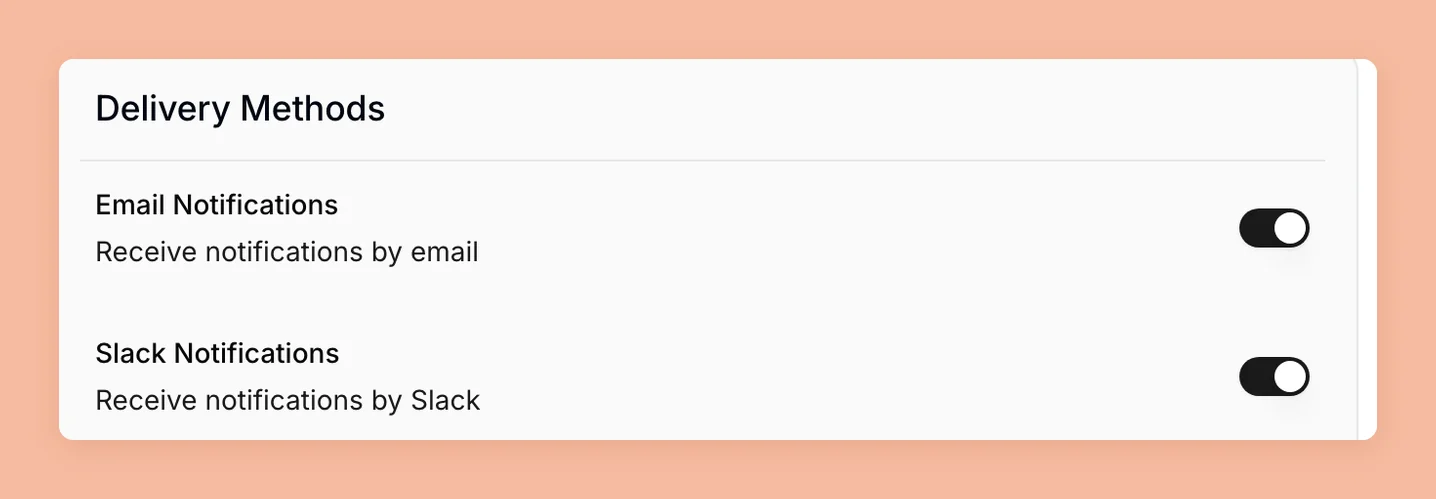
If someone gets no Slack messages, check that their AllyMatter email matches their Slack email. If it does not, they link their Slack account in Notifications Settings.
To see which events reach Slack, see Notifications by Event.
Common Questions
Can One Person Switch Slack Off?
Yes. Each person turns off Slack Notifications under Delivery Methods. See Set Your Notifications.
Next Steps
- Notifications by Event: which events send which notifications.
- Set Your Notifications: choose your own channels and events.
New to AllyMatter? Start a 30-day trial. No credit card required.