
Policy Software · 8 min read
How to Migrate from SharePoint to AllyMatter
Migrating from SharePoint to AllyMatter doesn’t have to be a project. Here’s how to do it cleanly in under a week.
This post is part of our guide to policy management software for small and growing businesses, which covers what a policy center does, what it costs and how to choose one.
Still deciding? See SharePoint and AllyMatter side by side, with SharePoint looked at as a policy manager.Most SharePoint migrations fail because they are treated like IT projects. Committees form, timelines slip, someone builds a migration spreadsheet nobody finishes, and three months later half the team is still on SharePoint while the other half has given up on the new tool.
Moving your internal documentation does not require that. One thing worth saying up front: on yearly plans, migration is on us. If you would rather not do any of the steps below, send us your exported SharePoint files and we help you move everything into AllyMatter, at no cost. If you do want to run it yourself, here is how to do it cleanly in under a week without breaking anything.
Before you start (audit what you have worth keeping)
This is the step most teams skip, and it is why migrations turn painful. SharePoint environments accumulate years of documents: outdated policies, duplicate files, drafts that were never published, and content nobody has opened since it was uploaded.
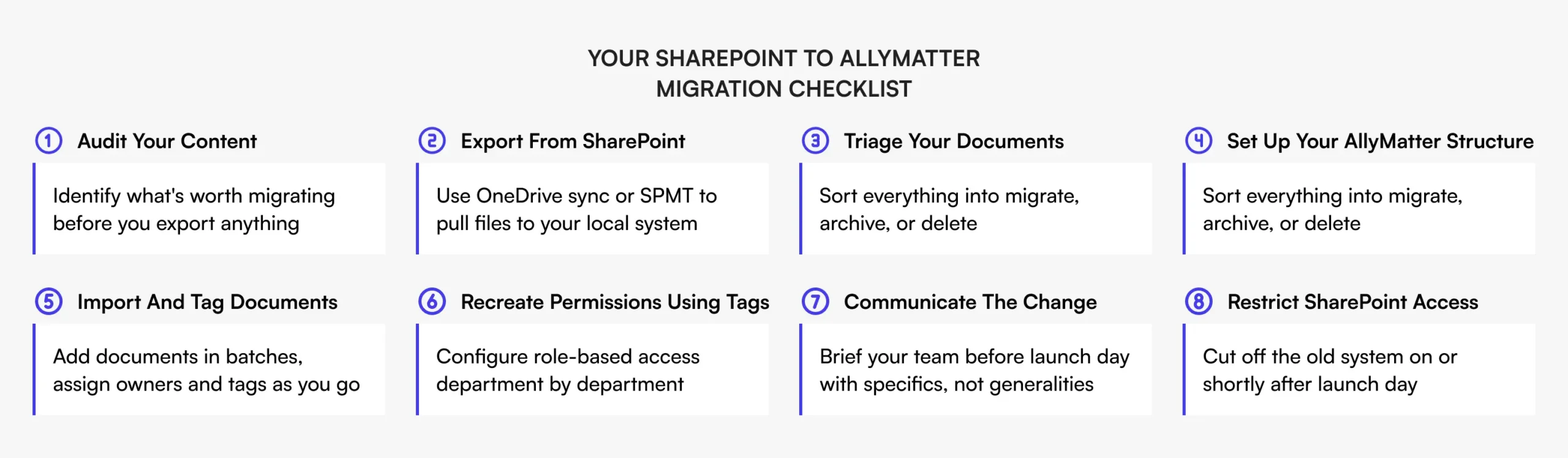
Run a quick audit before you migrate. SharePoint libraries tend to hold duplicates, outdated versions, and files no one has touched in over a year, and migrating all of it leaves the new system just as cluttered.
A useful rule: if a document has not been accessed in over six months and is not referenced in any current workflow, it probably does not need to follow you. Some documents sit dormant until an audit needs them, so loop in HR, finance, and legal before deleting anything with compliance implications. Use this checklist before you export:
- Which documents are referenced in active workflows?
- Which are tied to onboarding, training, or compliance?
- Which have been superseded but never removed?
- Which belong to people who have already left?
- Which have not been opened in over six months?
- Which are duplicates of documents living elsewhere?
Even a 30-minute walkthrough of your SharePoint structure with someone from each team will surface the documents worth prioritizing.
Step 1: Export your SharePoint content
SharePoint has no single one-click export, so work through it methodically. For most companies in the 50 to 500 range, the simplest approach is to use the OneDrive sync app to sync your document libraries to your local file system, then work from there.
Two things to know first. SharePoint’s sync does not capture permissions, metadata, or version history, so you are moving file content only. If you need a version record for specific compliance documents, export those separately or document the version timeline before you migrate. SharePoint Online also enforces a 400-character limit on the full file path, and files with characters like * : < > ? / \ | will fail to sync. If your environment has been in use for years, audit for long paths and invalid characters and rename anything that will not clear those limits.
For more complex environments with multiple site collections or heavily customized metadata, Microsoft’s SharePoint Migration Tool gives you more control. For most internal knowledge bases, the sync approach is enough.
Step 2: Decide what to migrate vs. archive
Once your files are local, sort each category into three buckets.
Migrate: documents actively used that need to live in AllyMatter from day one. Current HR policies, operational SOPs, onboarding materials, compliance documents, and knowledge base articles people reference regularly.
Archive: documents you must retain for legal or compliance reasons but that are not in active circulation. Keep them in a separate archive folder or a separate storage location. Do not clutter the new knowledge base with them.
Delete: duplicates, outdated drafts, and documents with no current relevance. Get sign-off from the relevant department leads before deleting anything with compliance implications.
This triage is what decides whether your new environment starts clean or inherits the same chaos.
Step 3: Set up your AllyMatter structure
Build the structure before you move a single document in. Organizing content afterwards is much harder.
AllyMatter uses folders combined with a tag system to organize and filter documents. Create folders by department or function, then use tags on both documents and users to drive filtering and access. For example, HR could have Policies, Onboarding, and Compliance; finance could have Expense guidelines and Vendor processes; operations could have SOPs and Process documentation. Start with a simple two-level structure and resist over-engineering it. A structure your team understands beats a five-level taxonomy nobody uses.
While you are setting up, configure your roles. AllyMatter has three roles: Admin, Editor, and Viewer. Approvers can be any role, as long as they hold the document’s tags, and approvers can be external where outside review is part of the process. Map your team to these roles before documents start going in.
Step 4: Move documents in and organise
With the structure in place, move documents into the right folders by pasting the content or uploading the PDF, Word and image files. Start with your highest-priority documents so AllyMatter is useful from day one even before the full migration is done.
As you move each one in, take a minute per document to give it a clear title, add tags so it is searchable and filterable, confirm the content is current, and assign an editor responsible for keeping it updated. Move documents in batches by department or content type and get each section into shape before moving on. If you plan to use approval workflows, this is the point to decide which documents need formal sign-off before publishing, which is worth doing for HR policies, financial procedures, and regulatory SOPs.
Step 5: Recreate permissions using AllyMatter tags
In SharePoint, permissions live at the site or library level and get complicated fast, especially where the structure grew organically. Moving to AllyMatter is a chance to simplify.
AllyMatter handles access through roles plus tags assigned to both users and documents, which lets you manage access at a finer grain than broad site-wide permissions. Work department by department rather than mapping your entire SharePoint permission structure at once. Identify the documents with restricted access, then set the right tags on both the documents and the relevant user groups. For most growing companies this is far simpler to maintain than nested permission hierarchies. Admins manage user tags from the user management interface.
Step 6: Communicate the change to your team
The technical migration is only half the work. Getting people to use the new system is the other half, and it is the most common reason migrations do not stick.
Teams default to old habits, especially when the old system is still available as a fallback. Here is the shift you are aiming for:
- Before: people search SharePoint, cannot find what they need, ask a colleague, get pointed to an eight-month-old email thread, and end up with a version they are not sure is current.
- After: people open AllyMatter, search or browse by department, find the document with a clear version number and Editor, and know it has been approved and acknowledged.
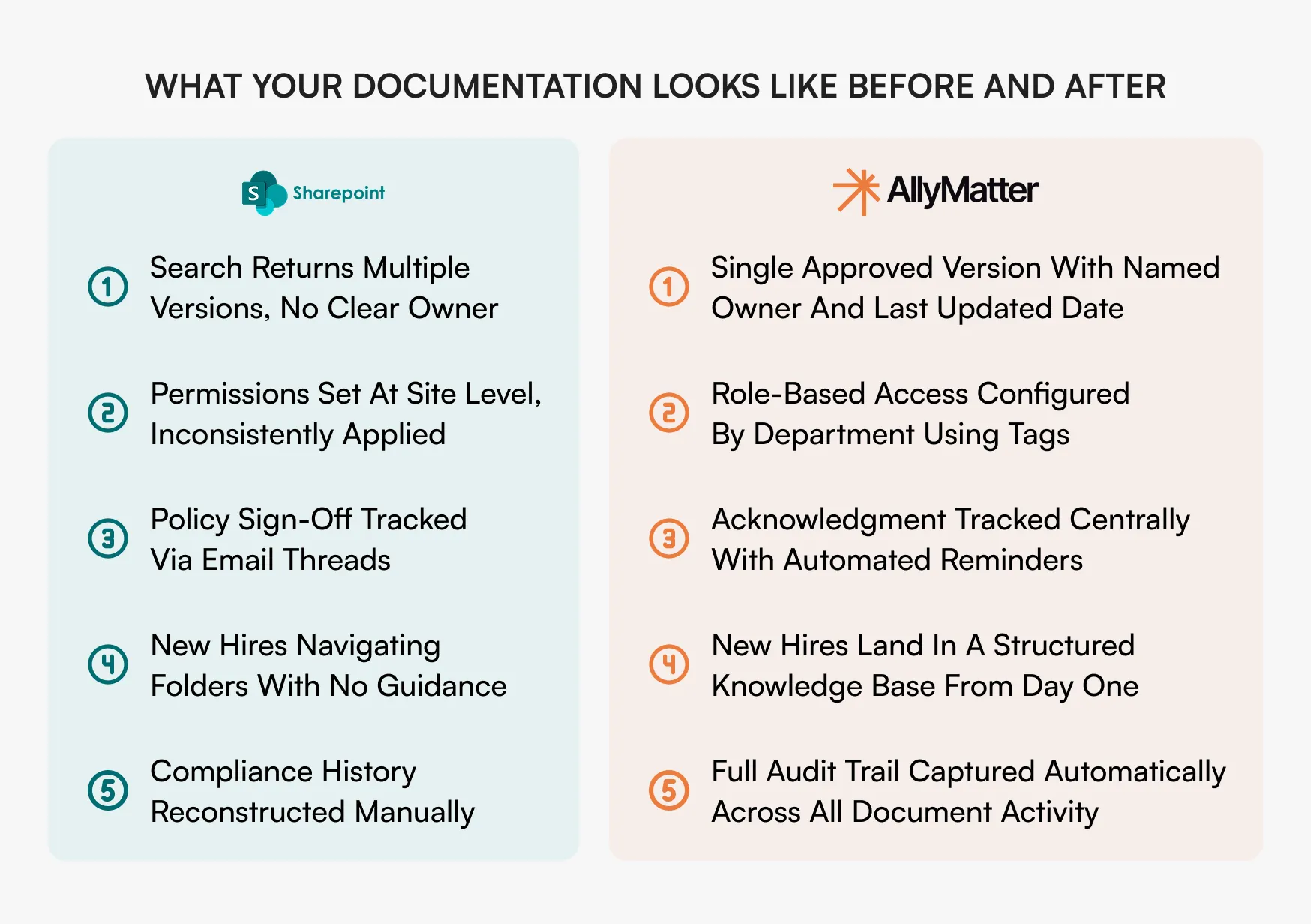
To get there: send a short message before launch explaining what is changing, why, and where to find the documents people use most. Run a 30-minute walkthrough per department covering how to find documents, how to acknowledge policies, and who to contact, and record it for distributed teams. Restrict access to SharePoint on or shortly after launch day, because running both in parallel for long gives people a reason to keep using the old one. Finally, use AllyMatter’s acknowledgment tracking to confirm people have read critical policies after the move, with reminders for anyone who has not.
Migration timeline: realistic estimates
Setting up AllyMatter takes about half an hour, and moving your documents in yourself takes about a day. The range depends on how organized your SharePoint environment is and how much triage you need up front. Well-maintained environments land at the lower end; those with years of accumulated files across multiple sites need more time, and a migration of a large volume usually finishes within a week, often sooner. If you would rather skip the work, yearly plans include free migration help from our team.
Common mistakes to avoid
- Migrating everything. The goal is a cleaner knowledge base, not a replica of SharePoint. Move only what your team needs.
- Setting up permissions after the migration. Configuring access after documents are in is far more time-consuming than doing it upfront.
- Running both systems in parallel for too long. A brief overlap is fine for catching gaps. Longer than that and you are maintaining two knowledge bases.
- Skipping a named Editor. Every document should have one Editor responsible for it, or you are back to stale content with no accountability.
- Treating it as a one-person IT project. Successful migrations pull brief input from each department head on what matters most, even if IT is not doing the technical work.
Ready to start? Start your 30-day free trial. No credit card to start, and a 30-day money-back guarantee if you convert and change your mind. On a yearly plan, contact us and we will help you with the migration at no cost.
Frequently asked questions
How do I move my SharePoint documents into AllyMatter?
Paste the content into AllyMatter or upload your PDF, Word and image files, folder by folder. Yearly plans include free migration help and chat handholding during setup: send us your exported SharePoint files and our team helps you move them into your account. To get started, contact the AllyMatter team.
What happens to version history when I migrate from SharePoint?
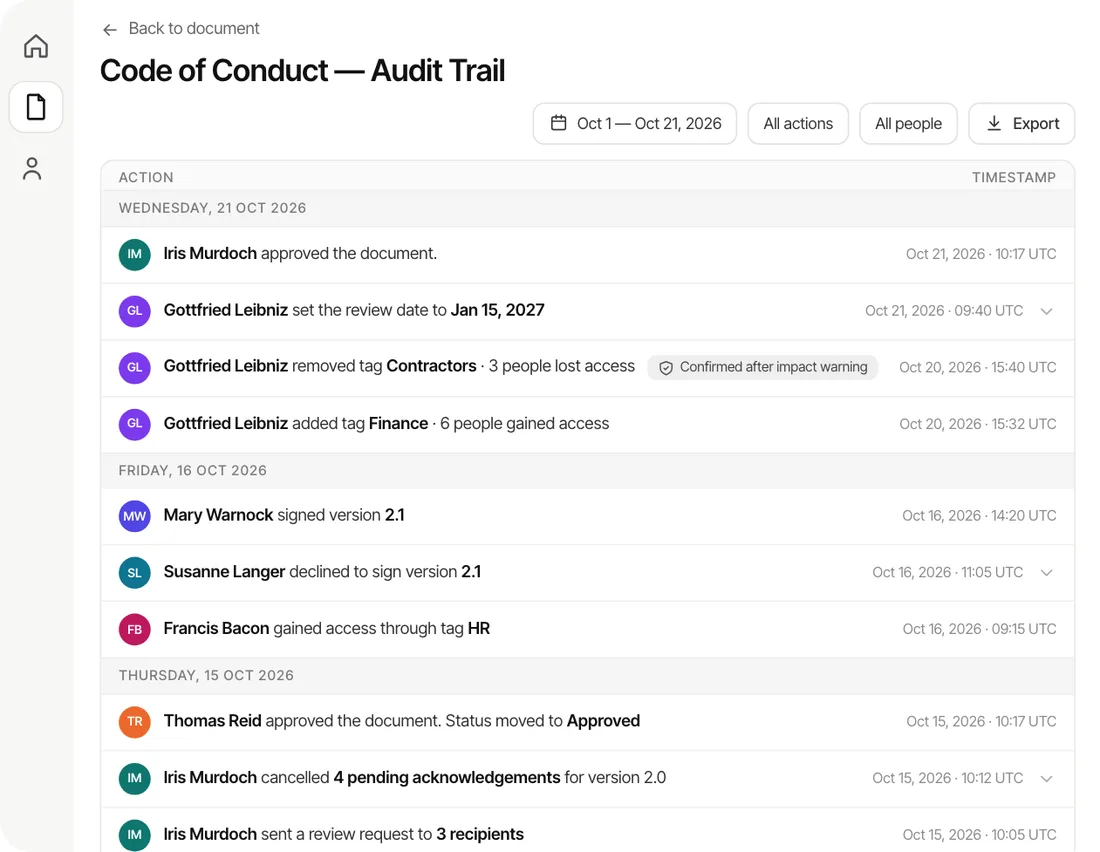
SharePoint’s version history does not transfer during a standard file export. For documents where history matters, particularly compliance or legal documents, export a version record or PDF summary before migrating. Going forward, AllyMatter’s version control captures every change made in the platform, including who changed what and when.
How long does it realistically take?
For a company of 50 to 200 with a reasonably organized SharePoint environment, setting up takes about half an hour and moving the documents in yourself takes about a day, longer if your environment needs heavy triage first. On a yearly plan you can hand it to us, and a migration of a large volume usually finishes within a week, often sooner.
Do I need to recreate all my SharePoint permissions?
No, and in most cases you should not try. AllyMatter’s roles plus tags give you a cleaner way to manage who sees what. Use the migration to rethink access from scratch: which documents are genuinely sensitive, and which teams need them.
Further reading: