
Policy Software · 7 min read
How to Migrate from Google Drive to AllyMatter
You don’t have to rebuild everything from scratch. Here’s how to migrate from Google Drive to AllyMatter in a few days.
This post is part of our guide to policy management software for small and growing businesses, which covers what a policy center does, what it costs and how to choose one.
Still deciding? See Google Drive and AllyMatter side by side, with Google Drive looked at as a policy manager.If you just signed up for AllyMatter and you are staring at years of Google Drive folders wondering where to begin, the answer is not “migrate everything.” It is “migrate what matters, and do it right.”
One thing up front: you do not have to do this alone. Yearly plans include free migration help and chat handholding while you set up, and this guide is the clean way to run the move. Either way, the principle is the same. Most teams that struggle with this move make it harder than it needs to be, recreating their entire Drive structure on day one or exporting everything without reviewing what is worth keeping, and the result is a new platform that looks exactly like the old mess.
If you want to see how Google Drive and AllyMatter compare side by side first, that is covered separately. Otherwise, here is how to make the move.
Step 1: Audit what’s worth migrating (and what to leave behind)
Before you export a single file, spend time in Google Drive answering one question for each document: is this still useful?
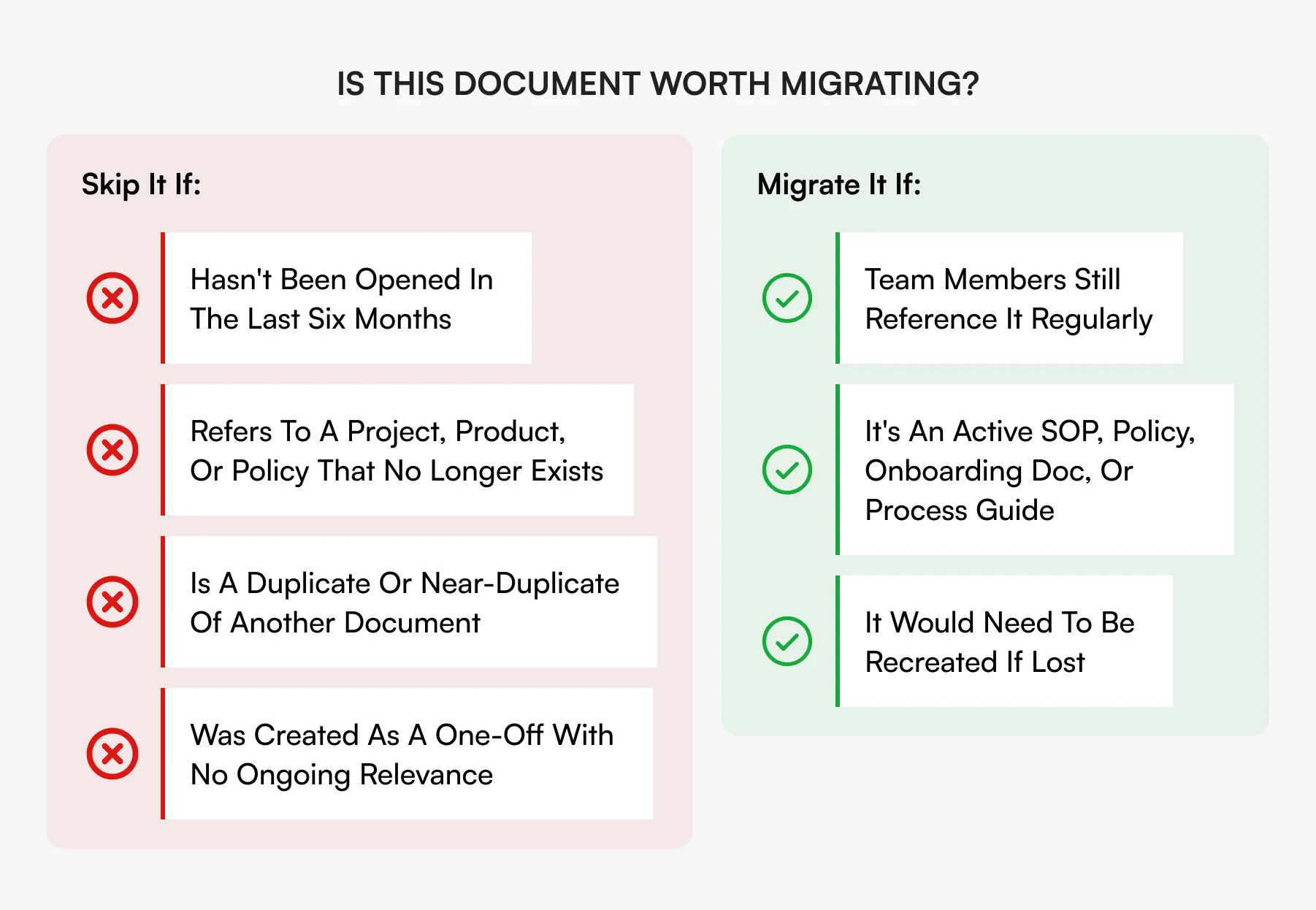
Skip it if it has not been opened in the last six months, refers to a project, product, or policy that no longer exists, duplicates another document, or was a one-off with no ongoing relevance. Carry over your active, reusable knowledge: SOPs, onboarding materials, HR policies, process guides, finance workflows, anything people still reference or should be.
A quick audit spreadsheet keeps this honest. One row per document, with columns for the document name, last modified date, whether it is still relevant, the owner, and a simple migrate yes or no. It takes a few hours and saves days of cleanup later. It is also your chance to surface things that live only in someone’s head and get them written down before you move.
If you are still weighing the decision, read why Google Drive falls short as a knowledge base first.
Step 2: Export your Google Docs
Once you know what you are moving, exporting is straightforward. Google’s built-in Takeout tool downloads your Drive contents in bulk. A few things to keep in mind: export documents as .docx and spreadsheets as .xlsx for the cleanest upload, resolve any open comments or suggestions first so you do not carry over noise, and remember that shared drives require the owner or an admin to export, so loop in the right people early. Export folder by folder, matching the structure you plan to use in AllyMatter, which you will set up next.
Step 3: Plan your AllyMatter structure before you move documents in
This is where most migrations go sideways. People move everything in first and organize later, and end up with a flat, unsorted pile they spend weeks untangling.
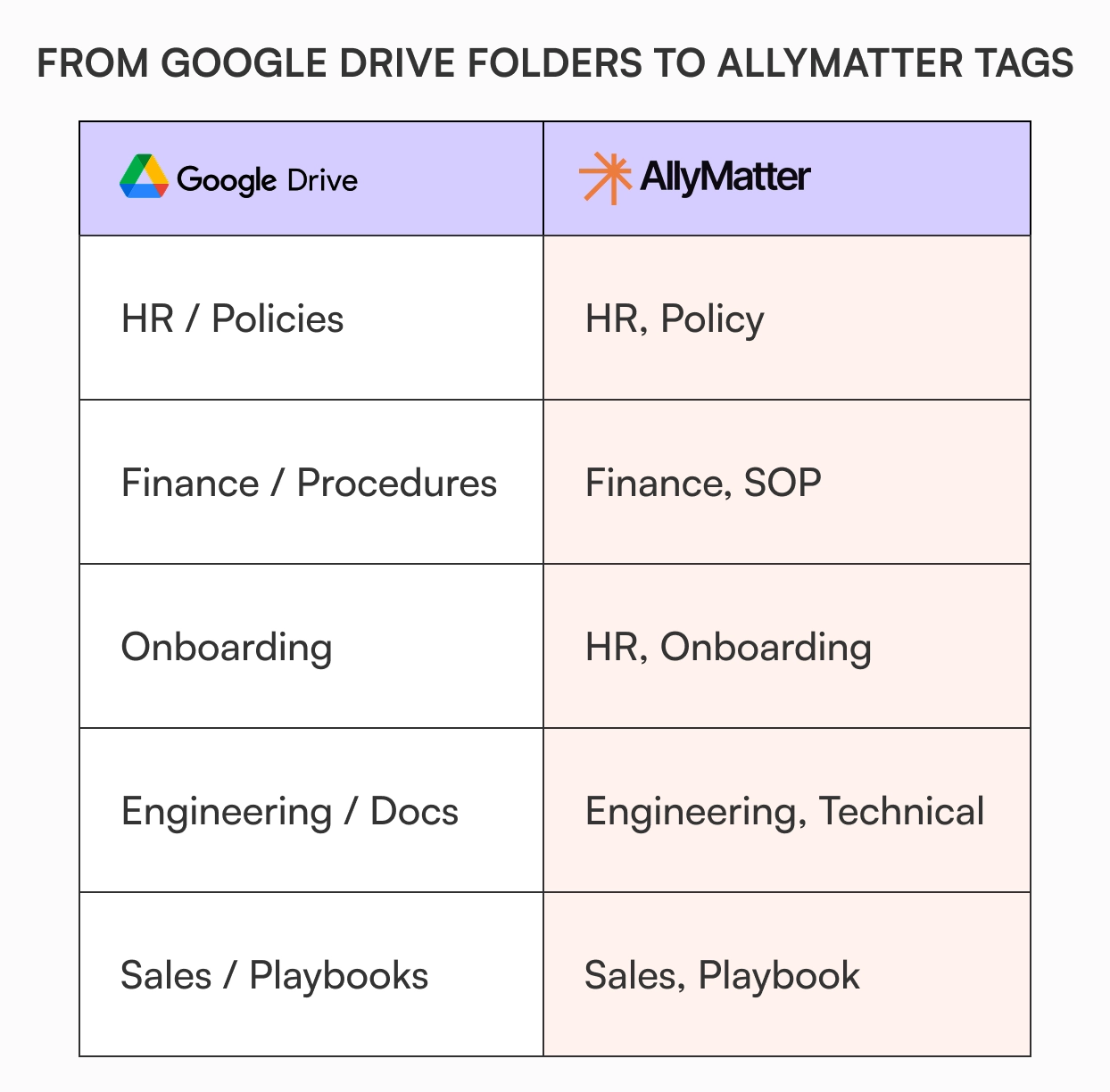
AllyMatter organizes documents with a combination of folders and tags. You can recreate a folder hierarchy if that is what your team is used to, but the tag system is where you gain flexibility Drive cannot match. A single document can carry several tags across department, document type, audience, geography, and status, so it surfaces in any relevant search regardless of where it sits. Instead of thinking in folders (HR > Policies > Leave > 2024), think in attributes you can assign to any document. A leave policy might carry HR, Policy, Active, and All Staff, so it turns up in a search for any of those.
Before you move anything in, map your top-level Drive folders to AllyMatter tags on paper or in a spreadsheet. It takes about 30 minutes and prevents a lot of cleanup later.
Step 4: Add and tag your documents
With your structure mapped and files exported, bring content in and apply your pre-planned tags as you go. Do not add everything and tag later. Tag each document at the point of upload. It is slightly slower upfront and avoids the “I’ll sort this later” trap that derails most migrations. As you upload, also assign a responsible editor who keeps the document current, a visibility setting (Private, Internal, or Public), and a status for whether it is live, a draft, or pending approval. Every publish creates a new version from the moment a document enters the platform, so your team starts clean with full history going forward.
Step 5: Set up access using AllyMatter tags
One of the clearest wins in leaving Drive is leaving behind the permission sprawl that builds up in shared folders, where access gets inherited in ways nobody planned and revoking it when someone leaves is rarely clean.
In AllyMatter, access is managed at the document level. Each document is Private (only its Editor sees it), Internal (signed-in team members), or Public (anyone): new documents start as Internal, and you can open one to named external people or make it Public deliberately. Beyond visibility, tags decide who can see each Internal document, so the right documents reach the right people without manual management every time someone joins or changes teams. Use this step to review access deliberately rather than replicating Drive, and tighten anything that has drifted over time. For the full picture, the AllyMatter knowledge base features are worth exploring once your documents are in.
Step 6: Redirect your team
A clean migration means nothing if people keep going back to Drive out of habit. A few things help: send a short announcement explaining the switch, where to find things, and why; pin a note on the most-used Drive folders pointing to AllyMatter; have one person available for the first two weeks to help teammates locate documents; and add a “this has moved to AllyMatter” note to high-traffic Drive files rather than deleting them immediately. Habit beats mandate. Make AllyMatter the obvious place to go and people will.
A realistic timeline
If you run it yourself, moving the documents takes about a day. The audit and planning before it take longer, depending on how organized your Drive is. Week one is preparation: run the document audit, decide what migrates, map folders to AllyMatter tags, and export from Drive. Week two is the move: add documents, apply tags and permissions, set up access, notify the team, and watch Drive usage. Larger volumes usually move within a week and often sooner. If you would rather not do it alone, lean on the free migration help and chat handholding that come with yearly plans.
What to do with old Google Drive files
Do not delete Drive immediately. Give it 30 days as read-only: no new documents, no edits. If someone goes looking in Drive and cannot find the AllyMatter version, that is useful signal: either the document was missed and should be migrated, or the person has not learned where it lives yet. After 30 days, review what is still being accessed, migrate anything missed, then archive Drive or restrict it to a small group of admins as a backup. Keeping Drive alive indefinitely as a parallel system is the one thing that undermines most migrations. Once AllyMatter is your source of truth, make it the only source of truth.
Ready to move?
Start with the audit. Open Drive, pull up a spreadsheet, and spend an hour deciding what is worth bringing over. Everything else follows from that.
Start your 30-day free trial. No credit card to start, and a 30-day money-back guarantee if you convert and change your mind. Start free or explore the sandbox demo. Want a hand? Contact us: yearly plans include free migration help and chat handholding.
Frequently asked questions
How long does it take to migrate from Google Drive to AllyMatter?
If you do it yourself, the move itself takes about a day, and most of the time goes into the audit and planning before it. Larger volumes usually move within a week and often sooner. Yearly plans also include free migration help and chat handholding.
What format should I export Google Docs in?
Export Docs as .docx and spreadsheets as .xlsx for the cleanest upload, and resolve any open comments or suggestions first to keep the uploaded version clean.
Do I need to recreate my Google Drive folder structure in AllyMatter?
No. AllyMatter supports folders and tags, so you can recreate a familiar structure if you want, but mapping your Drive folders to tags gives you more flexible search and access control than a folder hierarchy alone.
What happens to documents that were publicly shared in Google Drive?
You can set any document to Public in AllyMatter, accessible to anyone.
Is there help with the migration?
Yes. Yearly plans include free migration help and chat handholding while you set up, so you have someone to ask as you move documents in and apply tags.