
Access and Distribution · 8 min read
Tags: The Secret Sauce Behind AllyMatter’s Access Control
Tag-based access control in AllyMatter comes down to one idea: you describe people once, by the team, location or role they belong to, and every document tagged for that group reaches them automatically. We built it this way because folder permissions, which most teams start with, drift a little more every time someone copies, moves or shares a file, until nobody can say who sees what. Deciding who sees which policy is one of the jobs policy management software is built for.
This post explains how tags decide access in AllyMatter, the one rule that catches people out, and how to plan a small set of tags that still makes sense when your company is three times the size.
Key takeaways
- Every document is Private, Internal or Public, and tags decide who sees the Internal ones.
- A person sees an Internal document only when they hold all of the tags on it, so adding tags narrows the audience rather than widening it.
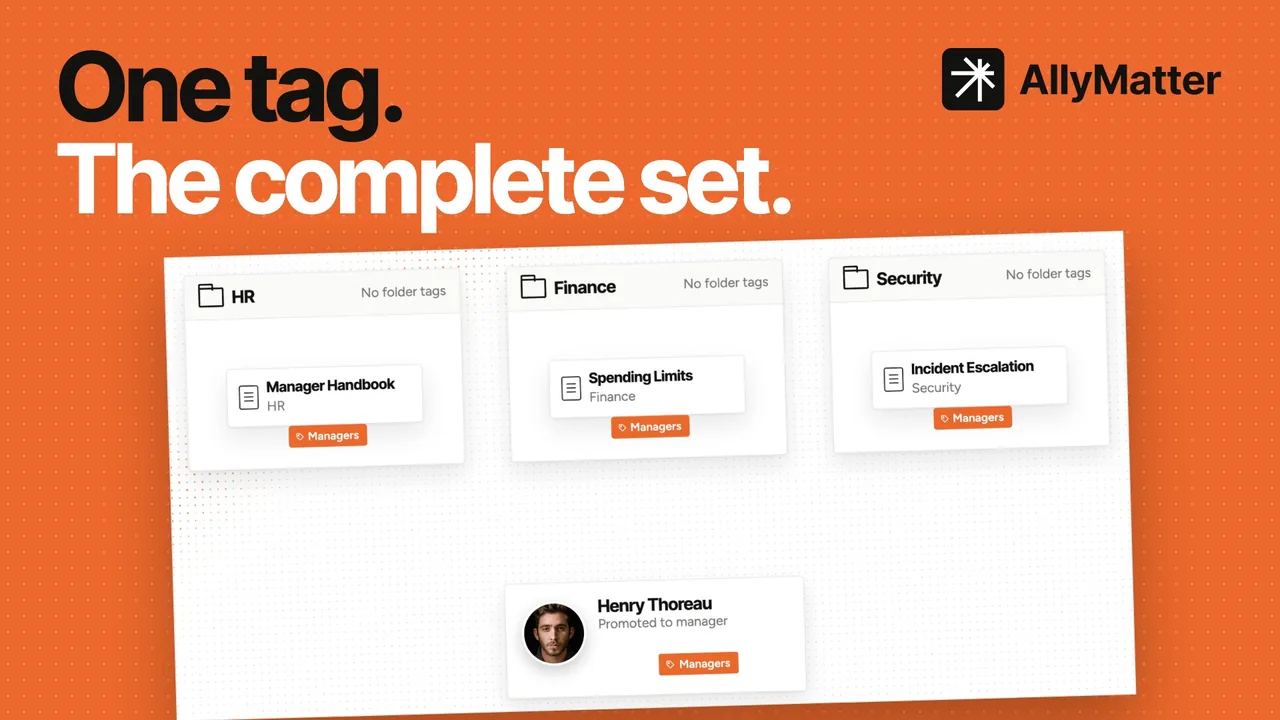
- Folder tags flow down to every document inside, and moving a document gives it the new folder’s tags.
- When someone changes roles, you change their tags once instead of editing permissions document by document.
How tag-based access control works in AllyMatter
Every document in AllyMatter has one of three visibility settings. Private means only the document’s editor can see it while it’s being written, Public means anyone with the public link can read it without signing in, and Internal, which is where most policies and procedures live, means the document’s tags decide who can see it.
For an Internal document, a person needs to hold every tag the document carries, and holding extra tags doesn’t get in the way. A new hire who is given the Warehouse tag can see the warehouse procedures from that moment, and someone who moves from finance to operations sees the operations documents as soon as their tags change.
| How the document is set up | Who can see it |
|---|---|
| Internal, tagged HR | Everyone who holds the HR tag |
| Internal, tagged HR and Denver | Only people who hold both the HR tag and the Denver tag |
| Internal, with no tags | Admins and the document’s editor |
| Public | Anyone with the public link, without signing in |
| Private | Only the document’s editor, while it’s being written |
Tags narrow the audience, they don’t widen it
This is the rule that catches people out, so it’s worth slowing down on. Tagging a policy with HR and Denver doesn’t send it to everyone in HR and everyone in Denver; it sends it only to the people who are in both, which is exactly right for a Denver-only HR procedure and exactly wrong for a company-wide one.
The practical answer is to keep a few broad tags, such as All Employees or Full-time Employees, for documents meant for wide groups, and to save combinations of tags for documents that really are meant for the overlap. When a policy needs to reach two separate groups, a broader tag that both groups hold will do the job, where two narrow tags on the same document would shut most of them out.
How to plan your tags
Most companies only need a handful of tag types, and the fewer you start with, the easier they are to keep right as people join, move and leave.
Team tags such as HR, Finance or Warehouse describe where someone works, and they carry most of the load, because most procedures belong to one team.
Location tags such as Denver or London cover rules that only apply in one place, like an office’s emergency procedures, and they are usually combined with a broad tag rather than a team tag.
Group tags such as All Employees, Full-time Employees or Directors cover documents that cut across teams, like the handbook or a board policy, and they are the tags you will reach for when a policy needs a wide audience.
Name tags plainly and keep the naming consistent, so that anyone adding someone to a tag can tell at a glance what it means, and resist making a new tag for every project, because a long tail of half-used tags is how a clean system turns messy.
How folders and tags work together
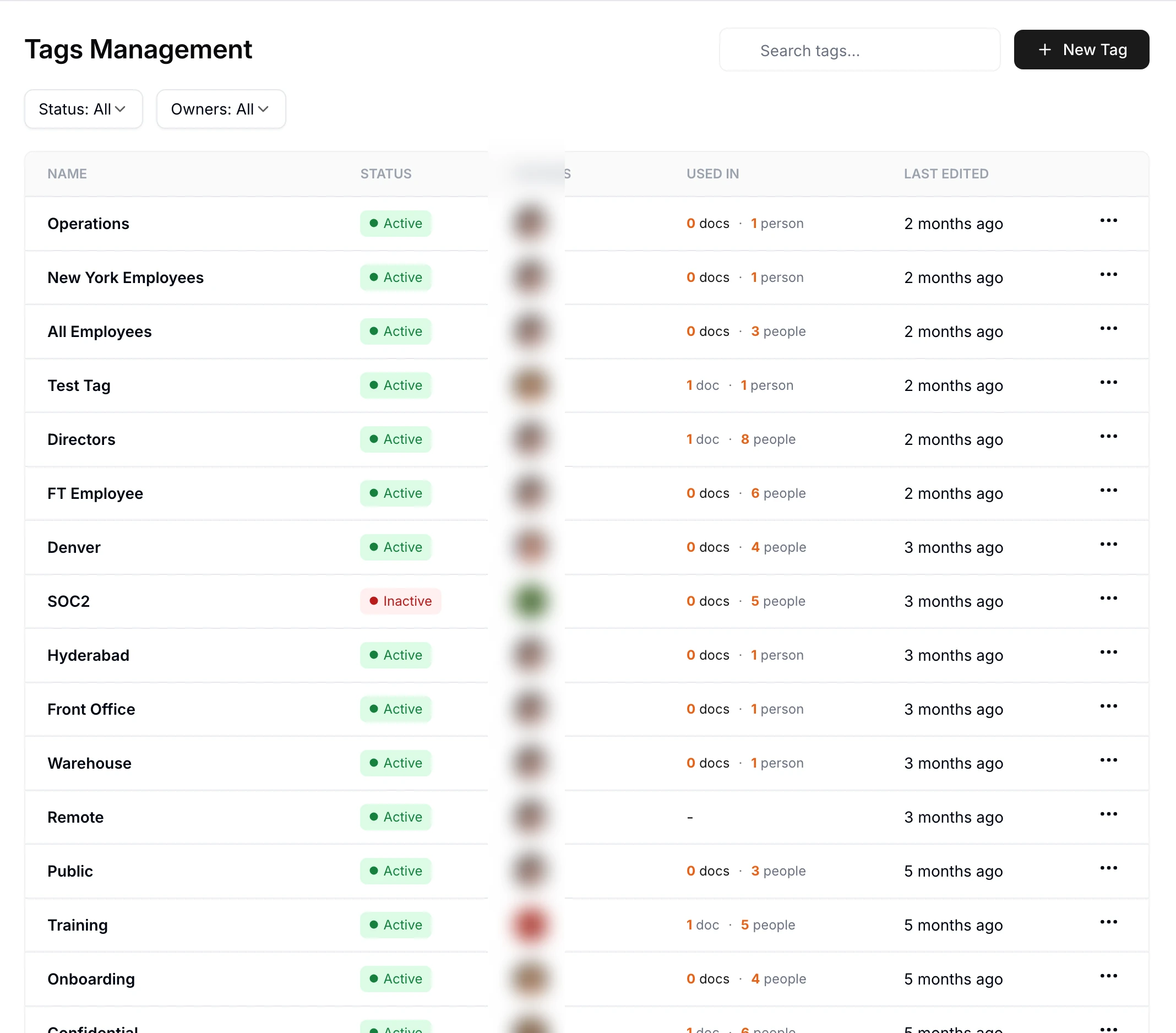
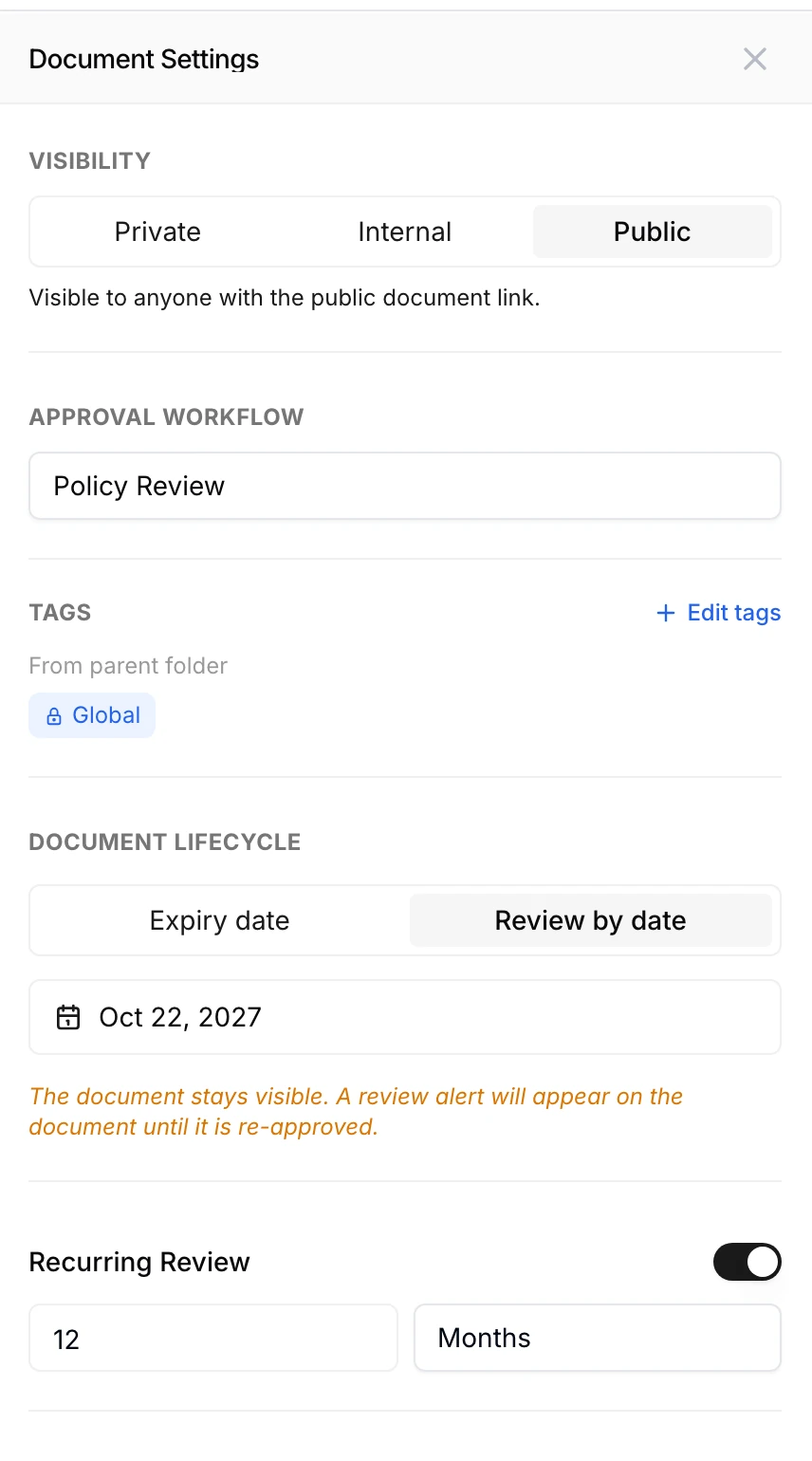
Folders organise the library and tags decide access, but the two are linked, because a folder can carry tags of its own and those tags flow down to every document inside it. A document can’t drop a tag it inherits from its folder, so putting a policy in the HR folder is, in practice, a decision about who can see it.
Moves follow the same logic. When a document or folder moves, it leaves its old tags behind and takes on the tags of its new folder, and a document moved to the top level of the library loses its folder tags altogether, so it’s worth checking a document’s tags after any move.
Changing access when people change roles
Because access follows tags, a change of role is a change of tags rather than a hunt through documents. A tag’s owner, or any Admin, adds the person to their new tags and removes the old ones, and from then on they see the documents for their new team and no longer see the old team’s documents.
Whoever creates a tag owns it, and an owner can add and remove people and make other people owners, which means the head of a team can look after their own team’s tag without waiting on IT. Admins can do the same on every tag in the workspace, and if someone tries to delete a tag that is still in use, AllyMatter warns them first.
Tags also shape everything else that happens to a policy. When a policy is sent out for acknowledgment, it goes to the people who hold its tags, and an approver has to hold the document’s tags too, so the same setting that decides who can read a policy also decides who is asked to confirm it.
Keeping tags tidy as you grow
Tags stay useful when someone looks at them now and then. Once a quarter, open Tags Management and look for tags that are no longer used by any document, tags with a single person on them, and tags nobody has touched in months, then retire what isn’t needed and check that each team’s tag still matches the team.
It’s worth the half hour, because finding information is a real cost. Gartner found that 47% of digital workers struggle to find the information they need to do their jobs, and a clean set of tags means people see the policies meant for them without wading through everyone else’s.
If you’re weighing tags against what you have today, our posts on how documents reach the right people and policy distribution and access go further into how tags drive sending and acknowledgment.
Start your 30-day free trial of AllyMatter. No credit card to start, and a 30-day money-back guarantee if you subscribe and change your mind. Free migration.
Three scenarios
An honest read on whether you need tag-based access yet:
If you’re under 30 people and everyone can see everything, a shared drive with a couple of restricted folders will hold for a while, and tags would be more structure than you need.
If you’re 30 to 200 people with policies that apply to some teams and not others, this is the moment, because folder permissions start to drift as fast as you hire, and AllyMatter is what we built for this.
If you work across several sites or answer to an auditor, you need to show who could see which policy, and we’d start with AllyMatter.
More on access and distribution
Questions about tag-based access control
How is tag-based access control different from folder permissions?
With folder permissions you manage access folder by folder, and it drifts every time something is copied or moved. With tags you describe people once, by team, location or role, and every Internal document tagged for that group reaches them wherever it sits in the library.
If a document has two tags, who can see it?
Only the people who hold both tags. Tags narrow a document’s audience rather than widen it, so a policy tagged HR and Denver reaches the HR people in Denver, not everyone in HR plus everyone in Denver. If a policy is meant for a wide group, give it one broad tag such as All Employees.
What happens when someone changes roles?
A tag owner or an Admin removes the old tag and adds the new one, and from then on the person sees the documents tagged for their new team and stops seeing the old team’s documents, without anyone touching a single document’s settings.
Do folders still matter if tags control access?
Yes, because folders organise the library and carry tags of their own. A folder’s tags flow down to every document inside it, and moving a document into another folder gives it that folder’s tags, so the folder you put a policy in decides much of who can see it.
Who can create and manage tags?
Whoever creates a tag owns it, and an owner can add and remove people and make other people owners. Admins can do the same on every tag in the workspace, and Tags Management lists each tag with its status, owners and how many documents and people use it.
Start your 30-day free trial of AllyMatter. No credit card to start, and a 30-day money-back guarantee if you subscribe and change your mind. Free migration.