
Approvals · 7 min read
Reject a Document with Comments and Send It Back
If you want to reject a document with comments in AllyMatter, you click Reject, write what needs to change in the Reason Of Rejection box, and the policy goes back to its Editor with your words attached. We built approval around that loop for one reason: an approver who has a concern needs a way to say so that the author can act on, and a bare no does not give them one.
This post is part of our guide to document approval workflows and sits inside the wider guide to policy management software. It walks through the loop on a real policy, explains what stays locked and what people keep reading in the meantime, and covers the question many readers arrive with, which is what to do when you would like to approve with comments.
Why a reason beats a bare no
Most reviewers of a policy find something small before they find anything wrong, such as a date that needs updating or a step with no named owner. When the tool gives that concern nowhere to go, it travels by email or chat while the document sits in review, and the author is left guessing which thread is the real one.
A rejection with a written reason keeps the concern, the document and the decision in one place. The Editor reads exactly what the approver asked for, makes the change and sends the document back through, and nobody has to schedule a call to find out what “a few thoughts” meant.
It also leaves a better record. I have been through SOC 2 and HIPAA work, ISO 9001 audits more than ten times and ISO 27001 twice, and the habit I took from them is that a recorded no is as useful as a recorded yes, because it shows the review was a real one. A policy that has only ever been approved at first pass invites the question of whether anyone read it.
How to reject a document with comments in AllyMatter
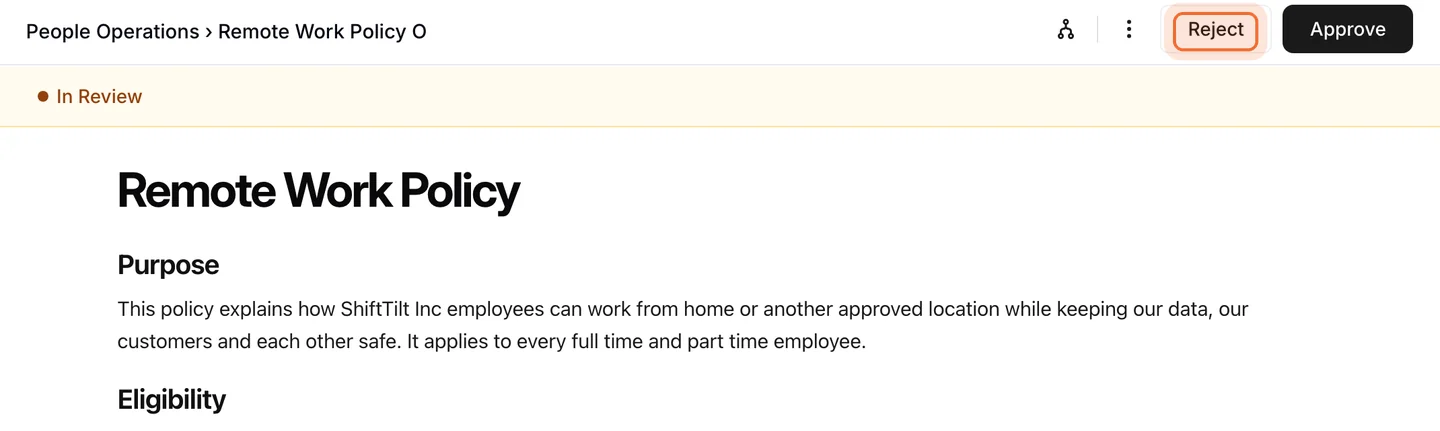
- Open the document from your approval task. A document waiting for you shows an In Review status bar, with Reject and Approve at the top right.
- Click Reject. A dialog headed Status: Rejected opens with a Reason Of Rejection box.
- Write the reason and click Confirm Rejection. In our example the approver asks for the contact for equipment problems and for how often the internet allowance is paid.
- The Editor sees the rejection. The document is back in Draft, with a Rejected banner naming who rejected it and a View Rejection Note button that opens your reason.
- The Editor clicks Back to Editing, makes the changes and saves a version. Saving asks whether it is a major or a minor version.
- The Editor sends the document for approval again. The dialog shows the new version and the approval workflow with its approvers, who will be notified, and the approval starts again at step 1.
What happens to the policy while it is in review and after a rejection
While a document is in an approval flow it is locked, so the version the approvers are reading cannot change under them. Our post on the approval lock during review explains it. The people who work from the policy are not affected either way, because they keep seeing the last approved version until a new one is approved.
A rejection ends the flow and returns the document to Draft, which is what lets the Editor edit again. Every new version goes through approval, however small the change, because even a comma can change what a rule means, and when the Editor resubmits, the approval restarts at step 1. If you want to know how a step decides between all approvers and any one of them, see all approvers or any one.
What if you want to approve with comments?
Many people reach this post from a search for “approved with comments” or “approval comments”, so here is the plain answer. In AllyMatter an approval carries no comment, and that is deliberate: when a version is approved it takes effect as written, with no side notes attached that someone has to remember to check later.
When you have a concern about a document, you reject it and give the reason, then approve the next version once the change is made. The result is cleaner for everyone downstream: the version people acknowledge is exactly the version that was approved, with no side notes to read.
The rejection stays in the record
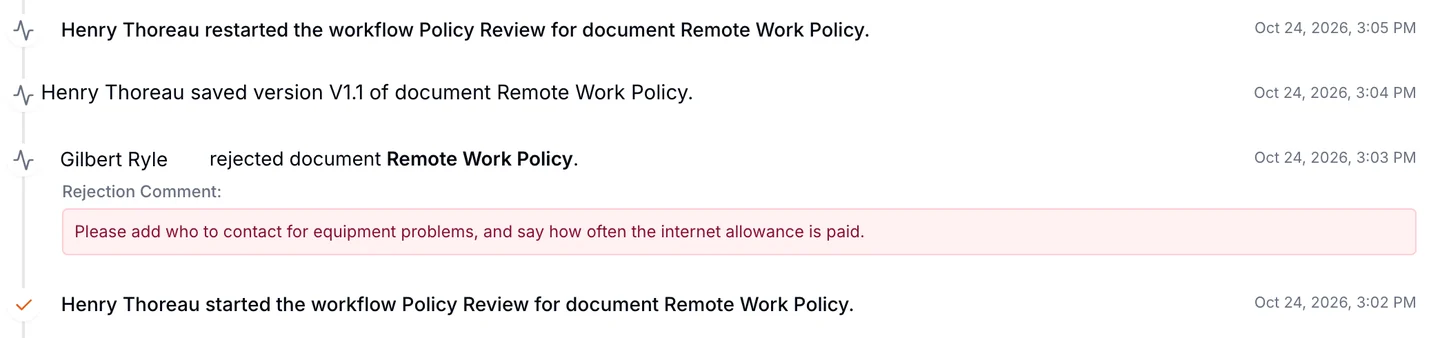
Every rejection is written to the document’s audit trail as a named line with the reason beneath it, in sequence with the saved versions, the restart of the workflow and the approvals that follow. An auditor can read the story in order: someone asked for a change, here is what they asked, and here is the version that answered it.
You can see the whole trail on our audit trail page, and the way each saved version is kept and compared on the versions and reviews page. The approval steps themselves are on approval workflows.
Writing a rejection reason that gets fixed the first time
The product gives you the box, and the quality of what you type in it decides whether the Editor needs a second round. A good reason tends to do four things.
- Name the place. “Equipment and Workspace section” beats “the middle part”.
- Say what to change. “Add who to contact for equipment problems” is something an Editor can do in a minute.
- Say why, when it is not obvious. A line on the reason saves an argument over whether the change is optional.
- Keep it to what blocks approval. Save preferences for the next review, so each rejection is short and the second pass is a quick yes.
If you would like to see the dialog yourself, our sandbox is open at sandbox.dashboard.allymatter.app, and our guide to sending a document for approval covers the other side of the loop.
Questions about rejecting a document
Can an approver leave a comment and still approve?
In AllyMatter an approval is a clear yes with nothing attached, and we built it that way on purpose, so a version takes effect as it was approved. When an approver wants something changed first, the way to say so is to reject with a written reason, which sends the document back to its Editor with that reason attached.
Is the reason for a rejection required?
Yes. The reject dialog has a Reason Of Rejection box, so the Editor never receives a bare no.
What happens to the document after it is rejected?
It goes back to Draft, and its Editor sees a Rejected banner with a View Rejection Note button and a Back to Editing button. The Editor makes the changes, saves a version and sends the document for approval again.
Can the approver still see the earlier version after rejecting?
Yes. An approver who holds the same tags as the document can open its earlier versions, so they can compare what they rejected with what the Editor sends back.
Does a resubmitted document start the approval from the beginning?
Yes. Sending a rejected document for approval again restarts the workflow at step 1, so every approver gets to see the corrected version rather than only the one who rejected it.
Three scenarios
An honest read on whether this loop matters to you yet:
If one person writes and approves every policy, which happens in the first months of a company, you will rarely use a rejection, and a shared document with a clear owner will do for now.
If policies are written by one person and signed off by another, this is the moment, because the reason you type is the only thing that keeps a review from turning into a week of messages, and AllyMatter is what we built for that.
If an auditor or a customer is going to ask how your policies were reviewed, you need the no to be on the record as well as the yes, and we would start with AllyMatter.
Start your 30-day free trial of AllyMatter. No credit card to start, and a 30-day money-back guarantee if you subscribe and change your mind. Free migration.