I’ve watched legal teams waste entire afternoons hunting for the current contract template, only to discover three versions in circulation, none of them approved. HR fields the same policy questions repeatedly because employees can’t find guidelines. Finance scrambles for expense procedures during month-end close.
When documentation scatters across email, shared drives, and messaging platforms, you’re creating compliance risks that multiply as you grow.
According to a Harvard Business Review study, workers toggle between applications nearly 1,200 times daily, spending approximately four hours per week just reorienting themselves after switching contexts. Email attachments create version chaos. Shared folders become digital graveyards. Slack threads trap knowledge that vanishes when team members leave.
Growing companies need knowledge systems that handle compliance, audit requirements, and departmental access controls. This guide introduces ten trusted document collaboration tools and offers a framework to help you make the right choice.
Why collaboration tools matter more than you think
Document collaboration tools do more than let multiple people edit a file. They shape how knowledge flows within your company, how fast decisions are made, and how well people stay aligned across locations and time zones.
Real-time collaboration
Team members can work on the same document simultaneously, avoiding email back-and-forths and outdated versions.
Centralized knowledge
Documentation lives in one place, making it easier for everyone to find what they need when they need it. Learn more about building an internal knowledge base that actually works.
Faster feedback loops
Inline comments, suggestions, and mentions help speed up reviews and approvals.
Role-based access and security
Permissions allow companies to control who can view, edit, or manage content, supporting compliance and confidentiality.
Improved productivity
Less time spent searching for documents or requesting updates frees up hours for strategic work.
These benefits prove especially critical for remote teams, hybrid setups, or organizations scaling quickly.
What to consider when choosing the right tool
I’ve helped dozens of companies evaluate collaboration tools. Here’s what actually matters:
Integration
Does the tool connect easily with the apps your team already uses, like Slack, Zoom, Jira, Google Drive, or Microsoft Teams?
Ease of use
How fast can new team members learn the platform? Is the interface intuitive and distraction-free?
Collaboration features
Look for real-time editing, commenting, version history, task assignments, and approval workflows.
Scalability
Can the tool handle your team as it grows from ten people to one hundred or more? Read about scaling your knowledge base as your organization expands.
Security and compliance
If your organization handles sensitive or regulated data, choose a tool with encryption, permissions control, and audit logs. If you’re managing sensitive HR policies, read our HR Knowledge Management Guide for specific compliance considerations.
Offline access
Consider whether users need to access or edit documents without an internet connection.
Cost
Is the pricing model suitable for your size and budget? Some tools charge per user, while others offer flat rates or tiered plans.
With those criteria in mind, let’s explore the top tools available for growing teams.
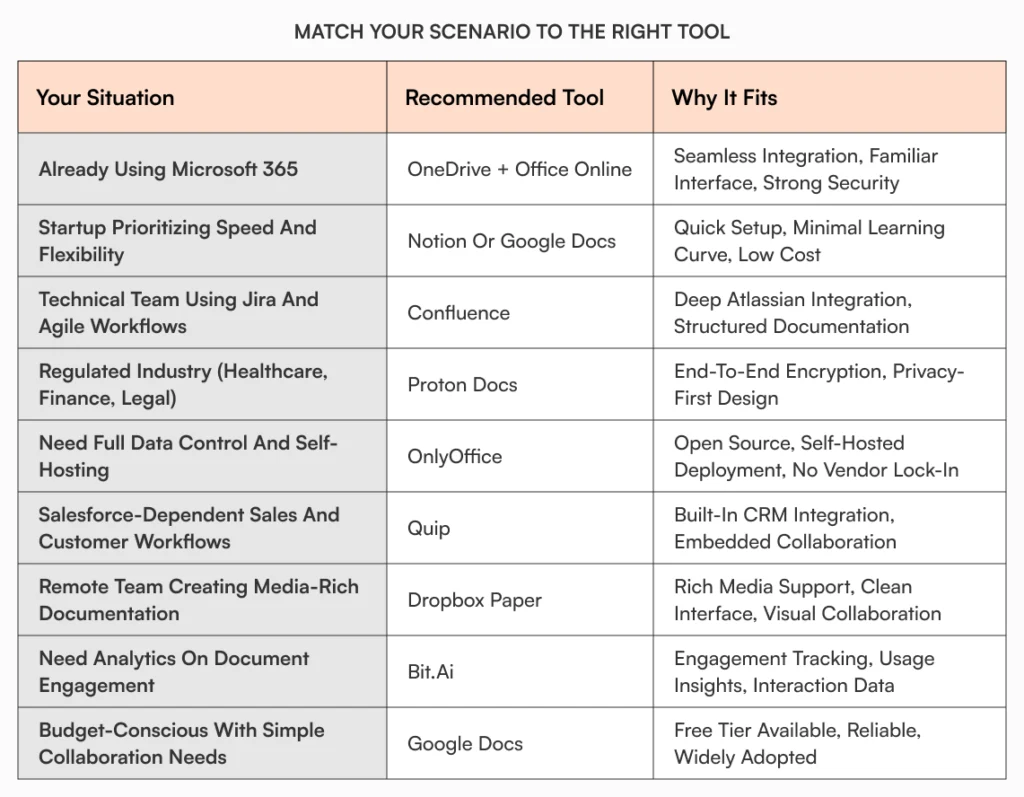
Choosing your collaboration tool: A quick decision framework
Narrowing your options starts with understanding your current ecosystem and primary needs. Here’s a quick framework to eliminate obviously poor fits:
- If you primarily use Microsoft 365, go with OneDrive with Office Online. The integration is seamless, and your team already knows the interface.
- If you value simplicity and already use Google Workspace, choose Google Docs. It’s reliable, free for basic use, and requires minimal training.
- If you need project management plus documentation, consider Notion or Confluence.
- If you require end-to-end encryption, look at Proton Docs.
- If you need full control and self-hosting, evaluate OnlyOffice.
Top 10 document collaboration tools
ClickUp
ClickUp is a document collaboration platform that connects docs directly with tasks, workflows, and team communication in one unified workspace. It enables real-time editing, comments, and embedded actions, so teams can create, review, and move work forward without switching tools. This works well for teams that need documents to stay closely tied to execution rather than exist in isolation.
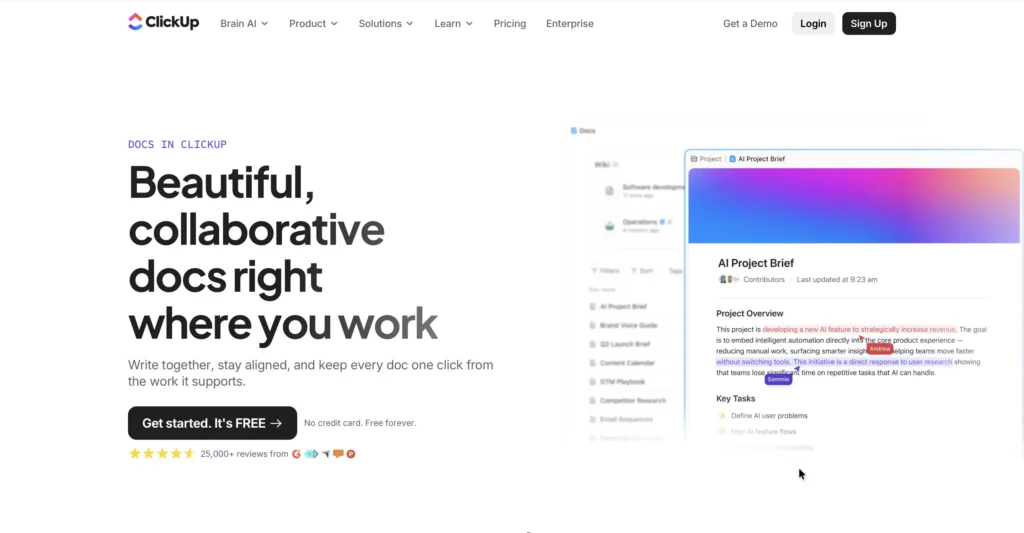
Real-time editing with comments and collaboration inside Docs keeps feedback and context in one place. Documents can be directly linked to tasks, workflows, and goals, turning ideas into actionable work instantly. Structured pages, templates, and permissions help teams organize content while maintaining control and clarity.
The platform may feel feature-rich for teams looking for a simple document editor. Initial setup takes some time to structure docs and workflows effectively. ClickUp excels when you need document collaboration tightly connected to tasks, execution, and team workflows.
Google Workspace (Google Docs)
Google Docs enables real-time editing by multiple users with changes reflected instantly. It’s ideal for teams seeking simple, reliable collaboration without version confusion. The platform integrates well with common productivity tools and offers full version history.

The tool shines for teams that work primarily online and value simplicity over advanced formatting. Real-time collaboration happens without version confusion, and sharing is straightforward with flexible permissions via shareable links. You can track edits and restore prior versions through full version history.
However, offline functionality remains limited compared to desktop applications. Formatting options can feel basic if you’re used to desktop counterparts. If your team works primarily online and values simplicity, Google Docs delivers solid collaboration without complexity.
Microsoft OneDrive with Office Online
Office Online lets teams co-author Word, Excel, and PowerPoint files in a browser via OneDrive. The familiar Office interface reduces the learning curve, making this ideal for organizations already invested in the Microsoft ecosystem.
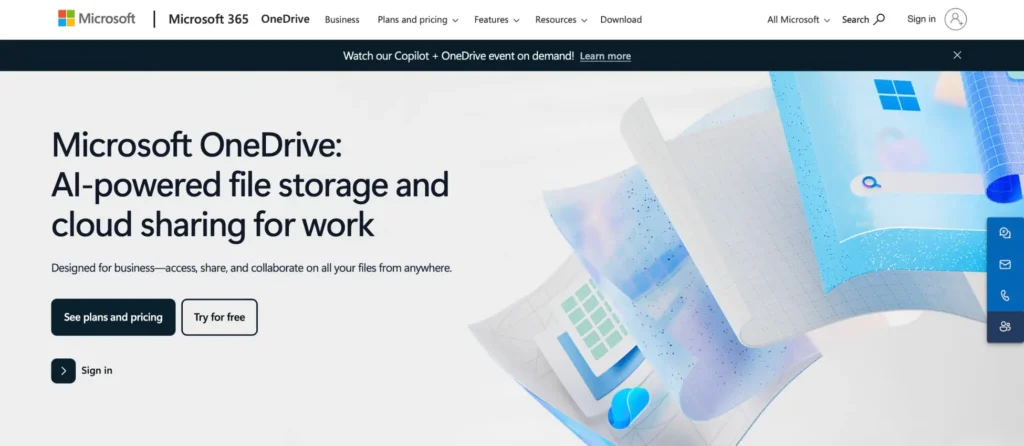
Seamless integration with Outlook, Teams, and SharePoint creates a unified workflow. Rich formatting capabilities and industry-standard document fidelity match what users expect from desktop Office applications. The platform allows offline work via desktop apps when needed and provides strong enterprise-grade security and compliance controls.
The complexity may overwhelm non-Microsoft users, and Office Online features are more limited than desktop full versions. Licensing for Microsoft 365 can be costly for small teams. If you’re already invested in Microsoft 365, OneDrive with Office Online is the obvious choice. The integration is seamless.
Notion
Notion is an all-in-one workspace blending notes, tasks, databases, and documentation. It supports real-time editing, comments, and collaborative organization. This proves effective for creative and startup teams seeking a unified space for documents, wikis, tasks, and knowledge.
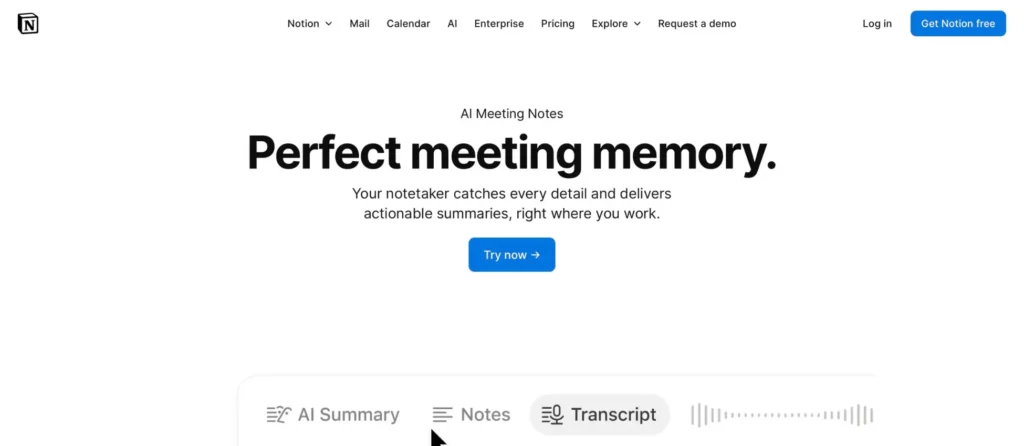
Highly customizable workspaces driven by templates and databases let you structure information your way. The platform combines documentation and project management in one place, reducing context switching. The clean, intuitive interface includes AI writing assistance for faster content creation.
There’s a learning curve for advanced customization, and offline mode can be unreliable. Limited export capabilities compared to traditional document editors may frustrate some users. If you’re a startup prioritizing speed and flexibility, Notion will get you productive faster.
Confluence (Atlassian)
Confluence is a documentation and collaboration platform integrated with Jira and the Atlassian ecosystem. It supports real-time editing, rich content structure, permissions, and templates. This works well for scaling technical and agile teams that need structured knowledge and robust workflow integration.
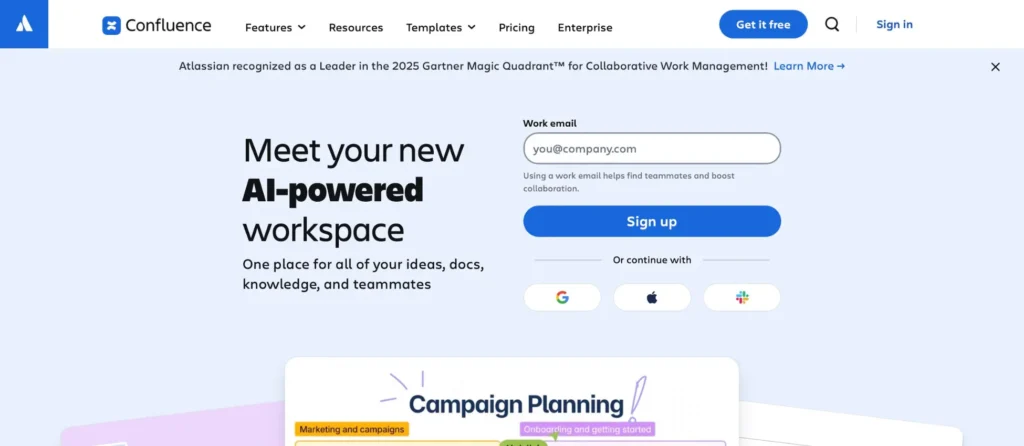
Structured documentation with hierarchy and powerful search helps teams organize complex information. Deep integration with Jira supports agile workflows and project documentation seamlessly. Controlled editing workflows through permissions, version history, and templates maintain documentation quality.
The platform can feel rigid or complex for informal use. The user interface may feel dated compared to newer tools. Confluence excels when you need structured technical documentation tied to development workflows.
Dropbox Paper
Dropbox Paper is a minimalist collaboration editor that integrates tightly with Dropbox storage. It supports embedding media, real-time editing, comments, and task lists. This suits teams that value multimedia-rich documentation and a simple interface, especially if already using Dropbox.
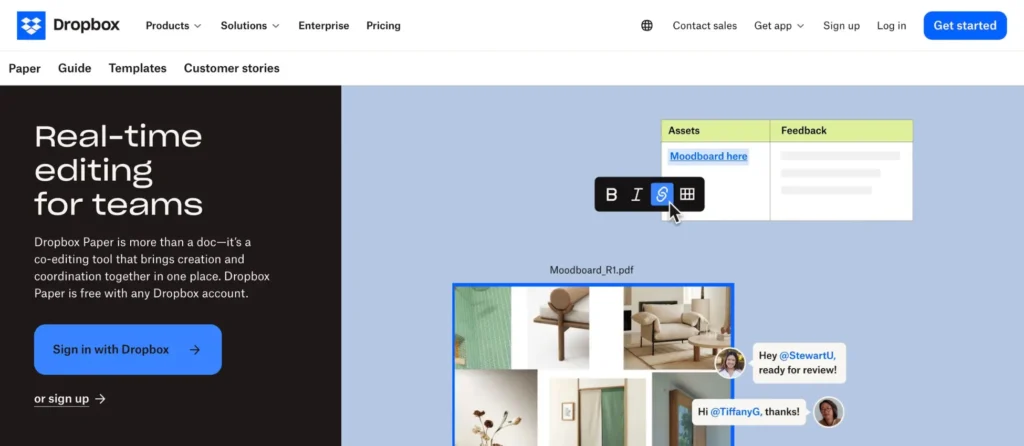
The clean, distraction-free interface keeps focus on content. Excellent support for rich media embeds like images and videos enhances documentation. Real-time collaboration with comments, mentions, and revision history enables smooth teamwork.
Formatting options are limited compared to richer editors. The interface may feel too lightweight for complex documentation needs. If you already use Dropbox and want simple, media-rich collaboration, Paper fits naturally into your workflow.
Quip by Salesforce
Quip integrates documents, spreadsheets, and chat within Salesforce and includes collaborative workflows. This platform works best for Salesforce users who need documentation tied to CRM workflows.
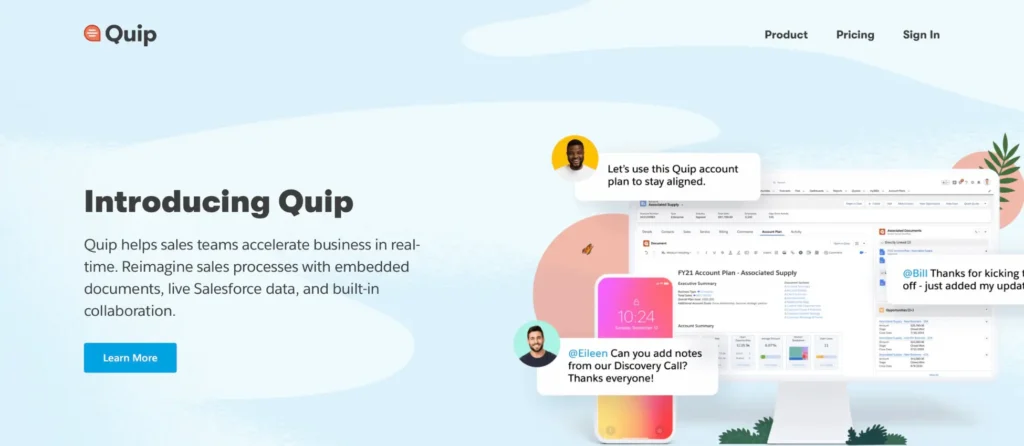
Embedded chat and comments within documents enable live collaboration without switching tools. Seamless integration with Salesforce CRM and automation connects documentation to customer data. Real-time editing and task management within the same workspace streamline sales and customer success workflows.
The tool is best suited for Salesforce users and offers fewer third-party integrations outside of the Salesforce ecosystem. If your team lives in Salesforce, Quip creates a natural documentation home.
Bit.ai
Bit.ai is a collaborative document platform with interactive templates, rich media embedding, and workspace organization. The platform tracks user engagement and provides analytics on document usage.
You can track who views your documents and gain insights into engagement. The platform embeds rich content like videos, maps, and PDFs inside documents for comprehensive resources. Integration with Slack, Google Drive, and Asana streamlines workflows across tools.
There’s a steep learning curve that may slow adoption. Limited offline capabilities can frustrate users in low-connectivity environments. Pricing may be prohibitive for smaller teams. Bit.ai suits teams that need analytics on document engagement and extensive media embedding.
OnlyOffice
OnlyOffice is an open-source document suite supporting text, calculations, presentations, and PDFs with collaborative editing online or offline. This works well for teams that need self-hosted solutions or want to avoid vendor lock-in.
Open-source and free options for self-hosted deployment give you complete control. Wide language support and interoperability with formats including PDF accommodate global teams. The platform offers enterprise-grade version control and real-time collaboration.
Setup and hosting may require technical expertise, which can be a barrier for non-technical teams. The user interface may feel less polished than cloud-native competitors. If you have technical resources and need full control over your data, OnlyOffice delivers flexibility.
Proton Docs (Privacy focus)
Proton Docs, part of Proton Drive, offers end-to-end encrypted document collaboration focusing on privacy. This is an excellent choice for teams in highly regulated environments or with strong privacy requirements.
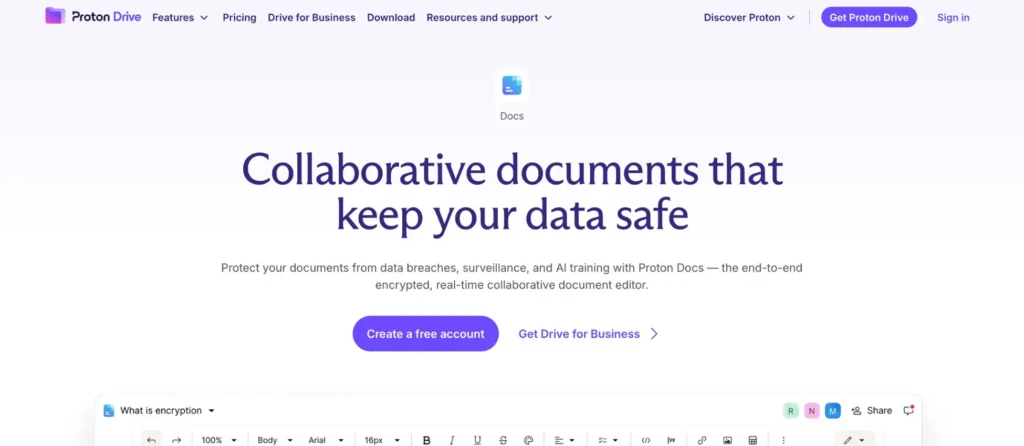
Strong privacy safeguards include encryption of content and metadata. The interface is similar to Google Docs while prioritizing user privacy. This proves ideal for sensitive internal or regulated data use cases.
Currently, features are more limited compared to mainstream tools. The platform is still evolving and may lack broader integrations. If privacy and encryption are non-negotiable requirements, Proton Docs provides the strongest protection.
Best practices for document collaboration
Even the best tool can fall short if not used intentionally. To make the most of your chosen platform, follow these practices.
Establish a clear folder and document structure
Define naming conventions, category hierarchies, and shared folders from the start. This keeps your content organized and easy to navigate. Without structure, even the best collaboration tool becomes a dumping ground.
Assign ownership
Every document should have an owner. Someone needs to be responsible for updating it, reviewing feedback, and archiving it when outdated. Orphaned documents create confusion and compliance gaps.
Use templates
Templates ensure consistency across documentation and save time. Create them for meeting notes, product specs, onboarding guides, and FAQs. Standard formats help team members find information faster.
Learn more about creating effective internal documentation.
Enable feedback without chaos
Encourage team members to use comments and suggestions instead of direct edits, especially for high-stakes or client-facing documents. This maintains a clear record of who proposed what.
Review and archive regularly
Outdated documents cause confusion and compliance risks. Set quarterly or monthly reviews for key content, and archive anything that is no longer relevant.
Train your team
Provide a short onboarding for the collaboration platform. Share tips, shortcuts, and norms for writing, tagging, and reviewing content. The way your team collaborates on documents reflects how it collaborates overall.
How AllyMatter addresses collaboration challenges
While collaboration tools help teams edit documents together, growing companies need more than shared editing. You need a knowledge management system built for compliance, audit requirements, and departmental access controls.
AllyMatter centralizes documentation with granular access control, comprehensive audit trails, and version tracking. Our platform supports approval workflows, acknowledgment tracking, and role-based permissions. These are capabilities most collaboration tools lack.
Unlike tools designed primarily for content creation, AllyMatter focuses on knowledge preservation and governance. You get smart search across all documentation, customizable tags for organization, and analytics that show which policies need attention.
Collaboration tools handle content creation. AllyMatter handles what happens next: governance, tracking, and making sure your team can find critical information when they need it.
Making the right choice for your team
The document collaboration tool you choose shapes how your team works together, but it’s only part of your knowledge infrastructure.
Evaluate tools based on your specific needs: integration requirements, security demands, and workflow complexity. Most importantly, consider whether you need pure collaboration or also require documentation governance.
If you’re managing policies, compliance documentation, or institutional knowledge, pair your collaboration tool with a dedicated knowledge management platform. Your collaboration tool handles content creation. Your knowledge management system ensures that content remains accessible, compliant, and trustworthy as you scale.
A word of caution: document collaboration tools solve content creation challenges but rarely address documentation governance. If you’re in healthcare, finance, legal services, or any regulated industry, you’ll need dedicated knowledge management capabilities alongside your collaboration platform.
Read our guide on internal documentation for policy management.
The right tool can accelerate communication, reduce stress, and empower people to contribute ideas and information freely. Choose wisely.
Collaboration tools proliferate. Governed documentation doesn’t happen by default. Start your 30-day trial and see how AllyMatter brings structure to the way your team creates and manages documents together.
Frequently asked questions
What’s the difference between document collaboration tools and knowledge management platforms?
Document collaboration tools focus on real-time editing and content creation. They excel for teams working together on reports, proposals, or creative projects. Knowledge management platforms like AllyMatter prioritize documentation governance, compliance tracking, and institutional knowledge preservation. They include approval workflows, acknowledgment tracking, granular access control, and comprehensive audit trails. Growing companies typically need both: collaboration tools for content creation and knowledge management platforms for documentation governance.
How do we choose between cloud-based and self-hosted document collaboration tools?
Cloud-based tools offer faster deployment, automatic updates, and lower upfront costs, making them ideal for most growing teams. Self-hosted solutions like OnlyOffice provide greater control but require technical expertise for setup and maintenance. Choose cloud-based unless you have specific regulatory requirements demanding on-premise hosting, technical resources to manage infrastructure, or unique customization needs that cloud platforms can’t accommodate.
Can document collaboration tools replace our knowledge management system?
Not entirely. Collaboration tools excel at content creation but lack governance features growing companies need. You can’t easily track who acknowledged which policies, maintain detailed audit trails for compliance, or enforce approval workflows across departments. Most organizations use collaboration tools for content creation and a dedicated knowledge management platform for documentation governance, policy management, and institutional knowledge preservation.
What document collaboration features matter most for remote teams?
Remote teams benefit most from real-time editing with clear presence indicators, robust commenting systems, comprehensive version history, and reliable offline access for distributed time zones. Strong integration with communication tools like Slack and Microsoft Teams is essential. Look for platforms that handle poor connectivity gracefully and provide clear notifications so remote team members stay informed about document changes.

Vikas is a B2B marketing professional with over 14 years of experience in content strategy, messaging, and demand generation. He specializes in turning complex business challenges into clear, actionable stories to connect meaningfully with audiences.