
Policy Basics · 14 min read
Top 9 Document Collaboration Tools for Growing Teams
I’ve watched legal teams lose whole afternoons hunting for the current contract template, only to find three versions in circulation and none of them actually approved. HR answers the same five policy questions every week because people can’t find the answers where they expect to look, and finance scrambles for an expense procedure at month-end because the last person who knew where it lived has left. The document collaboration tools below can help, but only if you choose one that does the job you actually have.
When documents scatter across email, shared drives and Slack threads, you’re not just slow, you’re building compliance risk that grows as you do. Most of these tools are very good at letting two people edit a document at the same time, but far fewer make sure the right policy, SOP or process can be found, trusted and proven six months later, and most growing companies need that second job more urgently than the first.
Key takeaways
- Document collaboration tools do two different jobs: writing documents together, and keeping finished documents findable, approved and current.
- Google Docs, OneDrive, Notion and Confluence are strong at the first job, and each suits a particular kind of team.
- Policies, procedures and handbooks need the second job too, with approvals, acknowledgments and an audit trail.
- Pick for the documents you have and the team that will use them, not for the longest feature list.
Why collaboration tools matter more than you think
A good collaboration tool changes how decisions get made, because people stop emailing attachments, reviews close faster and the right person sees the right document when they need it. The wrong tool does the opposite, which is how a shared drive ends up with fourteen versions of a file called “policy_v2_FINAL_FINAL.docx” and nobody sure which one is current.
The benefits matter most when you’re remote, hybrid or growing fast, which is also exactly when choosing the wrong tool starts to get expensive.
What to consider when choosing the right tool
Most “what to consider” lists are long and don’t help you decide, so here are the four questions that actually matter.
How technical is your team? Some tools below assume people will learn Markdown, page hierarchies and database structures, and if your team is HR, operations, finance or legal, that assumption won’t survive the first week, so pick the tool your team will actually use.
What do you already pay for? Half the decision is the ecosystem you’re already in, because Microsoft 365 customers default to OneDrive and Google Workspace customers default to Google Docs, and there’s little sense paying for two tools when one will do.
What are these documents for? Co-writing a draft in real time is a different job from making sure an HR policy can be found and trusted a year from now, and most of the tools below are built for the first job, so decide which job is bigger before you commit.
How much governance do you need? If you’re regulated, audited, or your documents need formal approval before they count, you need more than a shared editor, including permissions, approval workflows, audit trails and acknowledgment tracking, which only some tools provide.
Choosing your collaboration tool: A quick decision framework
Most teams fit one of these situations.
If your team is mostly non-technical, your documents are HR, operations, policies, onboarding or process documentation, and you need them findable and provable a year from now, AllyMatter is what we built for exactly this, and we’d start there.
If you mainly use Microsoft 365 and your documents are mostly drafts and shared files, OneDrive with Office Online is the natural pick, because the integration is clean and your team already knows the interface.
If you live in Google Workspace and mostly co-write drafts, Google Docs is fine, and there’s no need to overthink it.
If you want documentation and project management in one tool, Notion and Confluence are the two real options, with Notion for non-technical teams and Confluence if you’re already on Jira.
If end-to-end encryption is non-negotiable, choose Proton Docs, and if you need to host everything yourself, choose OnlyOffice.
How AllyMatter addresses collaboration challenges
We built AllyMatter for a pattern that repeats at almost every growing company: documents in five places, nobody sure what’s current, new hires unable to find anything, and the people who do know answering the same questions in Slack forever. Most of the tools on this list are good at creating content, while AllyMatter is built for what comes next, when the document is finished and needs to be found, governed and trusted long after the person who wrote it has moved on.
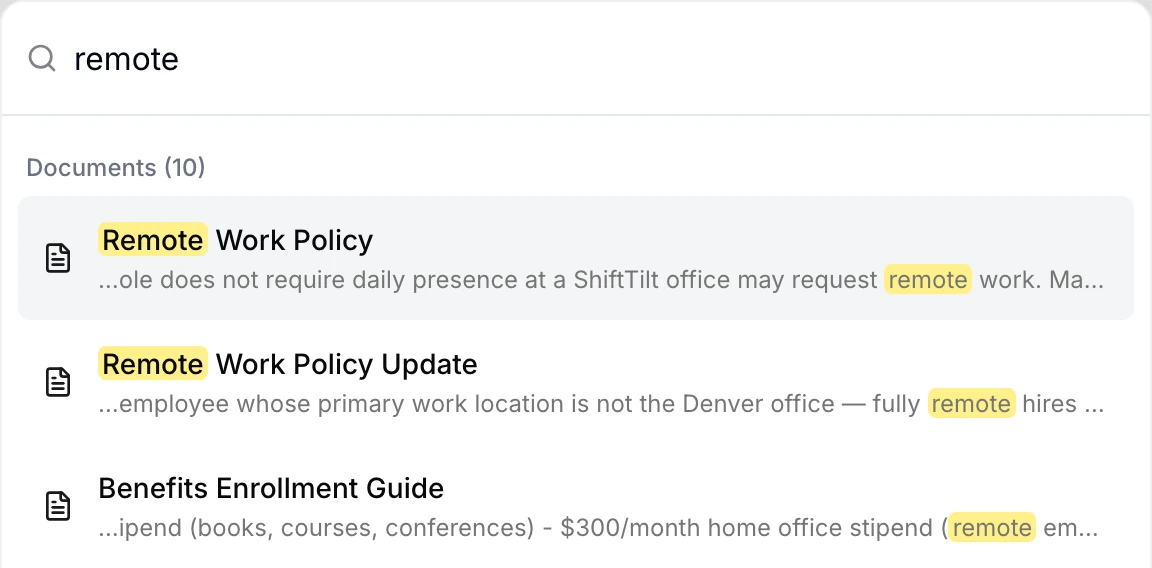
Search that finds the right document. AllyMatter searches the text of every document as well as its title, so a keyword brings up the policy and the line it appears in, which is the first thing most teams notice when they move over from Confluence or Google Drive.
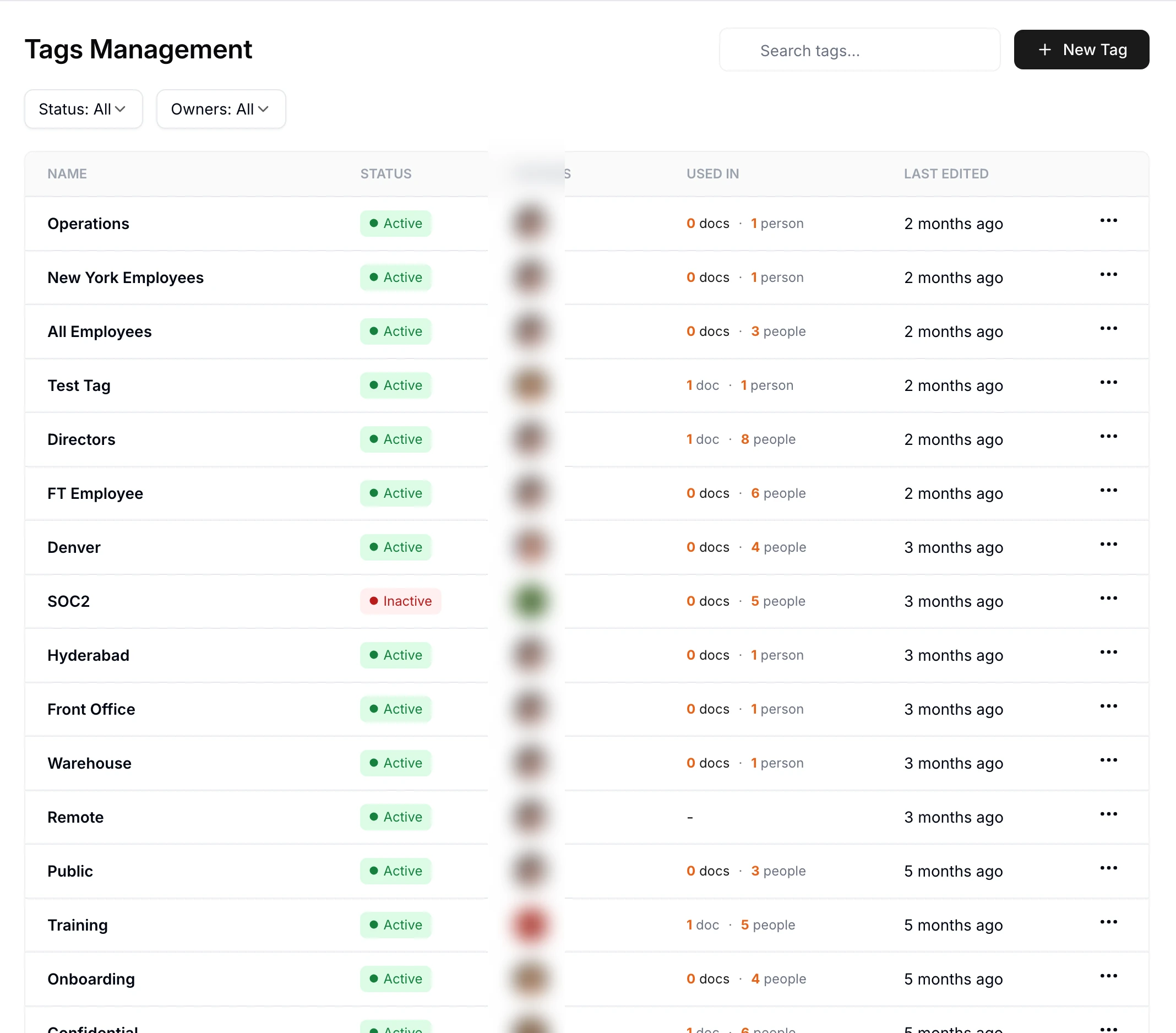
Access that follows people, not folders. Tags describe teams, locations and roles, so HR documents reach the HR team and finance documents reach finance, and when someone changes roles you change their tags once instead of maintaining a spreadsheet of who can see what.
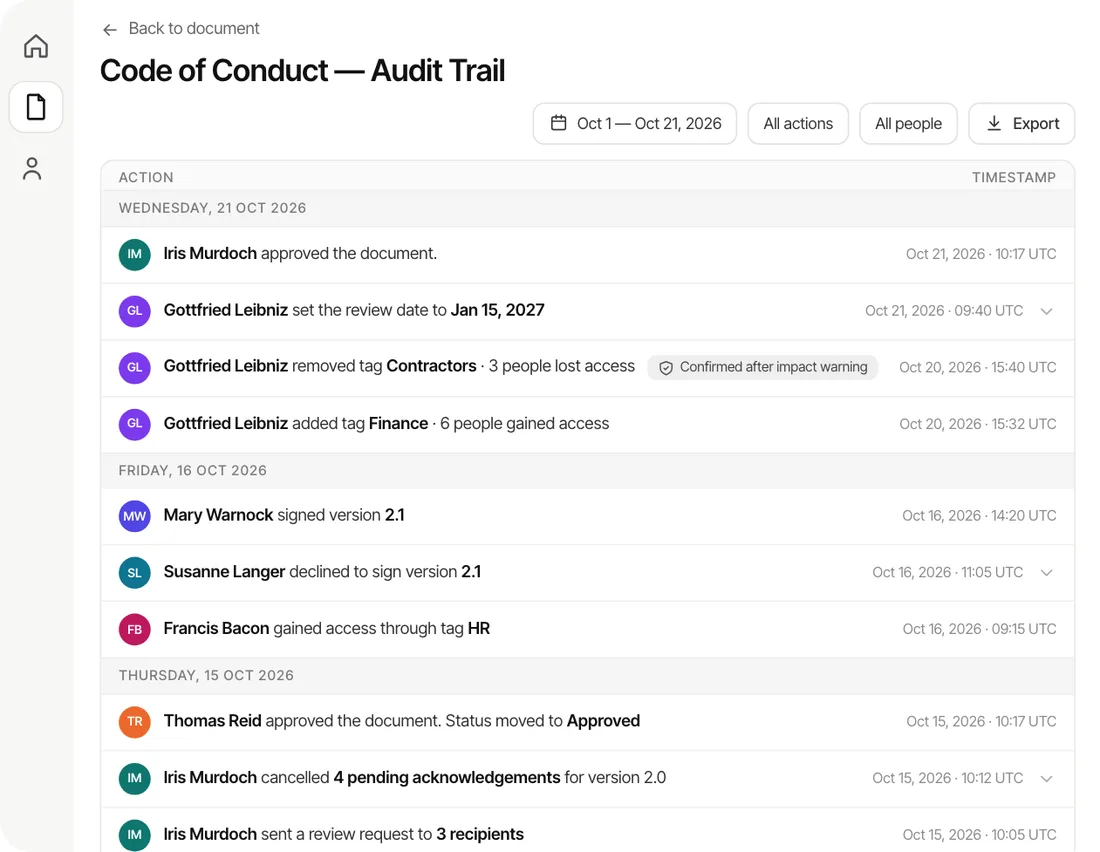
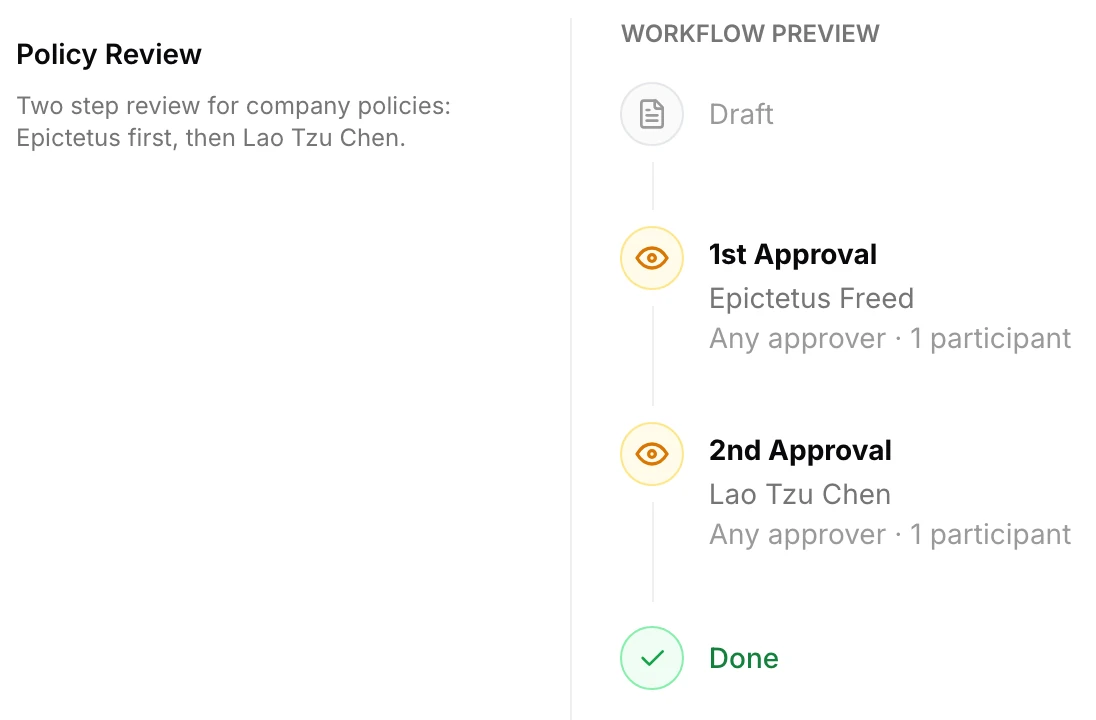
Governance for the documents that matter. Policies go through approval workflows with up to four ordered steps before anyone sees them, people acknowledge each version by name, and the audit trail records every approval, version and acknowledgment so you can answer who changed a policy and who confirmed it.
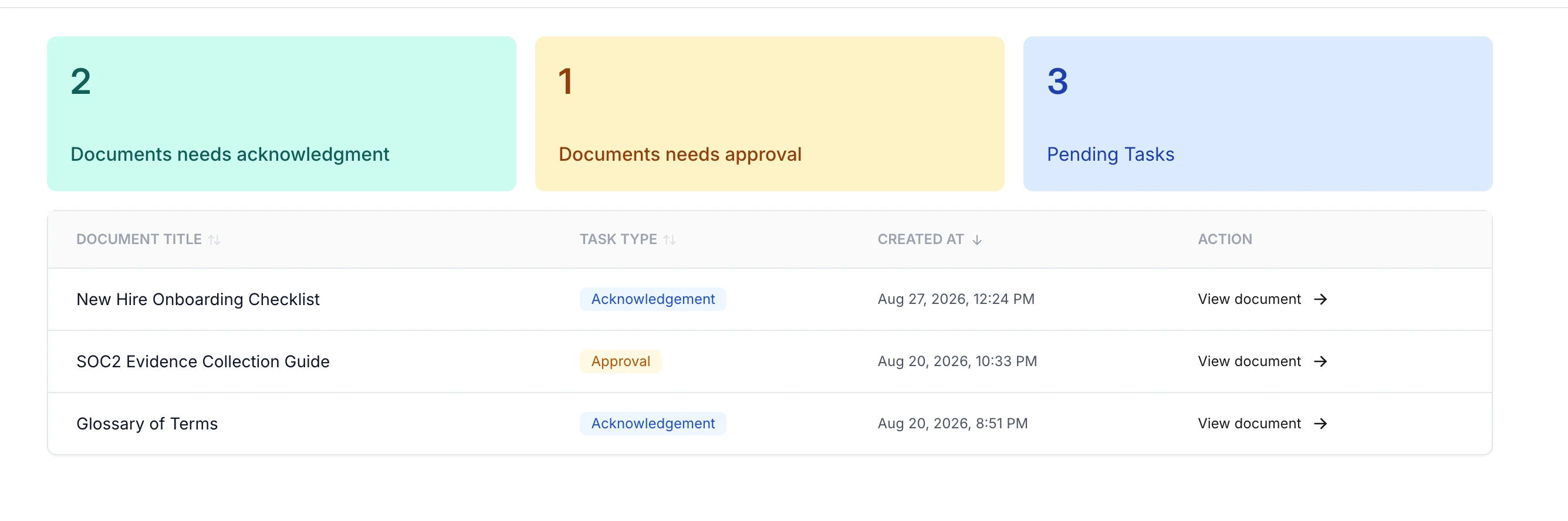
A home screen that shows what’s waiting. Each person’s home screen lists the documents waiting for their acknowledgment or approval, so nothing depends on someone finding the right email.
AllyMatter isn’t trying to beat Google Docs at real-time editing; it’s built to be the place where finished documents live, get found and stay current. Setup takes about half an hour, and if that’s the problem you have, it’s worth trying with your own documents.
Start your 30-day free trial of AllyMatter. No credit card to start, and a 30-day money-back guarantee if you subscribe and change your mind. Free migration.
For comparison, here are the nine tools the market most often weighs up, starting with the ones built for writing together.
Top 9 document collaboration tools
ClickUp
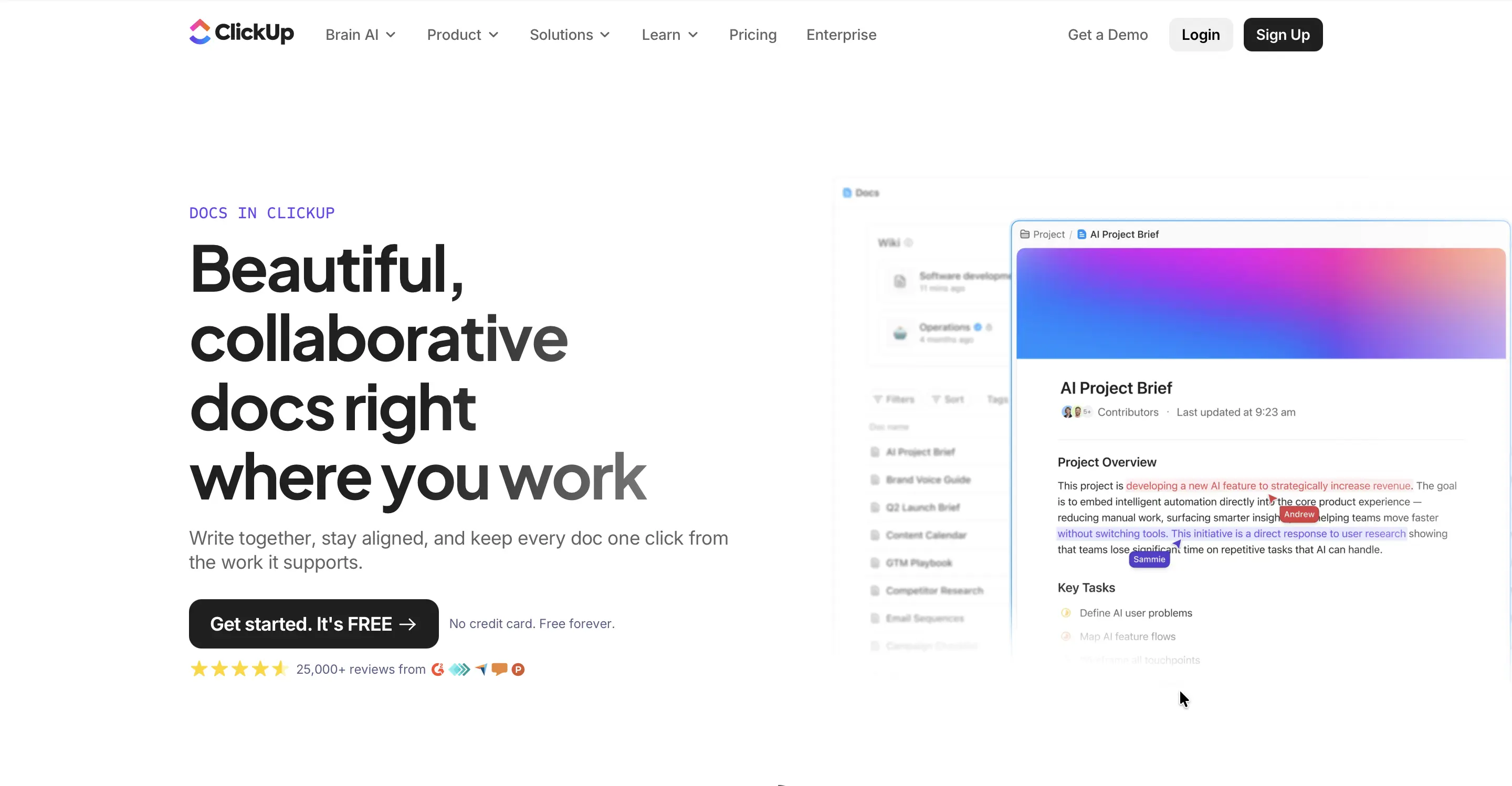
ClickUp is a work management platform whose Docs connect writing directly to tasks, workflows and team conversations in one workspace. People can edit a document together in real time, leave comments, and turn a line in a document into a task, so a plan moves into action without anyone switching tools.
That tight link to execution is its strength, and it’s also why ClickUp can feel heavy if all you want is a simple editor, because getting docs, spaces and workflows set up well takes some time at the start.
Verdict: The right pick if your documents mostly exist to drive tasks and projects. The wrong pick if you need finished policies approved, acknowledged and kept current, because ClickUp is built around work in progress rather than governed documents.
Google Workspace (Google Docs)

Google Docs lets several people edit the same document at once, with changes showing up instantly, which makes it the easiest way for a team already on Google Workspace to write together. Sharing is simple, comments and suggestions work well, and version history lets you see and restore earlier versions of a file.
Offline work is more limited than with desktop software, and formatting can feel basic if you’re used to Word, but for most teams that write online, Google Docs is quick and reliable.
Verdict: The right pick if you live in Google Workspace and mostly co-write drafts. The wrong pick as the home for policies that need formal approval and named acknowledgments, because a shared folder can’t show who approved or confirmed a given version.
Microsoft OneDrive with Office Online
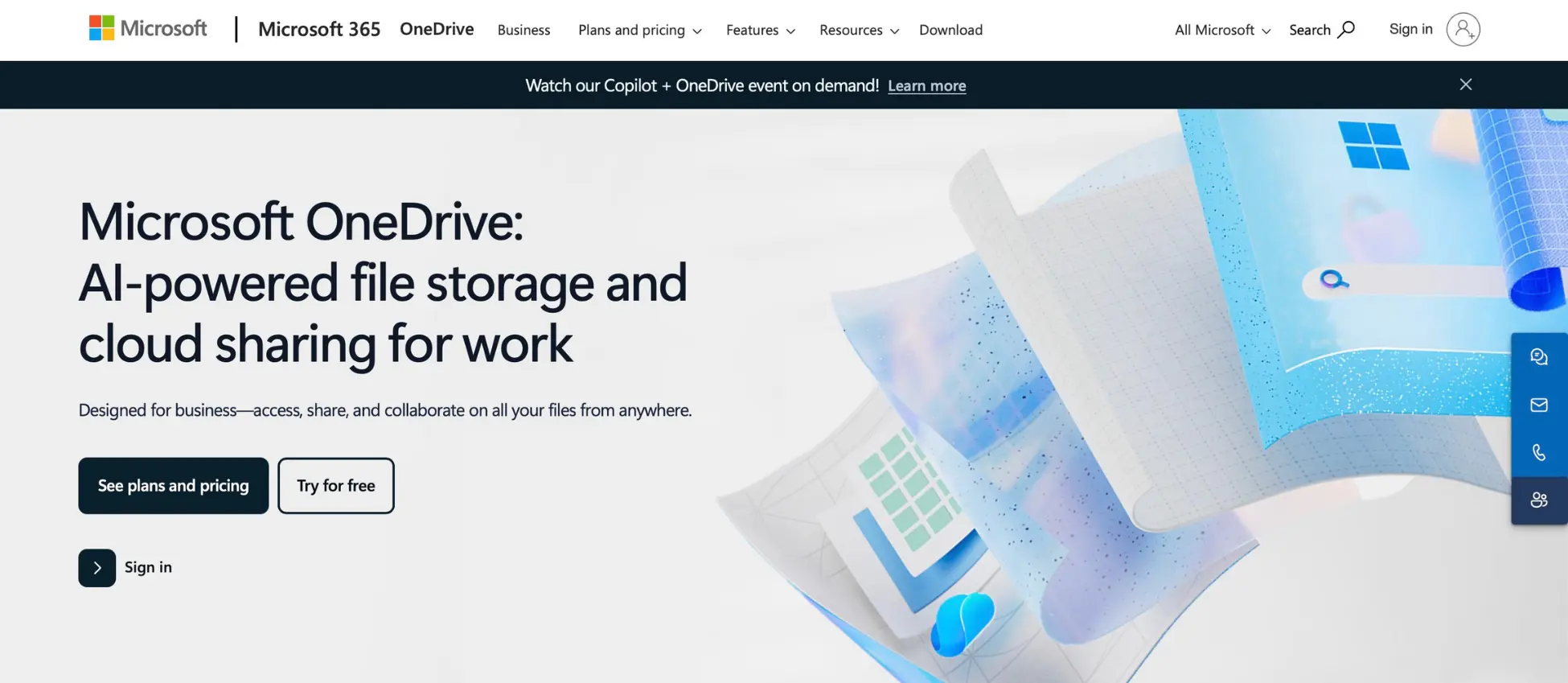
Office Online lets a team co-author Word, Excel and PowerPoint files in the browser through OneDrive, and because the interface is the familiar Office one, there’s very little to learn. It fits naturally alongside Outlook and SharePoint, keeps the formatting people expect from desktop Office, and lets anyone switch to the desktop apps for offline work.
The online apps do less than the full desktop versions, and Microsoft 365 licences can be a lot for a small team, but if you already pay for them, OneDrive is the obvious place for everyday files.
Verdict: The right pick if you’re already on Microsoft 365 and your documents are mostly working files. The wrong pick for policies that need approval and acknowledgment, which is where teams end up building flows in Power Automate and tracking confirmations in a spreadsheet.
Notion
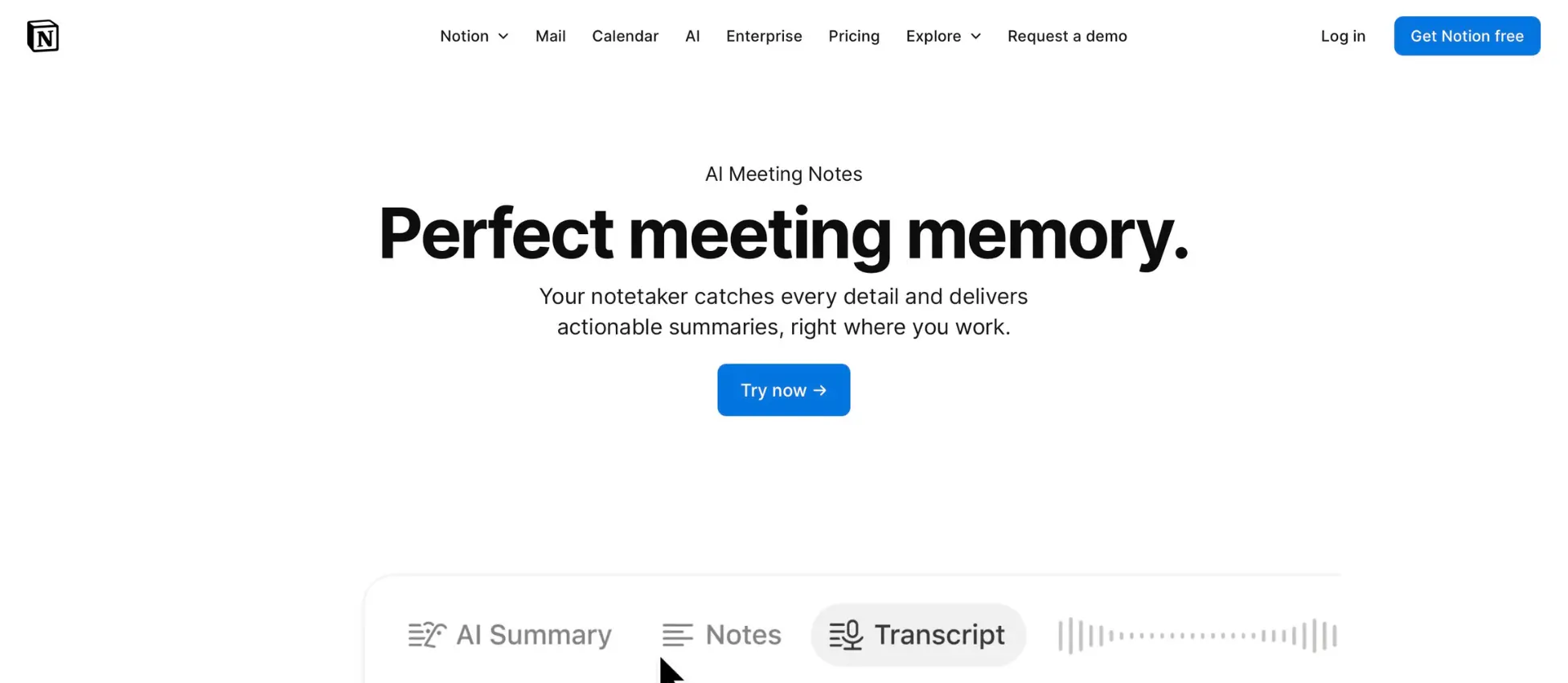
Notion is an all-in-one workspace that blends notes, tasks, databases and documentation, with real-time editing and comments, which is why so many startups use it as their first wiki. Templates and databases let you shape the workspace around how your team thinks, and having documents and projects in one place cuts down on switching between tools.
That flexibility comes with a learning curve for anything advanced, and exporting is more limited than with a traditional editor, but a small team can be productive in Notion very quickly.
Verdict: The right pick for a startup that wants speed and flexibility in one tool. The wrong pick once policies need formal sign-off and proof of who read them, because Notion pages don’t carry an approval record or a named acknowledgment for each version.
Confluence (Atlassian)
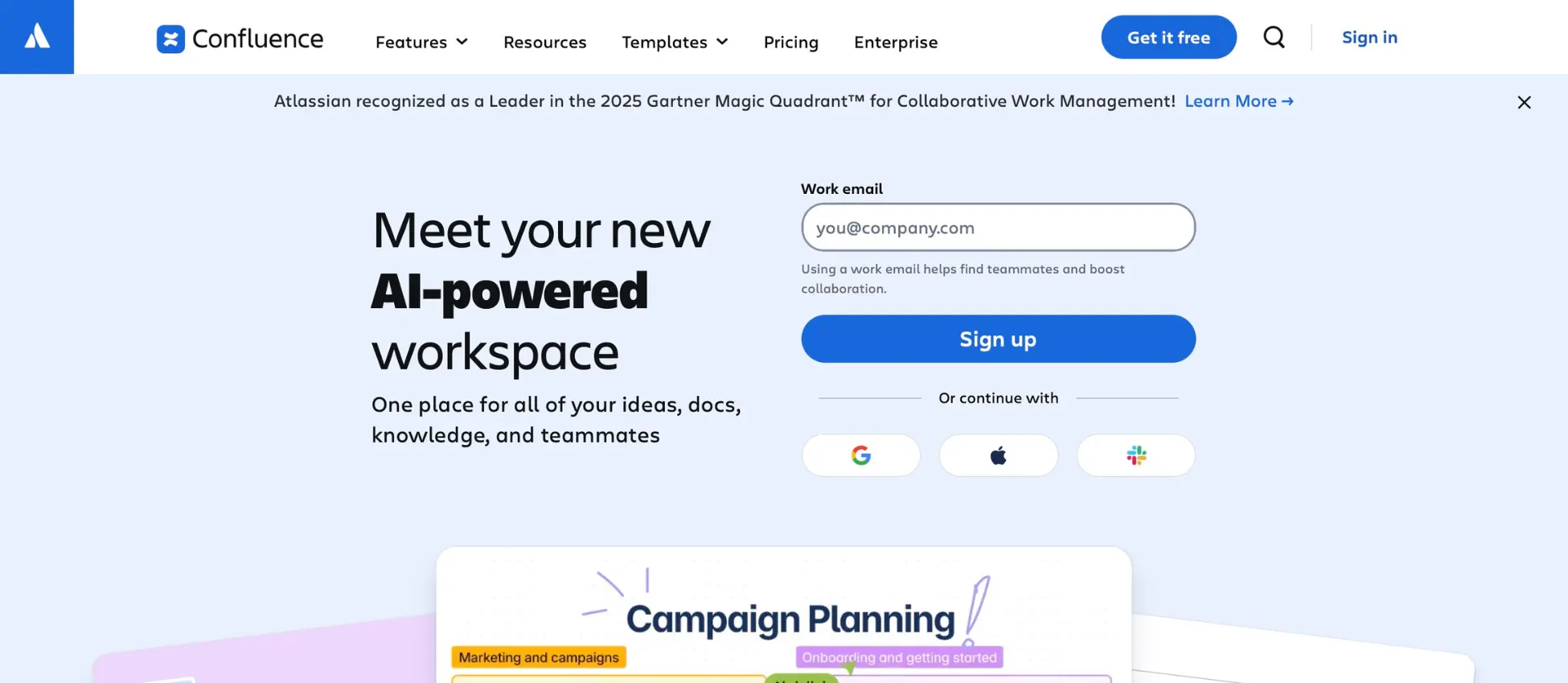
Confluence is Atlassian’s documentation platform, and its close link to Jira makes it the natural choice for engineering and product teams that already plan work there. It supports structured page trees, templates, permissions and version history, which helps a technical team keep large amounts of documentation in order.
For informal use it can feel rigid, and non-technical teams often find the structure more work than help, but for technical documentation tied to development, it’s hard to beat.
Verdict: The right pick if your team is mostly engineers already on Jira. The wrong pick for HR, operations or compliance teams, who tend to find it heavy and still need approval and acknowledgment records that pages don’t provide.
Dropbox Paper
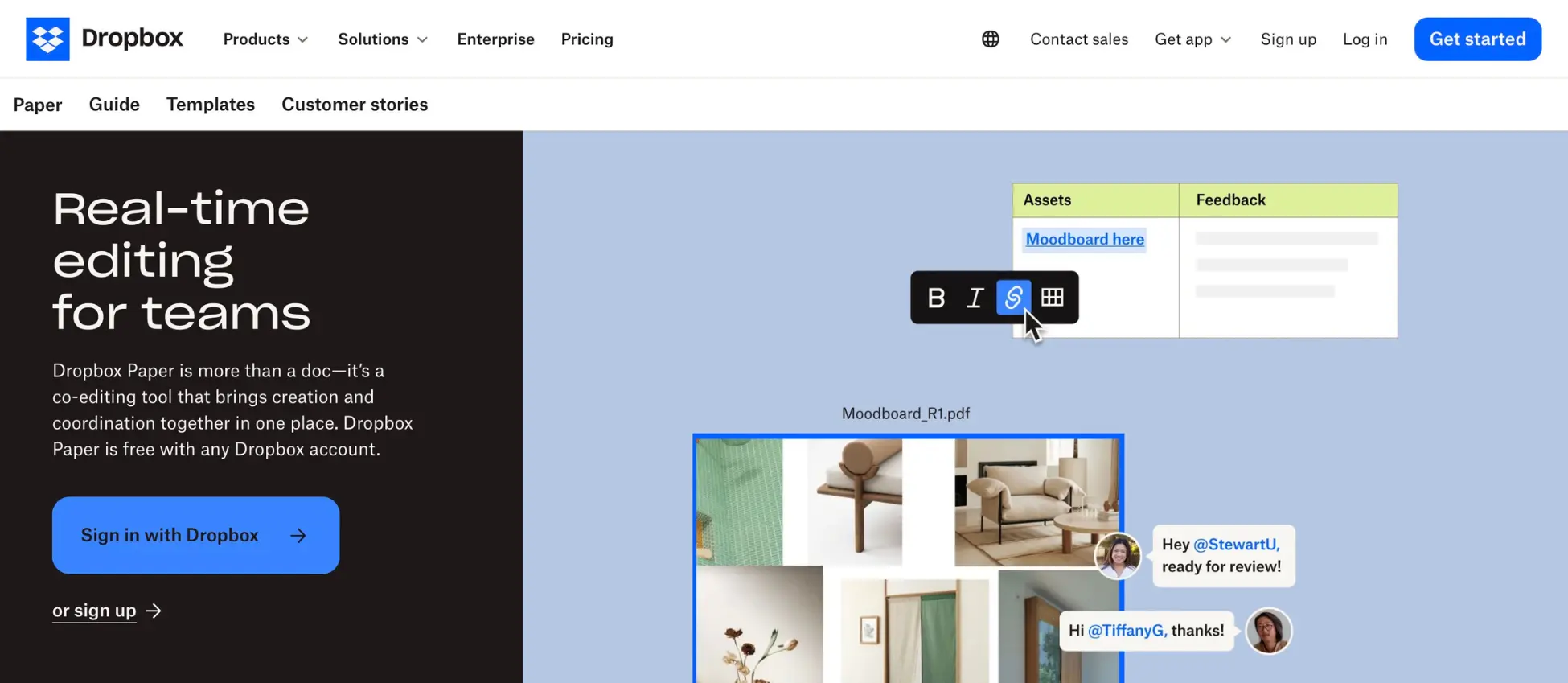
Dropbox Paper is a minimalist editor that sits alongside Dropbox storage, with real-time editing, comments, task lists and easy embedding of images and video. The clean, distraction-free layout keeps attention on the writing, and revision history lets a team follow how a document developed.
Formatting is limited compared with richer editors, and it can feel too light for long, structured documentation, but if your files already live in Dropbox, Paper fits in naturally.
Verdict: The right pick if you’re a Dropbox team that wants simple, media-rich notes. The wrong pick for anything that needs approval or acknowledgment, because it is built for quick collaboration rather than governed documents.
Bit.ai
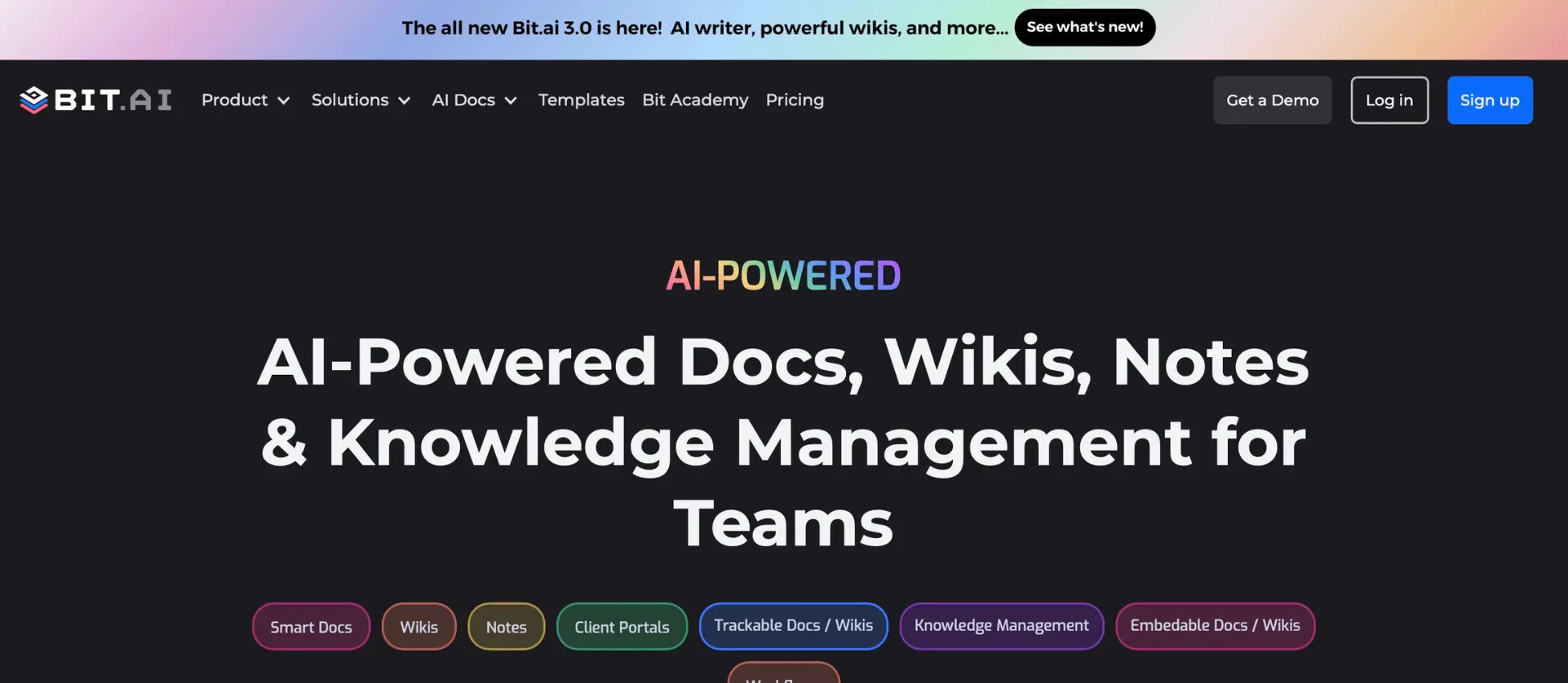
Bit.ai is a collaborative document platform built around interactive templates, rich media embeds and workspaces, and it can show who viewed a shared document and how they engaged with it. It embeds videos, maps and PDFs inside documents and connects to tools such as Slack, Google Drive and Asana.
There is a learning curve, offline work is limited and pricing can be steep for small teams, but if you share a lot of client-facing documents, its analytics are useful.
Verdict: The right pick if you need interactive, media-heavy documents and want to see how readers engage. The wrong pick for internal policies, where you need a recorded approval and a named acknowledgment rather than engagement statistics.
OnlyOffice
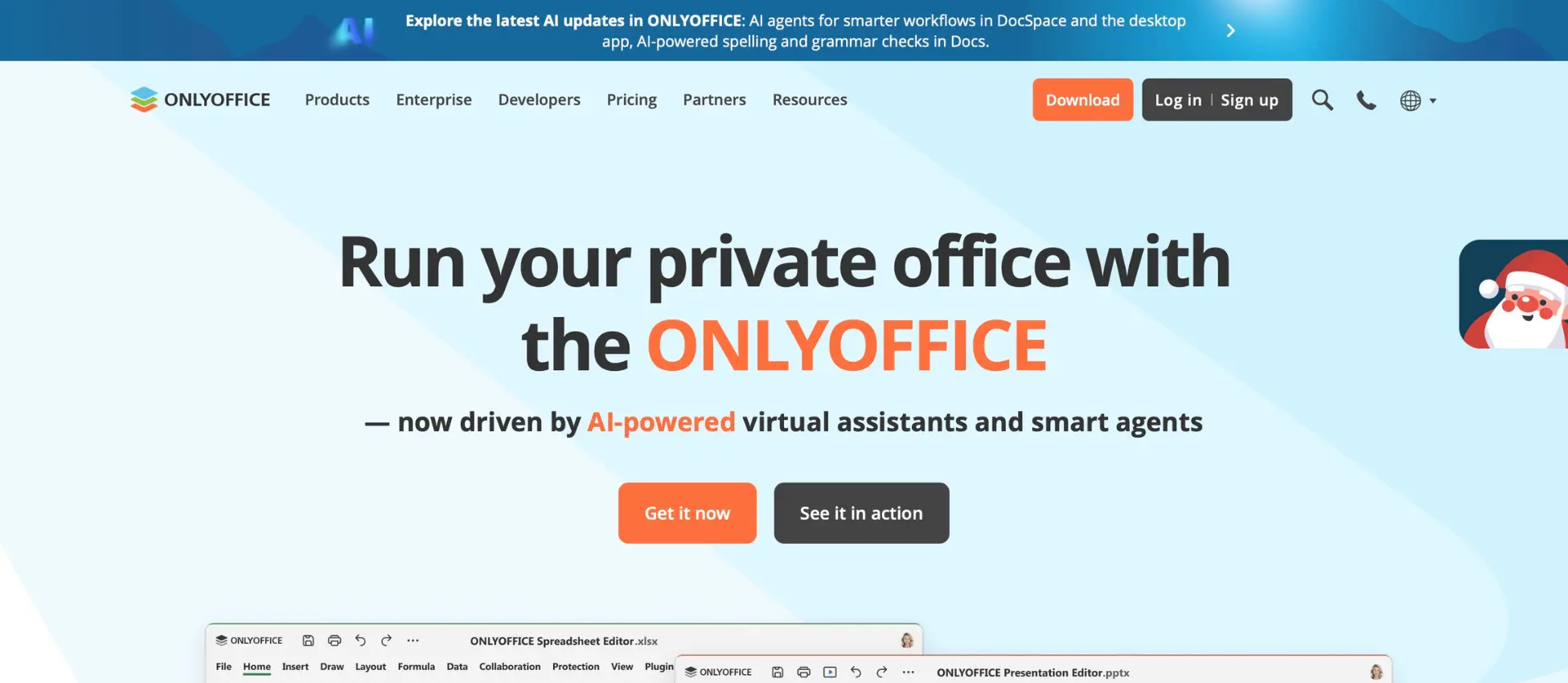
OnlyOffice is an open-source suite for documents, spreadsheets, presentations and PDFs, with collaborative editing online or offline, and it can be self-hosted, which suits teams that want full control of their data or to avoid being tied to one vendor. It handles common file formats well and supports many languages, which helps global teams.
Setting it up and hosting it needs technical skill, which can be a real barrier for a non-technical team, and the interface is less polished than the big cloud tools, but for a team with engineers to run it, the control is worth having.
Verdict: The right pick if you have technical staff and need to host your own documents. The wrong pick for a non-technical team that just wants governed policies running without maintaining servers.
Proton Docs (Privacy focus)
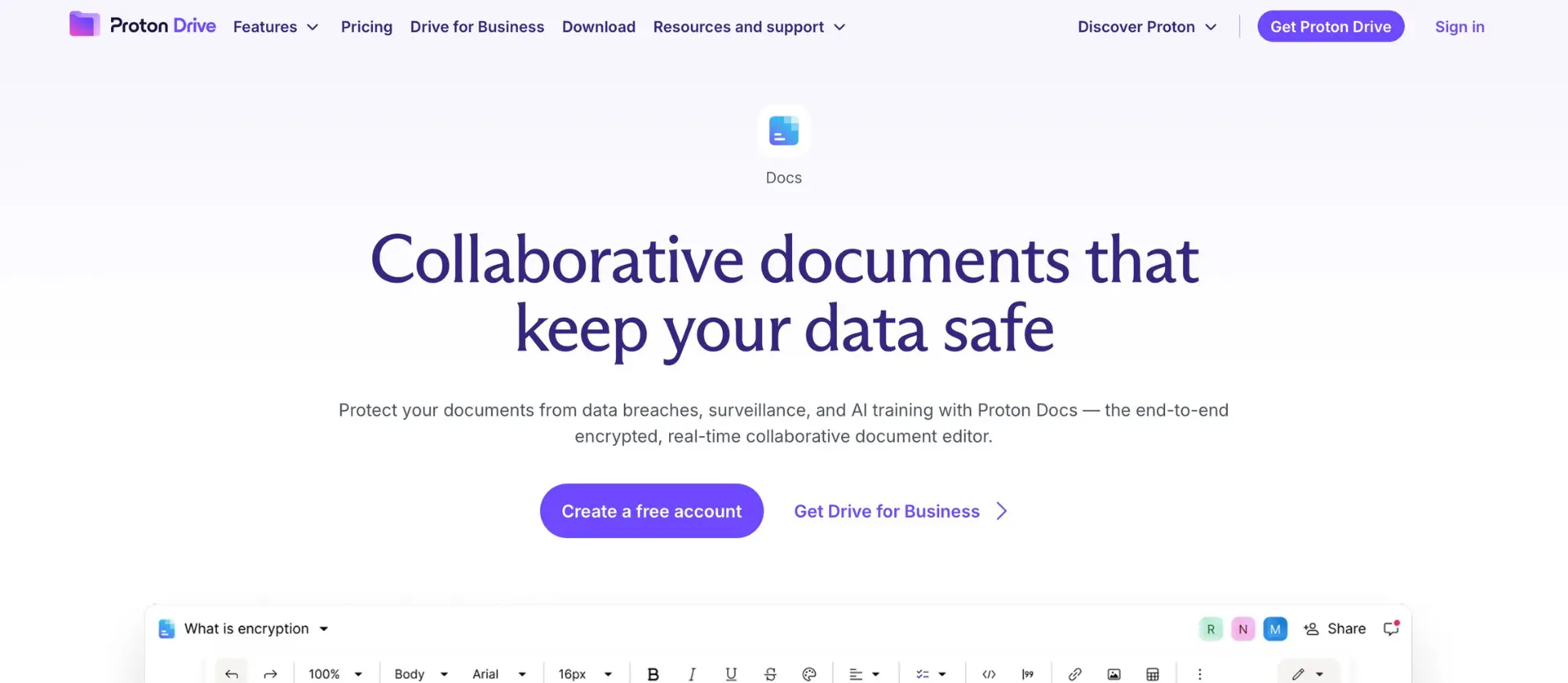
Proton Docs, part of Proton Drive, offers end-to-end encrypted document collaboration, so the content is protected in a way most mainstream editors don’t offer. The editor will feel familiar to anyone who has used Google Docs, while putting privacy first, which makes it a strong fit for especially sensitive internal work.
Its features are more limited than mainstream tools and it has fewer integrations, but if encryption is a hard requirement, it’s the clearest choice on this list.
Verdict: The right pick if end-to-end encryption is non-negotiable. The wrong pick if you need approval workflows, tags and acknowledgment records around your policies, which it doesn’t set out to provide.
Best practices for document collaboration
Even the best tool fails if a team doesn’t use it well, and three habits matter more than the rest.
Every document needs an owner. If nobody is responsible for keeping a document current, it decays, and orphaned documents are the biggest single reason internal documentation stops being trusted within six months.
Templates save more time than you’d think. Standard formats for meeting notes, onboarding pages, policies and FAQs mean readers find what they need faster and writers never start from a blank page.
Review on a schedule, not when something breaks. A quarterly review for most documents means they stay accurate most of the time, instead of being accurate on the day they were written and slowly drifting after that.
The rest is folder structure, naming and your team’s commenting habits, which you’ll work out as you go, and if those are already breaking down, it’s usually a sign you need a tool that builds these habits in rather than leaving them to goodwill.
Making the right choice for your team
Here is the honest version.
If you’re under 30 people, your documents are mostly informal and your team already lives in Notion or Google Docs, you probably don’t need to switch yet, so get one of those working well before you add to your stack.
If you’re 30 to 200 people, your documents are mostly internal, such as HR, operations, policies, onboarding and processes, and you’ve watched them slowly stop being trustworthy as you grew, this is the moment, and AllyMatter is what we built for it.
If you work in healthcare, finance, legal services or another regulated industry, you need approvals, acknowledgment tracking and an audit trail from the start, and we’d start with AllyMatter.
The right tool saves your team hours every week and protects you from compliance risk you can’t see yet, while the wrong one turns into a graveyard of files nobody trusts, so it pays to choose deliberately.
Start your 30-day free trial of AllyMatter. No credit card to start, and a 30-day money-back guarantee if you subscribe and change your mind. Free migration.
Not ready for a trial yet? On yearly plans, migration is on us, and we’ll move your documents over from Confluence, Notion, SharePoint or Google Drive, usually within a week and often sooner.
Frequently asked questions
Can I just use Notion or Google Docs and skip a dedicated tool?
Yes, for a while. If you’re under 30 people and your documents are mostly informal team notes, Notion or Google Docs is enough, and the trouble starts once you have HR policies that need formal approval, compliance documents that people have to acknowledge, or knowledge that has to survive people leaving.
What’s the difference between document collaboration tools and knowledge management?
Document collaboration tools are built for writing together, with real-time editing, comments and version history. Knowledge and policy management is built for what happens after a document is finished, which means search, access control, approvals, acknowledgments and audit trails that keep it trustworthy a year later.
Should we choose a cloud tool or host our own?
Cloud tools suit almost everyone, because they are faster to start, update themselves and cost less up front. Hosting your own only makes sense if a regulation requires it or you have engineers who want infrastructure-level control and the time to maintain it.
What features matter most for remote teams?
Search that actually finds things, one clear owner for every document, and notifications that don’t drown people. Real-time editing matters less than people expect, because most remote work happens in finished documents that people need to find, and integration with Slack helps because that’s where many teams already work.