If you just signed up for AllyMatter and you’re staring at years of Google Drive folders wondering where to begin, the answer isn’t “migrate everything.” It’s “migrate what matters, and do it right.”
Most teams that struggle with this kind of move make it harder than it needs to be. They try to recreate their entire Drive structure on day one, or they export everything without reviewing what’s actually worth keeping. The result is a new platform that looks exactly like the old mess.
This guide skips the theory. You’ve already decided to make the switch. If you want to see how Google Drive and AllyMatter compare side by side first, that’s covered separately. Otherwise, here’s how to make the move.
Step 1: Audit what’s worth migrating (and what to leave behind)
Before you export a single file, spend time inside Google Drive answering one question: is this document still useful?
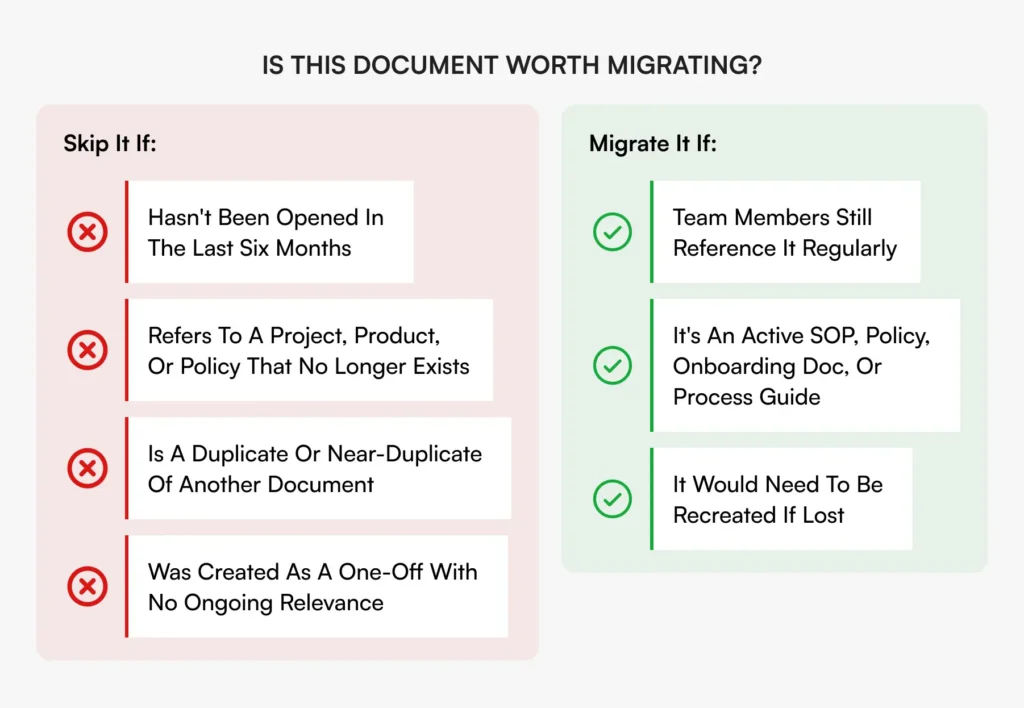
Skip a document if any of these apply:
- Hasn’t been opened in the last six months
- Refers to a project, product, or policy that no longer exists
- Is a duplicate or near-duplicate of another document
- Was created as a one-off with no ongoing relevance
What you want to carry over is your active, reusable knowledge: SOPs, onboarding materials, HR policies, process guides, finance workflows, anything team members still reference or should be referencing.
A simple way to do this is to create a quick audit spreadsheet with these columns:
| Document name | Last modified | Still relevant? | Owner | Migrate? (Y/N) |
This takes a few hours but saves days of cleanup later. It’s also your chance to surface things that exist only in someone’s head and get them written down before you move.
If you’re still weighing the decision, read about why Google Drive falls short as a knowledge base first.
Step 2: Export your Google Docs
Once you know what you’re moving, exporting is a relatively simple process. Google provides a built-in export tool called Google Takeout that lets you download your Drive contents in bulk.
A few things to keep in mind:
- Export documents as .docx (Word format) for the cleanest import experience
- Spreadsheets can be exported as .xlsx
- If you have documents with embedded comments or suggestions, resolve them before exporting to avoid carrying over noise
- Shared drives require the owner or admin to export, so loop in the right people early
Export folder by folder, matching whatever structure you’ve planned for AllyMatter. You’ll set that structure up next.
Step 3: Plan your AllyMatter structure before you import
This is where most migrations go sideways. People import first and organize later, which means they end up with a flat, unsorted pile of documents and spend weeks trying to make sense of it.
AllyMatter organizes documents using a combination of folders, tags, and metadata. You can recreate a folder hierarchy if that’s what your team is used to, but the tag system is where you gain flexibility that Google Drive can’t match. A single document can carry multiple tags across department, geography, document type, and audience, so it surfaces in any relevant search regardless of where it sits in the folder structure.
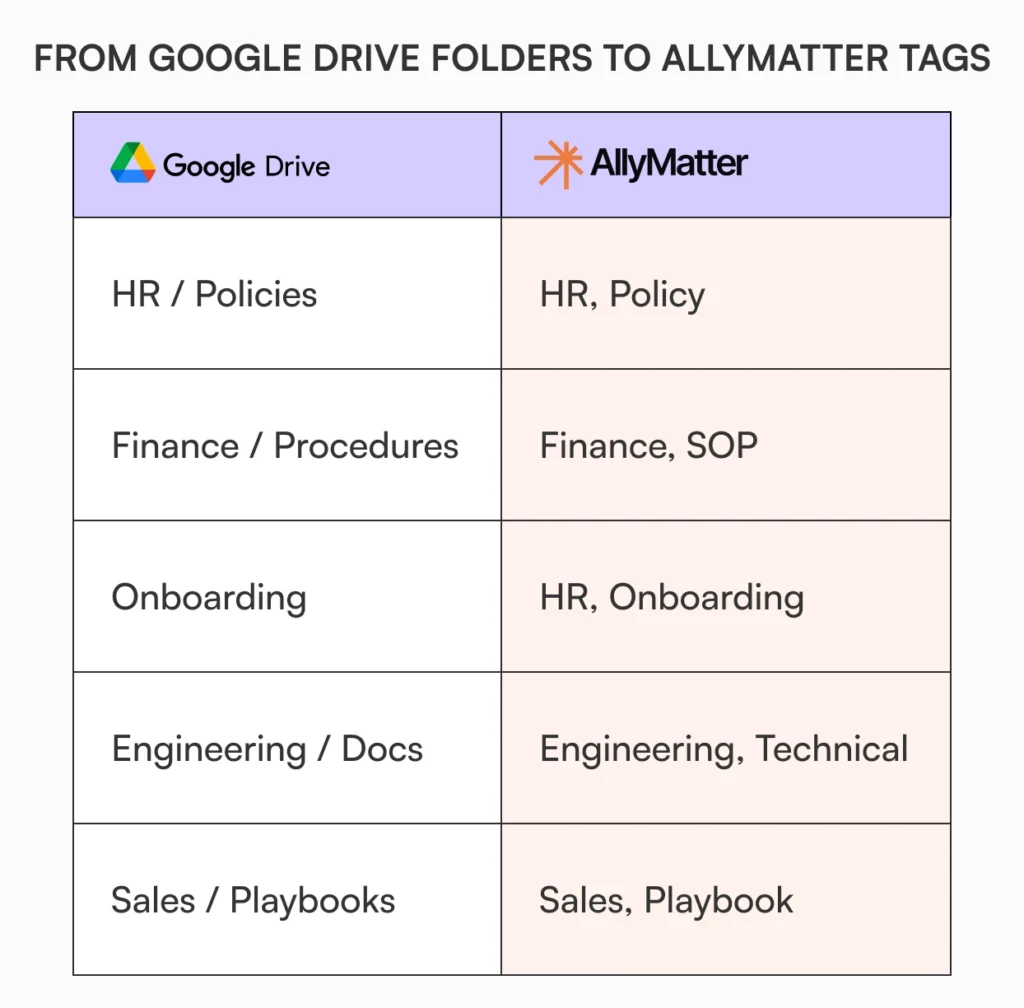
Instead of thinking in folders (HR > Policies > Leave Policies > 2024), think in attributes you can assign to any document: department, document type, audience, geography, status. A leave policy document might carry tags like HR, Policy, Active, and All Staff. That means it surfaces in a search for any of those terms, regardless of where it “lives.”
Before you import, map your top-level Google Drive folders to AllyMatter tags. Do this mapping on paper or in a spreadsheet before you touch the import. It takes 30 minutes and prevents a lot of cleanup later.
Step 4: Import and tag your documents
With your structure mapped and your files exported, you’re ready to bring content into AllyMatter.
Upload your documents and apply your pre-planned tags as you go. Don’t import everything and tag later. Tag each document at the point of upload. It takes slightly longer upfront but prevents the “I’ll sort this later” trap that derails most migrations.
As you upload, also assign:
- Document owner (who is responsible for keeping this current)
- Access level (who should be able to see or edit this)
- Status (is this a live document, a draft, or something pending approval)
AllyMatter tracks all changes through version control from the moment a document enters the platform, so your team has a clean starting point with full history going forward.
Step 5: Set up access permissions using AllyMatter tags
One of the clearest advantages of moving away from Google Drive is leaving behind the permission sprawl that builds up in shared folders over time. In Drive, permissions often get inherited in ways nobody planned, and revoking access when someone leaves is rarely clean.
In AllyMatter, access is managed at the document level. You can set documents to be fully public, visible to internal users only, or private to a specific user. Beyond visibility, you can assign access by role, department, or custom tag, so the right documents reach the right people without manual management every time someone joins or changes teams.
For a full picture of AllyMatter’s knowledge base features, that’s worth exploring once your documents are in.
Take time during this step to review access settings deliberately rather than replicating what existed in Google Drive. This is a good opportunity to tighten permissions that may have drifted over time.
Step 6: Redirect your team
A clean migration means nothing if your team keeps going back to Google Drive out of habit.
A few things that help:
- Send a short announcement explaining the switch, where to find things, and why it happened
- Pin a note on the most-used Google Drive folders pointing people to AllyMatter
- For the first two weeks, have one person available to help teammates locate documents in the new system
- Add a “This document has moved to AllyMatter” note to high-traffic Drive files rather than deleting them immediately
Habit beats mandate every time. Make AllyMatter the obvious place to go, and people will.
Realistic migration timeline (about 2 weeks for most teams)
For a team of 10 to 50 people with a reasonably organized Google Drive, a two-week window gives you enough time to audit, migrate, and redirect your team without rushing.
Two blocks: What a 2-week migration looks like
(Two blocks side by side representing Week 1 and Week 2. Each block lists the focus area and key tasks. Looks like a roadmap, not a table.)
| Week | Focus | Key Tasks |
| Week 1 | Audit and prepare | Run the document auditDecide what migratesMap folder structure to AllyMatter tagsExport files from Google Drive |
| Week 2 | Import and transition | Import documentsApply tags and permissionsSet up access controlsNotify teamMonitor Drive usage |
Larger teams or those with significant folder complexity should budget three to four weeks. The two-week estimate assumes someone is dedicating a few focused hours each day to the migration, not doing it alongside a full workload.
What to do with old Google Drive files
Don’t delete your Google Drive immediately. Give it 30 days.
During that window, treat Drive as read-only: no new documents, no edits. If someone goes looking for something in Drive and can’t find the AllyMatter version, that’s useful signal. Either the document wasn’t migrated and should be, or it was migrated and the person hasn’t learned where to find it yet.
After 30 days, review what’s still being accessed. Migrate anything that was missed. Then you can either archive the Drive or restrict access to a small group of admins as a backup.
Keeping Drive alive indefinitely as a parallel system is the one thing that undermines most migrations. Once AllyMatter is your source of truth, make it the only source of truth.
Ready to move? Start here
Start with the audit. Open your Google Drive, pull up a spreadsheet, and spend an hour deciding what’s worth bringing over. Everything else follows from that.
Try AllyMatter yourself. Explore the live demo.
Frequently asked questions
How long does it take to migrate from Google Drive to AllyMatter?
For most teams of 10 to 50 people, plan for about two weeks. The bulk of that time is the audit and planning phase, not the actual import. Larger teams or those with significant folder complexity should budget three to four weeks.
What format should I export Google Docs in before importing to AllyMatter?
Export Google Docs as .docx (Word format) for the cleanest import. Spreadsheets should be exported as .xlsx. Resolve any open comments or suggestions before exporting to keep the imported version clean.
Do I need to recreate my Google Drive folder structure in AllyMatter?
You don’t have to. AllyMatter supports folders, tags, and metadata, so you can recreate a familiar structure if needed. That said, mapping your Google Drive folders to AllyMatter tags gives you more flexible search and access control than a folder hierarchy alone.
What happens to documents that were publicly shared in Google Drive?
In AllyMatter, you can set any document to “Fully Public,” making it accessible to anyone with the link without requiring authentication. For documents previously shared with specific external individuals, you’ll need to reshare them from AllyMatter and configure access accordingly.

Vikas is a B2B marketing professional with over 14 years of experience in content strategy, messaging, and demand generation. He specializes in turning complex business challenges into clear, actionable stories to connect meaningfully with audiences.